
Skip to content
Log InBook a demo
Book a demo

Product releases

What’s new in Workyard: the features and improvements we’ve shipped.

    • Improved
    • Time Cards

    Find the time cards that need you in one click

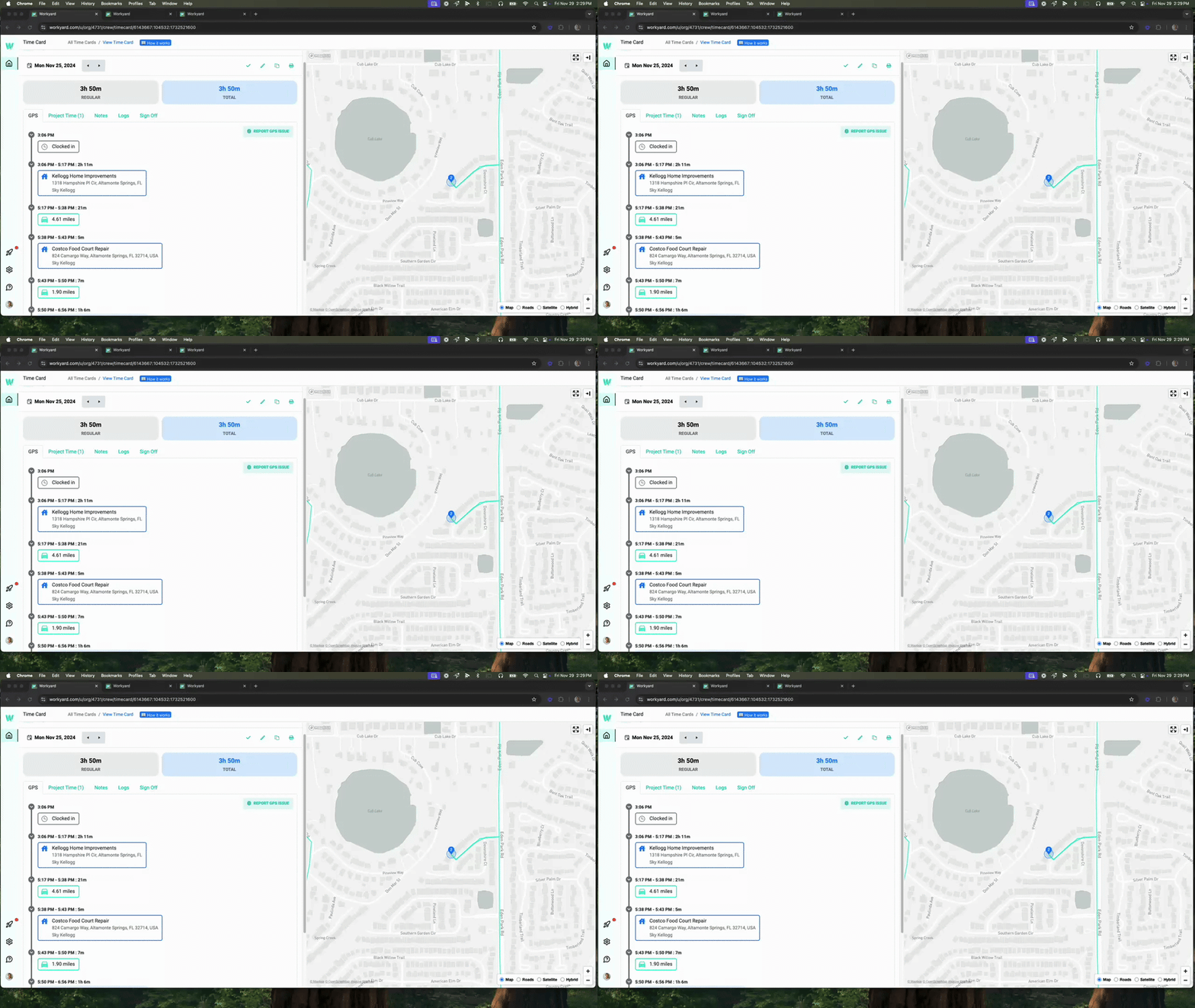
    Screenshot: Find the time cards that need you in one click

    The Time Cards page now has quick filters above your list. Pending approvals, Alerts and Overtime each show a live count for the date range you’re viewing, so you know what’s left to review before payroll at a glance.

    • Pending approvals: shows every time card still waiting on sign off
    • Alerts: shows time cards with issues to fix. Use the dropdown to narrow to one alert type
    • Overtime: shows every worker who went into OT or DT, so you can check it before it hits payroll

    Click a filter to see only those time cards. Click it again to return to the full list.

    No more scrolling the whole week to find the handful that need attention.

    • New
    • Autopilot Plan
    • AI
    • Enterprise Plan
    • Reporting

    Introducing our new Reporting Agent. Any report, in your format, in minutes.

    Stop rebuilding the same spreadsheet every week. Reporting Agent builds the report you need from live Workyard data, in the layout you already send to your owner, GC or accountant.

    How it works

    • Upload a report you use today and Workyard matches the layout. Or describe what you want in a sentence.
    • Pull from time cards, jobs, cost codes, workers, tasks, forms, PTO and pay periods.
    • It saves automatically, then rerun it for any job, crew or date range.

    Where to find it

    It's a new main menu item called "Reporting Agent". All existing reports on Workyard will also appear here.

    Availability

    Web app only. Included in Autopilot and Enterprise plans at no extra cost.

    👉 Learn more here

    • New

    Review, fix, and approve time in one pass

    Screenshot: Review, fix, and approve time in one pass

    Approving time used to mean opening cards one at a time. The new Time Cards page puts every hour your crew logged on one screen, so you can spot problems, fix them across the whole crew, and sign off on the period without the back and forth.

    What's new

    • Views built for how you work: Start with six ready-made views, from daily punches to weekly project and cost code time. You can also group by person, team, project, cost code, or day and save up to 15 views of your own.
    • Bulk edits: Set clock-in, clock-out, or break times, or swap projects and cost codes across every selected card. You see the before and after for each card first.
    • Bulk approvals: Select a whole group or the whole period, project or cost code and approve it in one step.
    • Time off in context: Approved time off sits right next to each person's time cards, so a missing day is easy to tell apart from a day off.

    How to get it

    Available on all plans now. Open Time Cards on web and click Switch on the banner. You can go back to the classic page until November 2, 2026, when it retires.

    Learn more here

    • Improved
    • Integrations

    Project Numbers and Team Member IDs now show across Workyard

    Your field crews and office now see the same job numbers and team member IDs you use in your accounting and payroll system. No more matching "Smith Residence" to job 24-118 from memory.

    Wherever a project or team member appears in Workyard, on web and in the mobile app, their number shows in front of the name, like 24-118 - Smith Residence. If a record has a number, it shows. There's nothing to turn on.

    You an also use these numbers in all search fields to find specific projects and team members.

    Pull numbers straight from your integration

    Open Integrations and click Settings to choose which integration supplies project numbers and which supplies team members IDs. Each is set separately.

    Once a source is set, Workyard fills in the number for every linked record and keeps it current after each sync. Numbers managed by an integration are locked in Workyard and marked "Managed by" with the integration name, so Workyard always matches your system of record. If a change would overwrite existing numbers, you'll see exactly how many before you save.

    If your project names already include the job number, update the project name format in your integration settings so the number doesn't show twice.

    Add your own unique Project or Team Member ID

    Not using an integration that supports Project IDs? Add a Project Number or Team Member Number when you create or edit a project or team member. Each number must be unique within your company.

    Learn more here:

    • Improved
    • Time Cards

    Customize your own overtime rules

    What's new

    • Describe your rule in plain English. Type something like "time and a half after 8 hours a day, double time after 12, weekly overtime after 40" and Workyard builds the rule for you. Fine-tune any detail before you save.
    • Or build it by hand. Set daily overtime, double time, weekly overtime and 7th consecutive day rules at 1.5x or 2x.
    • Pay overtime by time of day. Set your regular working window, and any hours outside it pay at the overtime rate. Add a later cutoff for double time if your late shifts need one.
    • Preview before you save. A sample week re-sorts into regular, overtime and double time hours as you change the rule, including hours outside your regular window, so you know how it gets calculated before it goes live.
    • One company default, always on. Every account now has a default overtime rule based on your state. It covers every worker who doesn't have their own rule, so no one is ever left without one.
    • Override by person. Assign a different rule to specific workers whose pay terms differ from the rest of the crew.

    Already using Workyard?

    Your existing overtime rules carried over as they were, and nothing about how your overtime is calculated for your crew has changed. The difference is you can now see every rule on the Overtime rules page and edit it yourself.

    • New

    Expenses: Fix "merchant not supported" declines right from the transaction

    🔗What's new

    Declined transactions in Expenses now name the blocked merchant category right in the Reason column — no hover required.

    A new Fix action opens a panel that explains the decline, warns that you're approving the whole category and not just that one store, and adds the category to the card in two clicks. Admins can tick other declined cards, or flip "Apply to all active cards", to fix it for the whole crew at once — the row then flips to Fixed and confirms how many cards changed. The change shows up in the card's Spend & ATM Limit Policy, where the category list is now searchable and puts recently used categories at the top.

    💡 Why it matters

    • Crews stop hitting repeat declines at the same merchant — one fix covers every card that needs it
    • Admins resolve it at the moment they're looking at the decline, instead of hunting through card settings
    • Cardholders keep trusting the card will work
    • New

    Expenses: Link any US bank to fund your expense cards

    🔗 What's new

    You can now connect your business bank account and fund your expense cards from inside Workyard, even when your bank can't be connected instantly.

    If an instant connection isn't available, you'll get a micro-deposit option instead of a dead end:

    • No bank login needed. Enter your account and routing number, and we'll send a $0.01 deposit. Confirm the three-letter code from your statement in one to two business days and you're linked. This works with any US bank account, including banks that don't appear in the list.
    • Faster where your bank supports it. On banks that accept real-time payments, that code arrives in seconds and you finish without leaving the screen.
    • Nothing to come back to. If you logged in but we couldn't read your account numbers, we'll confirm the deposit for you in the background — usually one to two business days.

    Accounts waiting on a deposit now show in the funding screen under "Finish verifying," so you can pick up where you left off.

    💡Why it matters

    • Your bank no longer decides whether you can fund in-app. If it's a US bank account, you can link it.
    • No wire, no ACH push from your bank's portal, no leaving Workyard to get money onto your crews' cards.
    • You don't have to hand over the online banking login for your operating account if you'd rather not — the account and routing number is enough.

    Money reaches your crews' cards sooner, so nobody's held up at the supply house waiting on a transfer.

    • New

    Export Expense Transactions to Sage 100 Contractor for Seamless Accounting

    🔗 What's New

    You can now export transactions from Workyard for use in Sage 100 Contractor, making it easier to move expense data into your accounting system.

    This export includes essential transaction details—such as date, merchant, amount, cardholder, and any linked Workyard project or cost code—along with attached receipts, so each expense is fully documented. You can export the transactions you’ve reviewed and import them into Sage 100 Contractor without manual re-entry.

    💡 Why This Matters

    Construction accounting often requires expenses to be accurately tied to jobs and cost codes. This export helps ensure that transaction data and receipts stay connected when moving from Workyard into Sage 100 Contractor, reducing manual work, minimizing errors, and supporting clean, auditable records.

    Whether you’re reconciling expenses regularly or preparing for month-end close, this integration streamlines your accounting workflow and keeps project-level expense data aligned across systems.

    • Improved
    • Time Cards
    • Integrations

    Export time cards by team

    Screenshot: Export time cards by team

    When exporting time to an integration or custom file, you can now filter the time cards to include by selecting a team, instead of individual team members.

    For contractors exporting time on a daily cadence, this keeps each export scoped to exactly the crew you want to include. Exporting locks those records to "exported". So, if you run prevailing wage and non-prevailing wage work on separate teams and pay periods, you can export one team without freezing the other's cards.

    • Improved
    • Time Cards
    • AI

    Time Assistant: Expanded Access & Chat Archiving

    Two updates are now live:

    • Broader data access for admins: Time Assistant can now pull from Teams, Rule Groups, and the full org-wide team member list. This is available to organization admins only, since managers don't have access to all the team members, teams, or rule groups. Applies to new sessions started after today.
    • Archive your chats: You can now archive Time Assistant conversations to keep your workspace tidy while holding on to past sessions.
    • New
    • Scheduling & Tasks
    • Geofences
    • Smart Forms

    Smart Forms now fire when your crew reaches a geofence or get a task

    We've launched 2 new Smart Forms triggers to help make it easier for your crew to complete important forms on site.

    What's new:

    Geofence triggers - The form fires the moment a clocked-in worker reaches the geofence, and again at the next job. Every submission lands on the right job. Works offline.

    Task triggers - Attach a form to a task and assign it. It sends a notification to the worker that opens straight to the form. If it's due on the same day the worker's clocked in, it will appear in their list of forms to complete before they clock out that day.

    Learn more about geofence triggers and task triggers

    • Improved
    • Time Cards
    • AI

    Time Assistant now available for managers

    Cleaning up time cards no longer has to sit with the office. Managers can now run Time Assistant in the web app on their own crews' hours.

    A manager sees only the time cards they're responsible for: their direct reports, their teams, jobs they manage, and anyone they're set as time approver for. Nothing else shows up.

    Managers can only edit their own time card if their rule group allows clock editing.

    Time Assistant will be available shortly on our mobile app for both managers and admins!

    • New
    • Time Cards

    Clock your whole crew in one tap — Shortcuts is here

    Running a full-crew action used to take multiple clicks and screens — open the menu, hand-pick each worker and hope nobody errors out at the end. Now it takes one tap.

    Shortcuts is a new screen in the Workyard mobile app built for foremen and supervisors. Clock the whole crew in, send everyone to break, change project time or cost codes— one tap, done.

    What makes it different:

    • It checks before offering an action: Workyard suggests who's on site, who's on approved PTO, and what job and cost code the geofence says you're on. What you tap goes through — no picking workers one by one, no generic error because someone wasn't on the clock.
    • It learns how you run your day: Your most-repeated actions get pinned. Suggested actions show up based on your crew's state and time of day.
    • Build your own: Save the crew actions you run every day as custom one-tap Shortcuts. Supers who don't clock in can log a full day for themselves and the crew in one pass.

    Update to the latest version (26.7.31) of the Workyard mobile app to get Shortcuts today.

    • New
    • Smart Forms

    Form submissions now go to the right person - automatically

    Until now, every form submission would land with someone who had to download it and forward it to whoever needed it - the PM on that job, the mechanic, the safety lead.

    Now you can route submissions to the people who need to act on them, so nobody plays middleman.

    What's new:

    • Add "Project Managers" as recipients: If your form has the Project data field set up, you can now route each submission to go to the relevant manager(s) of the project it's tied to.
    • Route a specific answer to a specific person. Set an answer as "unexpected" - like "Was anyone injured? → Yes" or "Is the machine operational? → No" - and send it straight to the right person. Injuries go to your safety lead. Down equipment goes to your mechanic. The moment it's submitted, not when it's next forwarded.
    canny-combined

    This came straight from what contractors told us - routing submissions by hand was the single most-requested change to how form notifications work.

    Learn how to set it up →

    • New
    • Time Cards
    • AI

    Fix project and cost code time right in AI Time Assistant

    The Time Assistant already fixes clock times and breaks from a chat. Now it handles the other half of pre-payroll cleanup: moving time to the right project and cost code.

    Ask in plain language — "move all hours from 6/21 to 7/4 off job #26011 and onto job #22091" — and the assistant proposes the change, shows the old allocation struck through next to the new one, and lets you review the full breakdown before you approve. Nothing changes until you say so.

    You can also just ask where time landed: "show me hours on the Riverside job this period."

    That's the full cleanup loop — time, breaks, project time — in one place, without clicking through timecards one at a time. Fewer hours landing on the wrong job means job costing you can actually trust.

    • Improved
    • Integrations

    Include time off in your QuickBooks Online export

    Time off now exports to QuickBooks Online alongside worked hours. Before, PTO, sick, and holiday hours had to be keyed into QuickBooks by hand every pay period — one more place for the numbers to drift. Not anymore.

    If you're on QuickBooks Online Payroll, check Include Time Off Activity when you export. Workyard pulls the time off recorded in the app, maps it to the right QuickBooks pay type, and sends it over with the rest of the timecard. Worked hours and time off, one export, ready for payroll.

    One-time setup: map each of your Workyard leave policies to its matching QuickBooks pay type. After that, every export handles time off automatically.

    Learn more here

    • New
    • Integrations

    Acumatica integration: sync your jobs and export payroll-ready time

    Workyard now connects directly to Acumatica. Bring your Acumatica data into Workyard, then send your reviewed time cards back out for payroll — no re-keying, no CSV shuffling between systems.

    🔗 What's new

    Connect your Acumatica instance to Workyard in a few steps. Once connected, Workyard keeps the two systems in sync:

    • Import your employees, projects, cost codes, and earn codes from Acumatica, so your crews are tracking time against the same jobs and codes your office already uses.
    • Export time cards straight to Acumatica, with each employee mapped to the right payroll item so hours land where they belong.
    • Include time off in the same export — PTO and other leave flow through with the correct earn codes, alongside worked hours.

    💡 Why it matters

    If you run payroll and job costing in Acumatica, keeping it fed has meant exporting spreadsheets and re-entering hours by hand every pay period. Now your field hours are GPS-verified in Workyard and exported to Acumatica payroll-ready — mapped to the right people, jobs, and pay items. Fewer manual steps, fewer errors, and time cards you can trust before payroll runs.

    • New

    Export Expense Transactions to Quick Books Desktop for Seamless Accounting

    🔗 What's New

    You can now export transactions from Workyard for use in QuickBooks Desktop, making it easier to bring expense data into your accounting workflow.

    This export includes key transaction details—such as date, merchant, amount, cardholder, and any linked Workyard project or cost code—along with attached receipts, so supporting documentation stays connected to each transaction. You can export exactly the transactions you need and import them into QuickBooks Desktop without manual re-entry.

    💡Why This Matters

    For teams using QuickBooks Desktop, moving expense data between systems has often meant extra steps and manual cleanup. This export simplifies the process by providing clean, structured transaction data with receipts included, helping reduce errors, speed up reconciliation, and keep your records audit-ready.

    Whether you’re managing expenses day to day or preparing for month-end close, this export helps keep Workyard and QuickBooks Desktop aligned.

    • New
    • Time Cards

    Time Assistant now turns your crew's notes into ready-to-approve edits

    Available now in Time Cards → Time Assistant

    When a worker leaves a note on their timecard — "I only took 30 minutes of break," "I clocked out at 5, not 6" — you used to have to read each one and make the correction by hand. Not anymore.

    Our Time Assistant now reads the notes on your flagged timecards, tells you which ones actually need a change, and proposes the exact edit. The correction is already filled in — the right break duration, the right clock-out time — so there's nothing to hunt down or re-enter. You review it and approve.

    It also knows what to leave alone. A note that's just a comment ("this is my June 3 timecard") won't trigger a change — only the ones that call for a real correction do.

    What it looks like

    A worker notes they only took a 30-minute break. Time Assistant flags the card and proposes cutting the break from 42 minutes to 30, keeping the 11:30 AM start.

    A worker notes they clocked out at 5 PM, not 6. Time Assistant proposes changing the clock-out from 6 PM to 5 PM.

    Nothing changes until you say so. Every edit is a suggestion you approve, so you stay in control of what lands on payroll.

    Screenshot: Time Assistant now turns your crew's notes into ready-to-approve edits
    • New

    Export Expense Transactions to Netsuite for Seamless Accounting

    🔗 What's New

    You can now export transactions from Workyard for use in NetSuite, making it easier to keep your financial data accurate and in sync.

    This export includes key transaction details—such as date, merchant, amount, cardholder, and any linked Workyard project or cost code—along with attached receipts, so supporting documentation stays connected to each transaction. You can export the transactions you’ve reviewed and import them into NetSuite without manual re-entry.

    💡 Why This Matters

    For teams using NetSuite, managing expenses across systems can add unnecessary complexity. This export simplifies the process by providing clean, structured transaction data with receipts included, helping reduce manual work, speed up reconciliation, and support audit-ready financial records.

    Whether you’re handling day-to-day expense management or preparing for month-end close, this integration helps keep Workyard and NetSuite aligned.

    • New

    Expense Cards: Minimum Balance Auto-Top-Up

    Workyard Business Checking account balances for Expense cards now refill themselves — admins set a minimum threshold and a refill method, and Workyard tops up the Business Checking balance automatically before cards start declining.

    🔗 What's new

    Admins can now set their own funding rules — a minimum balance threshold plus a refill method — and Workyard automatically tops up the Business Checking balance whenever it dips below that line. Admins keep full visibility and control: they can see when and why a top-up happened, and turn it off or adjust it at any time.

    💡 Why it matters

    • Field crews stop hitting declined transactions caused by a low Business Checking balance
    • Admins keep cards reliably funded without manually monitoring or moving money
    • Eliminates avoidable back-office firefighting and protects field trust in the cards

    🎥 Watch the video on how it works below.

    Expense Balance Auto Top Up
    • New
    • Time Cards

    Clean up a whole pay period of time cards using Time Assistant

    Your next pay-period review can start with a sentence instead of a hundred clicks.

    Our new Time Assistant lets you fix an entire pay period of time cards by typing what you want in plain English, right inside the Time Cards tab. Instead of clicking through every card hunting for the same problems, you describe the fix once and review the whole batch in one screen.

    A few things you can ask it to do....

    "Round all start times to the nearest 5 minutes."

    "Flag every time card with a break under 30 minutes."

    "Find shifts shorter than 30 minutes and show them to me."

    You stay in control of every change. The assistant never edits a time card on its own, it returns suggestions, you review them, and nothing is saved until you approve it.

    How to get started

    Try your first prompt. Pick the edit that always eats your morning before payroll.

    1. Open the Time Assist tab on the Time Cards page to start.
    2. Works on your current pay period or you can select past pay periods.
    3. Enter your prompt and see the results to approve
    • New
    • Smart Forms

    Professional Reports: view any form submission as a client-ready PDF

    Your forms already capture the work. Now you can share it professionally.

    Any form submission - daily reports, JSAs, vehicle pre-trips, and more - can now be viewed as a clean, client-ready report and downloaded as a PDF. No screenshots. No stitching Word docs together. No reformatting before it goes to a client or GC.

    Frame 1

    What's new

    • A Professional Report view for every submission. Open any submission, click the Report icon, and see it as a polished report. Toggle back to the raw submission anytime.
    • Professional by default. Clean layout, company header, and your logo if it's on the form template. Everything that matters is on the page. Photos, signatures, time and location stamps, comments, and structured fields. Empty questions and unexpected-answer call-outs are hidden automatically.
    • Hide what the client doesn't need. Keep internal-only fields internal.
    • Download as a PDF. Generate and download from your desktop.

    Open any form submission and click the View Report icon to try it.

    Available to admins and managers on plans with Forms.

    Learn more

    • Improved
    • Integrations

    QuickBooks payroll exports now map overtime automatically

    QuickBooks released an update that now allows Workyard to handle your overtime mapping for you, right inside the export. Start your payroll export, Workyard sets up and updates the mapping automatically — no separate configuration screen to wrestle with first.

    What's new for you:

    • One fewer step every pay period
    • Overtime maps into QuickBooks correctly without manual setup
    • Fewer stalled exports and less back-and-forth to get payroll out the door

    If you've been exporting payroll to QuickBooks, you don't need to do anything — the new flow is already live!

    • New

    Timecard Autofill in Smart Forms

    Your crew often has to enter the same labor hours twice - once in timecards, and again in daily reports. With Timecard Autofill, they don't have to anymore.

    Your timecard data can now be automatically pulled into Smart Forms, so your crew can finish any form without retyping a thing.

    See how it works

    Screenshot: Timecard Autofill in Smart FormsScreenshot: Timecard Autofill in Smart Forms

    What's new

    • Your timecard hours automatically fill into your Smart Forms when you submit
    • Works with any Smart Form - great for Daily Reports, Work Orders, Service Tickets, Safety attendance forms, and more
    • Your timecards stay the source of truth - Autofill just brings the data into your form
    • Everyone sees the right data - admins see the whole team's hours, workers only see their own

    Why it's useful

    • Spend less time on paperwork at the end of the day
    • No more mismatched hours between your timecards and reports
    • Your cost codes stay accurate, making job costing and billing easier

    👉 Learn more

    • New
    • Expense Management

    Fund your Workyard Business Checking (Expense) account directly from the Workyard app

    New: Fund your Workyard Business Checking account directly from the Workyard app.

    Customers can now securely connect their external bank account and transfer funds into their Workyard Business Checking account without needing to log into their bank separately.

    🔗 What’s new

    You can now:

    • Securely connect your bank account using Plaid
    • Transfer funds directly in-app using ACH
    • Choose the amount to transfer and fund your account in a few steps

    💡 Why this matters

    Previously, customers needed to log into their external bank to push funds to their Workyard account. This sometimes caused delays or required costly wire transfers.

    With in-app funding you can:

    • Fund your account faster after approval
    • Avoid switching between banking apps
    • Reduce the need for wire transfers
    • Easily fund even if your bank doesn’t support sending to Workyard’s routing number

    🛠️ How it works

    • Navigate to your Workyard Expense account via the Expenses menu in the Workyard Web app
    • Select the Account tab
    • Select Fund your account
    • Connect your external bank securely via Plaid
    • Enter the amount you want to transfer
    • Confirm the transfer
    • Funds will be transferred via ACH from your connected bank account

    Note: You can decide which Expense Admins can have access to the funding experience via the "Access & Permissions" tab in the Expense menu.

    • New
    • Smart Forms

    New: Edit Smart Forms Submissions

    Sometimes a worker submits a form with missing or wrong info. And suddenly you're in a spreadsheet, fixing it manually, before you can share it anywhere. Not ideal.

    The good news? That extra step is gone. Admins can now edit Smart Forms submissions directly in Workyard.

    What's new:

    • Edit text fields, dropdowns, checkboxes, and Workyard fields (projects, cost codes, etc.) right inside the submission
    • Switch between View and Edit mode as needed
    • Every change is logged with a name and timestamp - you'll always know who updated what and when
    Edit forms

    Note: Signatures and file uploads can't be edited.

    Who can edit: Admins only. Managers and workers see the updated version but can't make changes.

    Available now on the Workyard desktop web app.

    👉 Learn more

    • New

    Auto Project Time Tracking - Clock Out Enhancements

    What's new

    We've redesigned the cost allocation suggestions flow. Workers now see the customer name alongside the project name when selecting projects, and each % slider now shows the actual hours worked (e.g. 4h 30mins) rather than just a percentage.

    Why it matters

    When workers tag time across multiple projects, similar project names made it hard to pick the right one. And splitting by percentage alone was abstract — workers had no way to know what 45% actually meant in hours without doing the math themselves.

    How it works

    • On the project selection screen, each project now shows its customer name below the project name
    • On the time split screen (both projects and cost codes), the calculated hours appear alongside each % slider and update live as the slider moves

    See these enhancements

    • New
    • Expense Management

    New! Export Expense Transactions to Quickbooks Online

    🔗 What’s New

    You can now export Workyard Visa Debit Card transactions directly to QuickBooks Online (QBO).

    Approved expenses—including receipts and job or cost code allocations—can be pushed into QBO instantly. You can also mark eligible transactions as billable, making invoicing in QBO faster and easier.

    💡 Why This Matters

    • Eliminate manual data entry between Workyard and QBO
    • Speed up month-end close with fewer reconciliations
    • Improve accuracy of expense categorization
    • Keep project costs clean and up to date
    • Turn expense tracking into effortless client billing
    • Maintain real-time financial reporting without extra steps

    🛠️ How it works

    1. Go to Expenses → Accounting.
    2. Connect to QuickBooks Online (if you haven’t already).
    3. Select your Workyard Business Checking Account in QBO.
    4. Choose the transactions ready for export and send them over.
    2026-02-06_14-01-29 (1)
    • New
    • Smart Forms

    New! Location & Timestamp Automation in Smart Forms

    We’ve added a powerful new enhancement to Smart Forms - you can now record location and/or timestamp data for any question in your form, including photo uploads.

    This gives your team reliable, automated context for every response, making it easier to validate work completed onsite, confirm when inspections occurred, and maintain accurate, auditable records.

    Screenshot: New! Location & Timestamp Automation in Smart Forms

    What’s new

    • Enable Location and/or Timestamp collection on any question type
    • Automatically record this metadata at the moment a worker answers the question
    • For photo questions: metadata captures when the photo is taken or uploaded
    • View all captured metadata in the form submission
    • Clear fallback states if location or timestamp can’t be captured

    Why it’s useful

    • Provides trustworthy proof-of-work for safety checks, jobsite documentation, deliveries, and inspections
    • Reduces disputes and improves auditability with transparent, verifiable data
    • Ensures consistent location/time capture without extra steps for the field team
    • Works seamlessly across all question types, not just photos

    Try it today

    Open any template in the Smart Form Builder, choose a question, and toggle on Capture Location or Capture Timestamp in the settings panel.

    Preview the behavior, publish, and start collecting richer, more accurate data instantly.

    👉 Learn more

    • New
    • Smart Forms

    New! Calculation Formulas for Smart Forms

    We’ve launched five new Calculation Formulas to help automate some common calculations directly inside your Smart Forms - no spreadsheets needed.

    New Calculation Types:

    • Equipment & Material Cost Calculations
    • Volume Calculations
    • Distance Travelled (Mileage Logs)
    • Labor Cost Estimation
    • Invoice / Billing Calculations (with Markup)
    Screenshot: New! Calculation Formulas for Smart FormsScreenshot: New! Calculation Formulas for Smart Forms

    Why it’s useful:

    • Totals are calculated automatically - no manual math or external sheets needed
    • Perfect for cost tracking, T&M jobs, and field measurements
    • Fewer data entry errors, and keeps calculations visible and auditable

    ➡️ Try it today: Add a Calculation Formula in your template and choose the type that fits your workflow.

    📘 Learn more here: Calculation Formulas

    • New
    • Projects
    • Smart Forms

    New! Smart Forms in your Project view

    You can now view all Smart Forms submissions directly inside each Project - making it easier for teams to stay organized, track field documentation, and monitor progress in one place.

    With this update, all form submissions, grouped by form name, related to each project will appear in a dedicated Forms tab.

    Screenshot: New! Smart Forms in your Project viewScreenshot: New! Smart Forms in your Project view

    ➡️ Try it today: Open any Project, click on the Forms button on the top right of the screen, and see all related form submissions, grouped by form name.

    👉 Learn more

    • Improved
    • Time Clock Rules

    Manual & Default Options for Project Time Tracking

    Screenshot: Manual & Default Options for Project Time Tracking

    You now have more flexibility when setting up rules for your team assigns time to projects, thanks to the new option to switch between manual and default project selection modes.

    What’s New

    You can now choose a manual mode for project/time assignment, giving teams more control at clock-in.

    Previously

    • Default project/cost code selection was only available for Kiosk Clock Ins
    • There was no way to disable auto-defaulting projects based on geofence proximity.

    What’s Improved

    With this update, teams can:

    • Disable automatic project selection based on jobsite proximity and enforce a manual selection
    • Set specific default projects or cost codes when clocking in

    These changes provide tighter control over how time is tracked, reduce incorrect assignments, and make the system more adaptable to different workflows

    • New
    • Pro Plan
    • Autopilot Plan
    • Starter Plan
    • Expense Management

    Meet Workyard Expense Management. Smarter spending for every job site.

    Screenshot: Meet Workyard Expense Management. Smarter spending for every job site.

    We’re excited to announce the launch of the Workyard Expense Visa® Debit Cards— a smarter, simpler way to manage field expenses.

    Now you can issue Visa® debit cards to your team with built-in spend limits, merchant restrictions, and receipt compliance, all from the same Workyard app your crews already use for time tracking. Every purchase is automatically tagged to the right project and synced with your accounting system, giving you real-time visibility into where every dollar goes.

    With Workyard Expense Visa® Debit Cards, you can:

    • Prevent overspending with live controls on what, where, and how much can be spent
    • Capture receipts and project tags at clock-out — no more chasing paperwork
    • Track every material, fuel, and other purchases by job in real time
    • Sync expenses directly to accounting for instant reconciliation

    And the best part? Workyard Expense Visa® Debit Cards are included with your Workyard plan, at no extra cost.

    • Improved
    • Scheduling & Tasks

    Notifications for Notes on Scheduled Tasks

    MacBook Air - 1

    We’ve added a simple but powerful boost to team communication. Whenever someone adds a note to a scheduled task, task assignees and watchers will get notified automatically—so context isn’t lost, and work keeps moving!

    • New
    • Smart Forms

    New! AI Translation in Smart Forms

    We’ve added a powerful new AI Translation feature in our Smart Forms product - making it easier than ever to instantly localize your smart forms into multiple languages.

    You can now auto-translate all form fields, labels, and descriptions into your chosen language - no manual entry or external tools required.

    Whether your teams work in English, Spanish or Portuguese, you can ensure consistency and accuracy across every form.

    Screenshot: New! AI Translation in Smart Forms

    How to enable AI Translation:

    1. Open your form in the Smart Form Builder.
    2. Navigate to the Translations tab.
    3. Select the target language (e.g., Español or Português).
    4. Click Auto-translate all - and watch your form instantly update with AI-generated translations.
    5. Review, edit if needed, and hit Apply to finalize.

    You can preview translations in real time, switch languages seamlessly, and publish multilingual forms to your field teams in seconds.

    👉 Learn More

    • New
    • Time Clock Rules
    • Pro Plan

    New! Verify Clock Outs with Facial Photos

    Screenshot: New! Verify Clock Outs with Facial Photos

    We’ve introduced a new feature that allows clock outs to be verified with facial photos. When team members clock out, they can be prompted to capture a photo to confirm it’s really them completing the clock out.

    How to enable clock out facial photos:

    1. Go to your settings > Company > Time > Time Clock
    2. Select the rule group you'd like to apply the setting to
    3. Open Time Tracking Settings
    4. Choose whether to capture facial photos for clock ins, clock outs, or both by toggling the options on
    • New
    • Smart Forms

    New! Smart Forms Template Library

    We’ve launched the Smart Forms Template Library - a fast, searchable way to discover, preview, and quickly create forms that your team needs most.

    👉 Learn How It Works

    Choose from 200+ forms, covering trades like Electrical, HVAC, and Earthwork, along with essential use cases including Daily Job Reporting, Vehicle Inspections, and JSAs.

    Screenshot: New! Smart Forms Template LibraryScreenshot: New! Smart Forms Template Library

    How to get started in 3 steps:

    1. Open the Templates tab in Smart Forms.
    2. Find and select a template using the search bar or category filters, then click Use Template.
    3. Edit and publish the form in the Form Builder - it will appear in your My Library.
    • New
    • Projects
    • Pro Plan
    • Autopilot Plan

    Draw geofences that match the real shape of your job site

    6bfe13db-23f3-4d4b-b332-121d99ba5904

    We’ve launched Custom Geofences: A powerful new way to define exactly where work happens.

    Instead of placing side-by-side circles or enlarging them, you can now draw a custom geofence perimeter that matches your site’s real layout. Whether you're overseeing roadwork crews or managing dozens of properties, you’ll get cleaner timecards and more reliable location tracking.

    How to get started in 3 steps

    1. Go to your Project Hub > Add Project and click “Draw geofence.”
    2. Click to draw points around the location perimeter
    3. Save, and watch your timesheet automatically fill with precise entries.

    Watch this demo on how you can convert any of your existing geofences to a custom boundary.

    No extra fees—Custom Geofences are included in all Pro and Enterprise plans.

    • Improved
    • Scheduling & Tasks
    • Pro Plan
    • Autopilot Plan

    Filter tasks & group calendar schedule by team

    Filter Tasks

    Screenshot: Filter tasks & group calendar schedule by team

    You’ll now find a new filtering option available across both your calendar and task list views. This enhancement lets you filter tasks by Status, Labels, Projects, Project Groups, Customers, and Team Members for greater visibility and control.

    Team Grouping for Daily & Weekly Calendar Views

    Screenshot: Filter tasks & group calendar schedule by team

    Under the Group By dropdown in the calendar view, you’ll now find a new option to group task rows by Team. To use this feature, go to Team Members and click + Team to create a team group. Once set up, you can apply it directly to your schedule for easier organization.

    • New
    • Smart Forms

    New! Save Draft Submissions in Smart Forms

    Frame 2

    👉 Learn How It Works

    Field interruptions are constant. Now, your crews don’t have to start over when they can’t finish a form. With Draft Submissions, workers can save what they’ve filled in, come back later, and finish on their own time.

    With this feature available on our mobile apps, this helps your team:

    ⏳ Stop and resume anytime – If a worker gets pulled away mid-form, they can tap Save Draft and pick up where they left off from their form library or clock screen.

    📶 Work offline – Drafts can be saved and filled in offline when forms are triggered by clock-in, perfect for remote or low-signal job sites.

    📂 Track evolving work – Some forms take all day to complete. Drafts make it easy to start with what’s known now, and then finish the rest later.

    Whether they’re logging hours, capturing inspection results, or submitting jobsite notes, Draft Submissions give your crews flexibility without sacrificing data quality.

    • Improved
    • Scheduling & Tasks

    Send notifications on task updates

    We're excited to announce a new enhancement to your task management workflow — you can now send email and mobile app notifications to assignees when task details are updated!

    🆕 What’s New?

    A new checkbox option labeled “Send Notification” is now available in the Edit Task Details panel. When checked, this feature will automatically notify all assigned users via email and mobile app notifications.

    This ensures your team is always up to date when changes are made to:

    • Task start or due dates and times
    • Assigned projects
    • Or other relevant task details

    ✅ How to Use It:

    1. Navigate to a task and select Edit.
    2. Make the desired changes.
    3. Ensure the “Send Notification” checkbox is selected (enabled by default).
    4. Click Update.

    That’s it — your assignees will instantly receive a notification!

    🔕 Want to Skip Notifications?

    Simply uncheck the box before saving your changes to silently update the task without triggering any alerts.

    Screenshot: Send notifications on task updates
    • New
    • Integrations
    • Autopilot Plan

    New! Export notes to Sage 100 Contractor

    Sage 100 Notes Export

    You can now choose to export all notes from time cards in Workyard to Sage 100 Contractor when exporting time. This includes notes being mapped over to the right customer when they have a project tagged in Workyard. This new configuration option makes it easier to ensure you capture all the details of work performed when finalizing your invoices in Sage 100.

    Want to enable this feature? Reach out to us at help@workyard.com or send us a message—we’ll get you set up!

    • New
    • Smart Forms

    New: Connect Forms to Projects & More!

    👉 Learn How It Works

    Screenshot: New: Connect Forms to Projects & More!

    Connect the dots between your field and office. Add Workyard Fields to your Smart Forms to connect your field documentation to specific projects, customers, cost codes, and more.

    This allows your team to:

    ✍️ Simplify form input - with preloaded, searchable options based on your data in Workyard, reducing manual entry errors and saving time.

    🔍 Filter form submissions by these attributes - helping you quickly find forms related to specific jobs, customers, or team members.

    📊 Export reports that include Workyard fields, both in CSV summaries and PDF, for cleaner record-keeping and analysis.

    Whether you’re managing job site reports, safety checklists, or customer-facing documentation, Workyard Fields helps streamline operations and helps your crew get back to the task at hand.

    Need help getting started? Book time with our team and we’ll help you set up your forms to get the most out of it.

    👉 Book a set up time with our team

    • New
    • Integrations

    New! Export notes to QuickBooks Online

    QBO Notes Export

    You can now choose to export all notes from time cards in Workyard to QuickBooks Online when exporting time. This includes notes being mapped over to the right customer when they have a project tagged in Workyard. This new configuration option makes it easier to ensure you capture all the details of work performed when finalizing your invoices in QuickBooks.

    Want to enable this feature? Reach out to us at help@workyard.com or send us a message—we’ll get you set up!

    • New
    • Smart Forms

    Introducing Smart Forms

    Paper forms get lost. Crews forget to submit reports. Critical details don’t make it back to the office on time.

    With Smart Forms, your crews can fill out and submit essential information instantly—right from the Workyard app they already use to clock in. The right data, at the right time, with zero hassle. No more delays, no more errors, no more back-and-forth.

    To help you get started, you’re getting 50 free submissions every month—on us.

    Have questions?

    👉 Book a demo with our team

    • New
    • Improved
    • Time Clock Rules
    • Pro Plan
    • Autopilot Plan
    • Starter Plan

    New! Flexible Location Tracking Options

    Screenshot: New! Flexible Location Tracking Options

    Not every crew needs the same level of location tracking—and now, you don’t have to treat them all the same. You can now customize location tracking settings by team or individual to match the level of detail you need.

    When setting up Time Clock Rules, there’s a new option to choose how location tracking is applied for the selected group.

    One of the new options available is to track location only at clock in and clock out. This is ideal for crews who stay at one job site all day and don’t require driving activity tracking.

    Note: This option disables features like auto clock in, auto-fill clock out time, and automatic project time tracking, as those rely on continuous location tracking.

    • New
    • Time Clock Rules

    New! Reminder & Auto Clock In Settings for Teams

    Screenshot: New! Reminder & Auto Clock In Settings for Teams

    We've added enhanced controls to help you customize how your team clocks in when entering a project geofence. You can now choose between:

    • Automatic Clock In: Team members are automatically clocked in upon entering a geofenced project area.
    • Mobile Notification: Send a notification to clock in if they have entered a geofenced project and not yet started the clock.
    • Disabled: Turn off all geofence-based clock in reminders and automation for clock ins.

    Note: if the disabled option is selecting this will stop any geofence entries, exits and notifications from being recorded while people are clocked out.

    • New
    • Integrations
    • Pro Plan
    • Autopilot Plan

    New! Export Notes to QuickBooks Desktop

    QBD Notes Export

    You can now choose to export all notes from time cards in Workyard to QuickBooks Desktop when exporting time. This includes notes being mapped over to the right customer when they have a project tagged in Workyard. This new configuration option makes it easier to ensure you capture all the details of work performed when finalizing your invoices in QuickBooks.

    Note: Support for exporting notes to QuickBooks Online is coming soon!

    Want to enable this feature? Reach out to us at help@workyard.com or send us a message—we’ll get you set up!

    • New
    • Integrations
    • Pro Plan
    • Autopilot Plan

    New Billable Time Export Option for QuickBooks

    You can now choose to export all time marked as billable when sending time to QuickBooks Online or QuickBooks Desktop. This new configuration option makes it easier to ensure billable hours are accurately captured in your accounting system.

    Want to enable this feature? Reach out to us at help@workyard.com or send us a message—we’ll get you set up!

    • New

    🚀 Streamline Payroll Compliance with Work Hours Summary Sign-off!

    Still chasing your team to review their work hours before processing payroll?

    Automatically prompt your team to verify their total recorded work hours at the end of every pay period, all through the Workyard app.

    🌟 Why Enable It?

    ✅ Save Time: No paper chasing. No more back-and-forth. Get hours verified quickly so you can process payroll and workers get paid.

    ✅ Build Audit Trails: Save signed-off records of all updates for audit-ready reports.

    ✅ Stay informed: Receive a notification when a crew member requests a time correction so you can address it in real-time.

    👉 Activate Now

    Learn How to Activate it

    Note: Download the latest iOS and Android apps to use this feature.

    • New
    • Project Time
    • Autopilot Plan

    Automatic Project Time Tracking now available to trial

    Your team no longer have to manually clock in and out at different jobs throughout the day. Once they clock in, we handle the rest. Time is automatically assigned to projects and driving based on their location and automation rules you configure.

    Automatic Project Time Tracking is included in Enterprise plans. It's available to trial on Starter and Pro plans.

    To start a trial, go to your Company Settings > Project Time > Select Automatic Project Time Tracking

    Or, book a time with our team to get started: Book A Time

    • New
    • Time Cards
    • Time Clock Rules

    New Feature Alert: Workyard Kiosk

    Introducing an all new way to track time of your crew. Workyard Kiosk is an integrated time tracking solution that works with our existing mobile apps. Workyard Kiosk allows multiple crew members to report their time activity from a single shared device (an ipad). This is ideal for crew members working in warehouses, shops or long term projects.

    Why you should use Workyard Kiosk?

    • Flexibility: Choose between app based vs kiosk based time tracking based on your crew's preference.
    • Integrated experience: Any crew member can use either kiosk or mobile app for reporting their time anytime. For e.g. you may clock-in from kiosk and clock-out from the app.
    • Security: Workyard Kiosk uses Kiosk PIN and face detection to authenticate your crew. No more buddy punching even on a shared kiosk.
    • Compliance: Workyard Kiosk also offers compliance protection with time card sign offs on clock-out

    Learn more about how Kiosk works here

    Kiosk is available on Pro and Enterprise plans. For Stater plans, Kiosk is now available to trial. To start a trial, go to your Company Settings > Kiosk > Enable Kiosk Mode

    Or, book a time with our team to get started on a trial: Book A Time

    • New
    • Time Card Sign Offs
    • Autopilot Plan

    Time Card Sign Offs available to trial

    Ask compliance based questions on every clock out, such as, if anyone was injured, if all meal / rest breaks have been taken and capture signatures to stay compliant and protect your business.

    Time Card Sign Off is included on our Enterprise plan. It's available to trial on Starter and Pro plans.

    To start a trial, go to your Company Settings > Time Clock Rules > Enable Time Card Sign Offs

    Or, book a time with our team to get started: Book A Time

    • New

    New Feature Alert: Team Actions for Supervisors

    Managing time for your entire crew just got easier! With Team Actions, supervisors can clock in, clock out, and update time entries for multiple team members all at once. Perfect for teams on shared shifts and tasks, this feature keeps records consistent and accurate.

    How to Use Team Actions:

    1. Create a Team and assign a supervisor or manager.
    2. Use Team Actions to clock in/out and update breaks and project time instantly.

    Find more details here.

    Say goodbye to individual time entries and streamline your crew’s time tracking today!

    • New
    • Time Card Sign Offs

    New Time Card Sign Off Summary Report

    This new feature is available for all accounts on our Enterprise plan. If you'd like a free trial of our Enterprise plan, book in a demo here.

    What's new

    Our new report type allows you to download a summary of all time card sign offs that have been completed. The summary report includes the time card details, all questions/answers and signatures.

    How to download a time card sign off summary report

    1. Go to the time cards page from the web
    2. Click on the Download Report button
    3. Then select the Time Card Sign Offs report type
    4. Select the team members you'd like included and the date range
    5. Select the report format, either CSV (Spreadsheet) or PDF
    Screenshot: New Time Card Sign Off Summary Report

    Example of PDF Report

    Screenshot: New Time Card Sign Off Summary Report
    • New
    • GPS Tracking

    Improve GPS Tracking on Android with Battery Optimization

    Only available on Android app version 1.52.2 or higher.

    Battery optimization on Android can affect GPS tracking by limiting background activity to conserve power. This may cause delays, reduced accuracy, or temporary loss of GPS signals. Apps relying on real-time location data, like Workyard, may experience inconsistent performance unless battery optimization is set to unrestricted.

    Now when clocking in, we check if the phone has Battery Optimization set to restricted. If it's restricted, we have a new permission that asks your team members to switch battery optimization to unrestricted before clocking in. This setting is optional, although they will be prompted every time they clock in until their setting is updated.

    Here's a video on how it works:

    https://www.loom.com/share/c02230c8c0214bfe9a748e57b986ce79?sid=5d999c16-c7ae-43ec-9a9b-2b98cad64b63

    • New
    • Time Cards
    • Time Clock Rules
    • Time Card Sign Offs

    Time card detail reports now include time card sign offs

    When downloading the Time Cards (Detail) report, a new option to include time card sign offs is now available.

    This option will include a link within the report to open and view the time sign off questions answered and signed for every time card.

    Find out how you can use time card sign offs to ensure safety and time compliance questions are answered and signed off on for every clock.

    Book a call here to learn more.

    Screenshot: Time card detail reports now include time card sign offs
    • New
    • Time Off

    Sage 100 Contractor: Import time-off activity from Workyard

    Time off activity recorded in Workyard can be exported to Sage 100 Contractor now. You can also export it to Foundation, QuickBooks Desktop/Online and more systems will be covered soon.

    To export time off data to Sage 100 Contractor, follow the simple steps:

    Screenshot: Sage 100 Contractor: Import time-off activity from Workyard
    1. On the web app, click on Export to export time activity
    2. Select the pay period or date range
    3. Select team members
    4. Select "Sage:Sage 100" as "Export to" value
    5. Check the box to "Include time off activity"
    6. And click "Start Export"

    When doing it for the first time, you will be asked to map the time off policy in Workyard to earn codes/payroll items in Sage 100 Contractor as shown below.

    Screenshot: Sage 100 Contractor: Import time-off activity from Workyard

    And that's it, you can now use the time off activity data imported into Sage 100 Contractor for payroll or leave balance updates.

    Learn more about Workyard Time-off feature here.

    • New

    Use Clock-in Photos To Avoid Buddy Punching

    Workyard brings to you a new way to verify clock-ins to avoid buddy punching. You can now ask selected team members to submit a facial photo when they clock-in.

    Go to Company Settings to enable the "Verify clock-in with facial photo" rule as part of rule groups and download the latest version of mobile apps to try it. Learn how it works

    • New
    • Time Off

    Download Time Card Reports With Paid Time-off (PTO) Hours

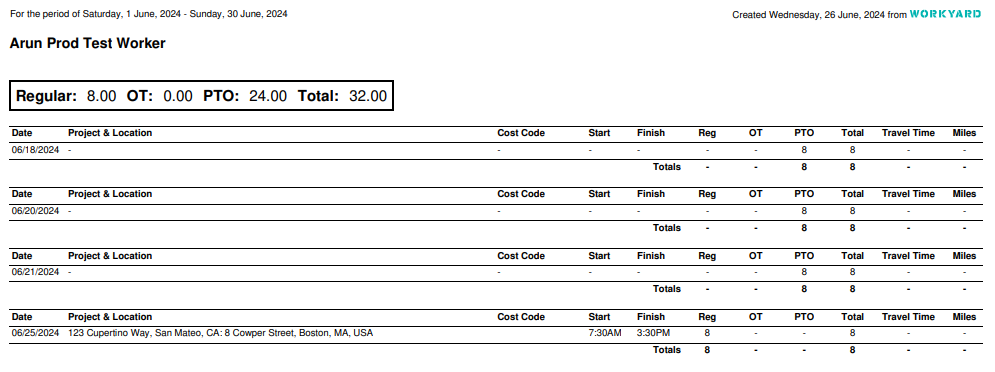
    Time card reports will now show the paid time-off hours of the team members for the selected period. Learn more about managing time-off in Workyard.

    Please note that ONLY approved paid time-off and holiday pay hours are shown in the time card reports. Pending time off requests and unpaid time-off hours are not part of the time tard reports.

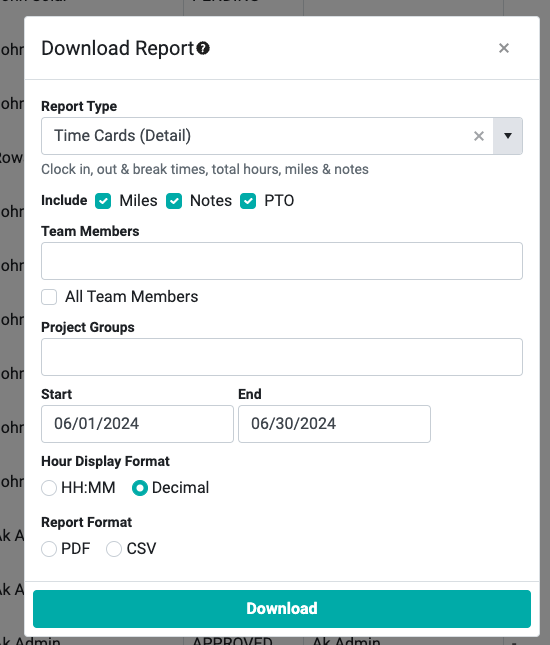
    To download the time cards report with PTO hours, check the PTO option (checked by default) when downloading the report.

    Screenshot: Download Time Card Reports With Paid Time-off (PTO) Hours

    PTO hours are shown in the following time card reports:

    1. Time Cards (Detail)
    2. Pay period time
    3. Project & Cost Code Time (Detail)

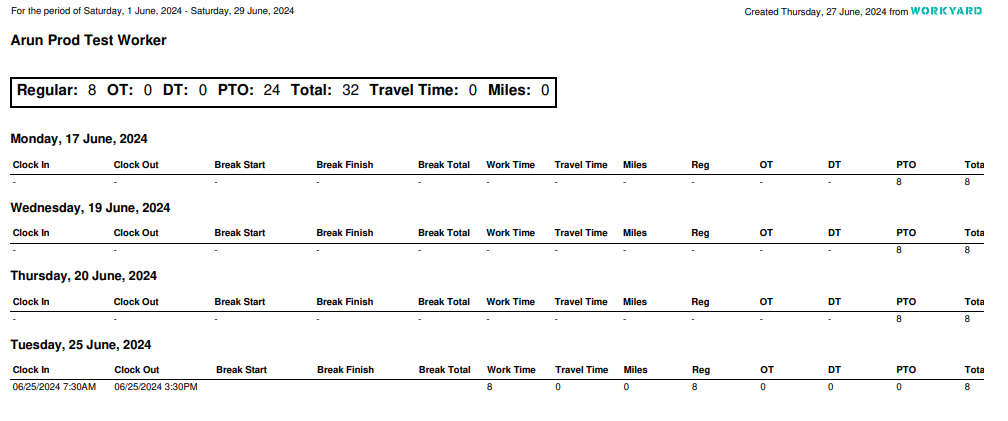
    Sample Time Cards(Detail) report with PTO hours looks like the following:

    Screenshot: Download Time Card Reports With Paid Time-off (PTO) Hours

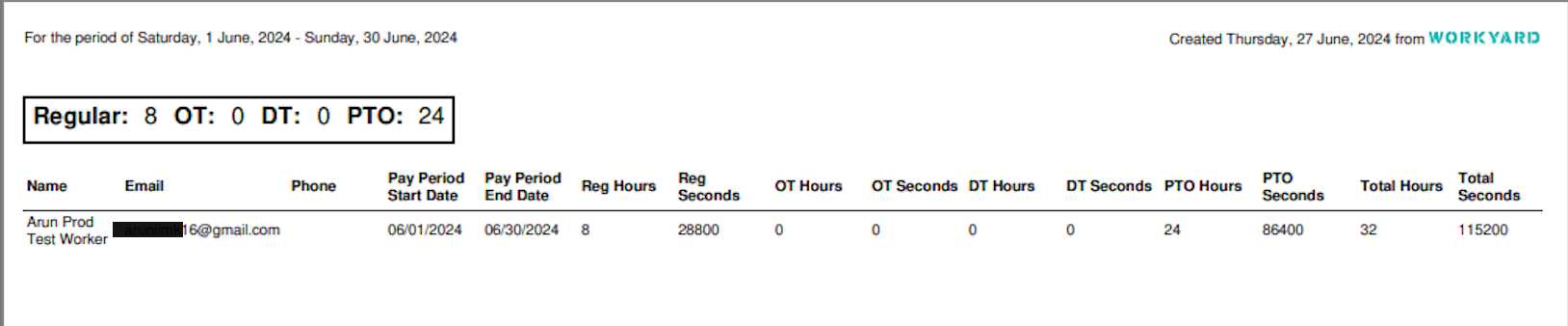
    Sample Pay period time report with PTO hours looks like the following:

    Screenshot: Download Time Card Reports With Paid Time-off (PTO) Hours

    Sample Project & Cost Code Time (Detail) report with PTO hours looks like the following:

    Screenshot: Download Time Card Reports With Paid Time-off (PTO) Hours
    • Improved
    • GPS Tracking

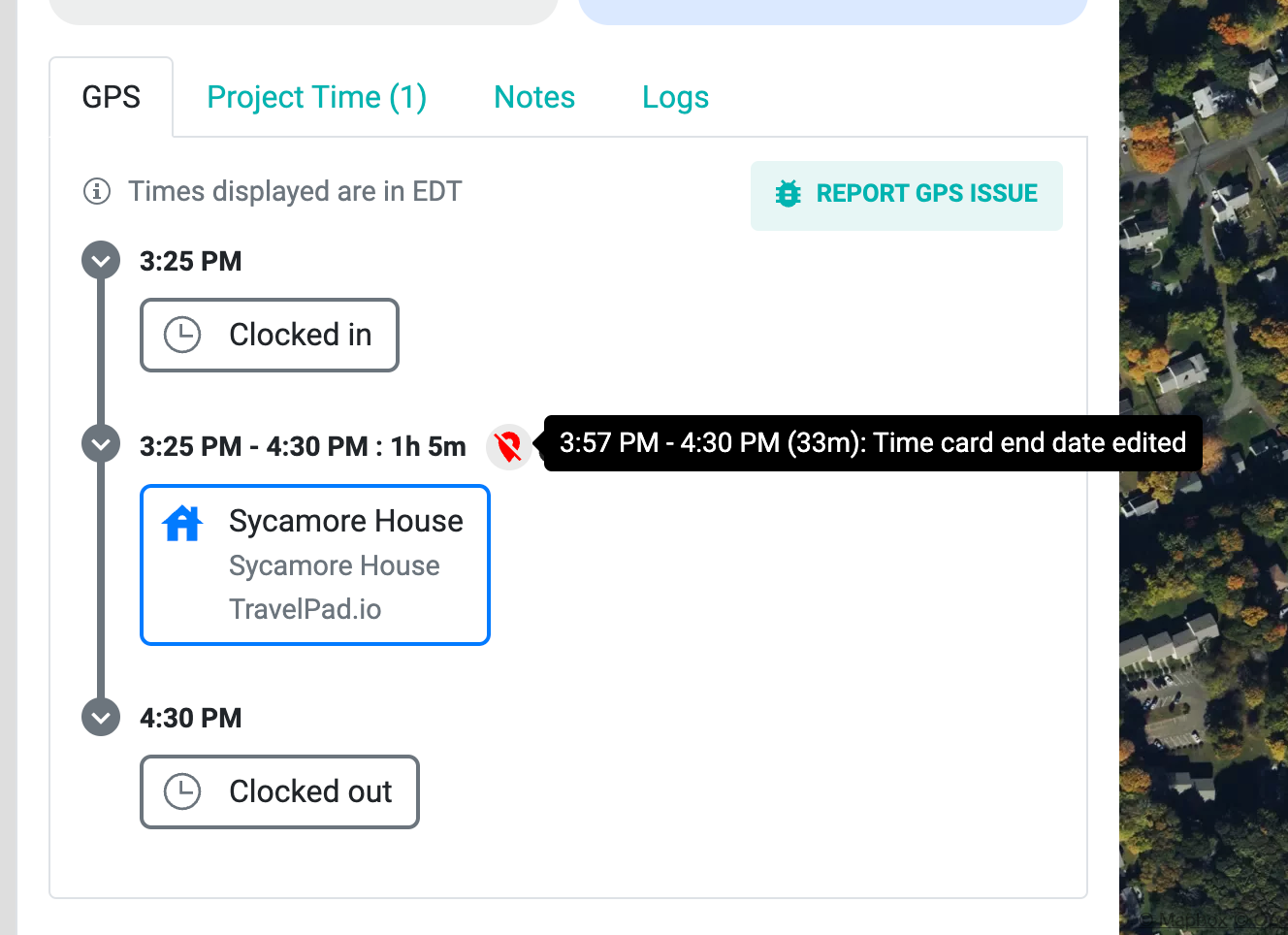
    New lost gps signal reason when a time card end time is edited

    Screenshot: New lost gps signal reason when a time card end time is edited

    If a time card end time is adjusted beyond the time the clock out occurred, a new lost gps signal will be displayed stating the lost signal is due to the end time edit.

    For example:

    1. The clock out occurred at 4pm
    2. An admin changes the clock out time to 4:30pm
    3. This will create a lost gps signal between 4pm-4:30pm as the gps tracking stopped at the time of clock out (4pm)
    • Improved
    • Geofences

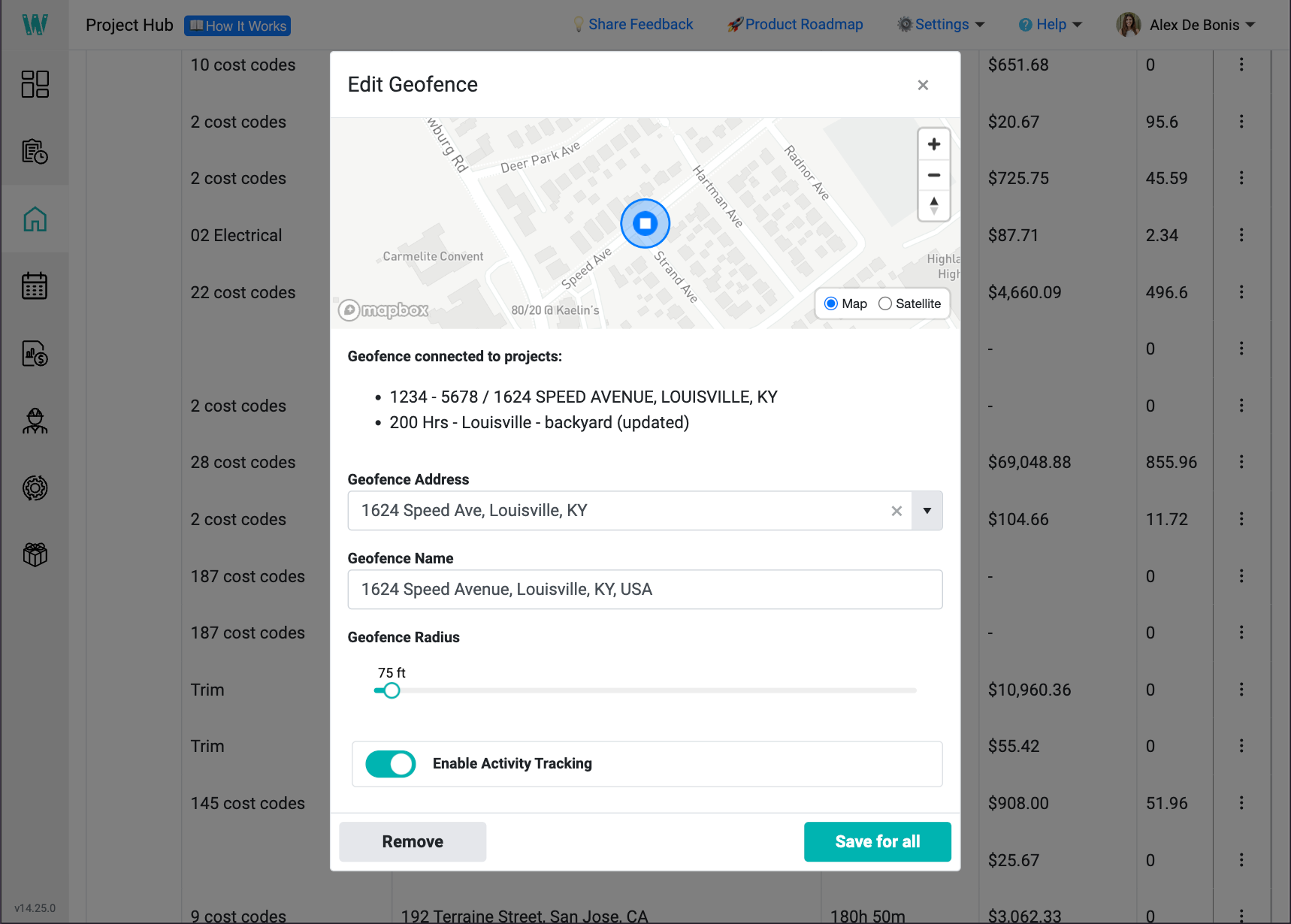
    Editing a project geofence now displays other connected projects

    Screenshot: Editing a project geofence now displays other connected projects

    When editing a geofence, we now display all the names of the projects that share the same geofence that the update will apply to.

    To remove a project from being connected to a shared geofence, select the "remove" option.

    • Improved
    • Time Off

    iOS App Version 1.50.0 release

    The latest version of our iOS app contains the following improvements:

    • Support for selecting team member groups when creating time off entries
    • A new first time clock out onboarding experience for workers that describes what happens after their first clock out
    • Improved
    • Time Off

    Android App Version 1.48.0 Release

    The latest version of our Android app contains the following improvements:

    • Support for selecting team member groups when creating time off entries
    • UI update to display of total hours and approval action on the time cards page
    • Improved
    • Time Cards

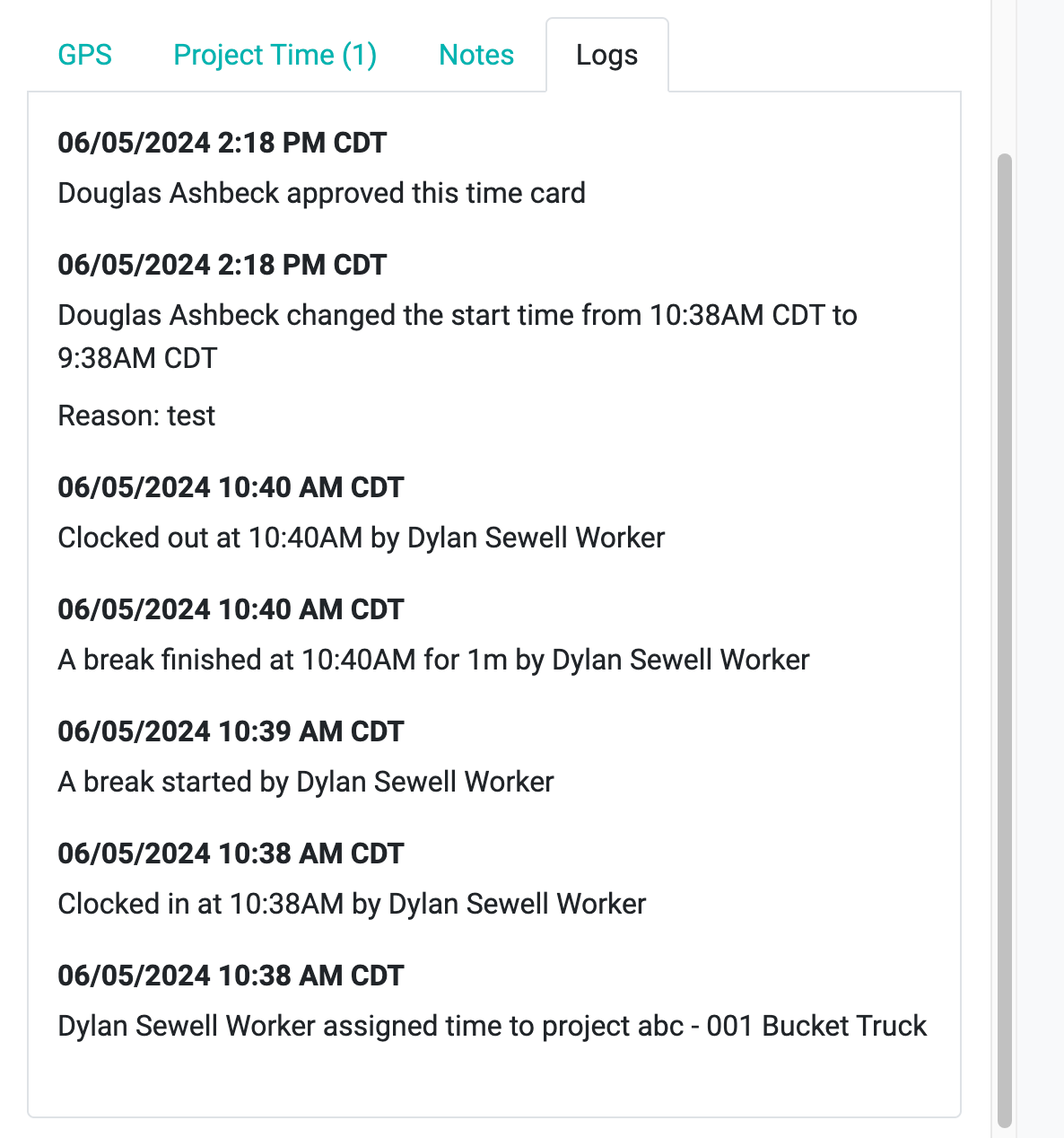
    New & Improved Time Card Logs

    When viewing a time card, under the logs tab you are able to view a change log of when an updated is applied and who applied it to a time card.

    We've added and improved the following log types:

    • Improved break logs: A new log is created for when a new live break is started, when a live break is ended and if an existing break is updated.
    • Time clock rule actions: Logs are now created for auto clock ins, auto meal break inserts, auto trim of clock out time
    Screenshot: New & Improved Time Card Logs
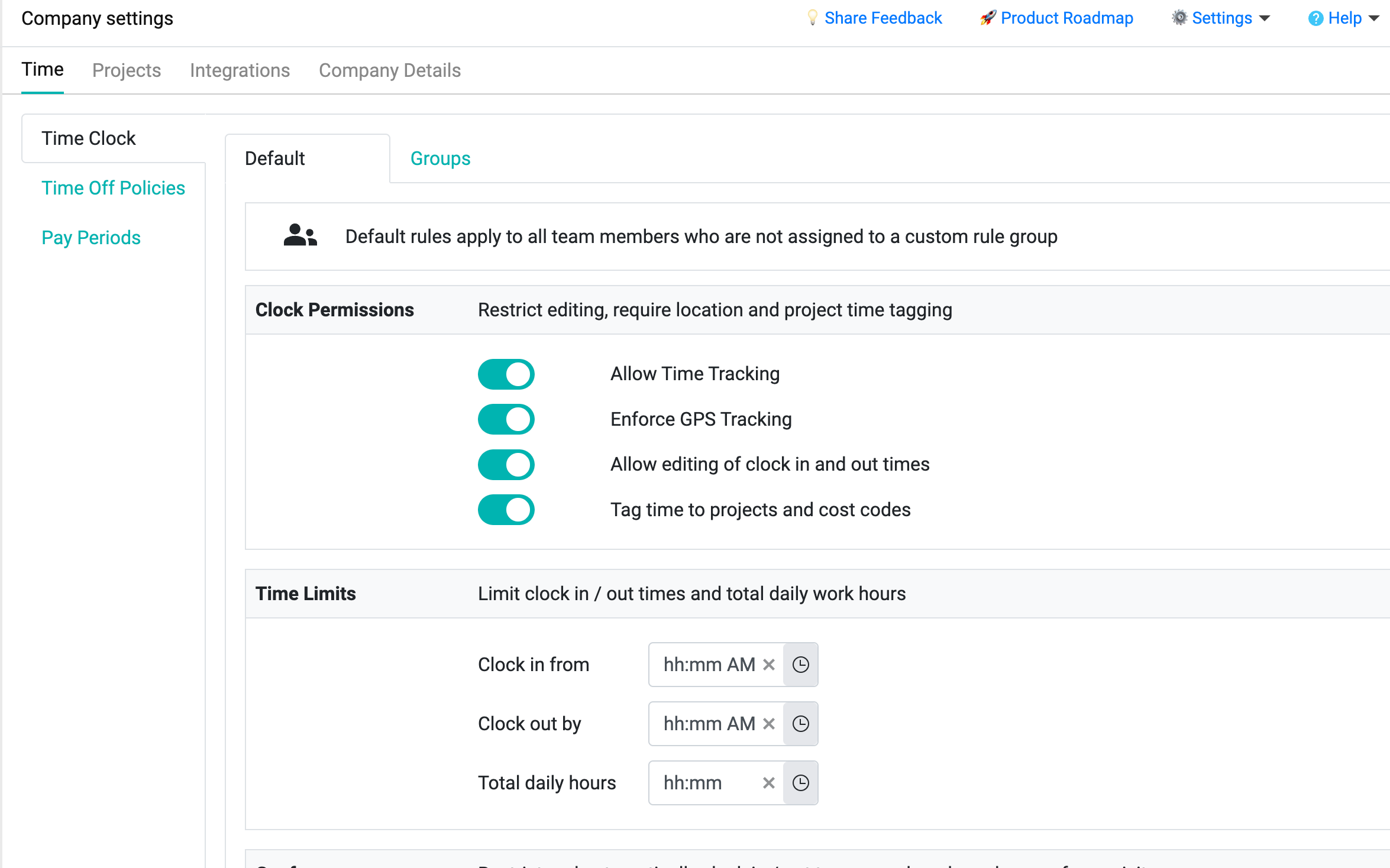
    • Improved
    • Settings

    Company Settings Menu Updates

    Organization settings are now named Company Settings. Setting options are now organized under our major product areas:

    • Time: Contains Time Clock Rules, Time Off Policies and Pay Period Settings
    • Projects: Contains Archive & Restore Project Settings
    • Integrations: Contains Integration Mappings and QuickBooks Online Auto Sync Settings
    • Company Details: Contains general company information, such as organization name, state location and timezone
    Screenshot: Company Settings Menu Updates

See Workyard on your own jobs

Start a free trial, or book a walkthrough with a specialist who knows your trade.

Book a demo with a Workyard specialist

Your local Workyard specialist

Works with 50 contractors across the US

Your details

30 min · Video call