
Enterprise · 100+ employees
Every crew in view. Every hour right in your ERP.
From one division to twenty, Workyard puts every crew on one live picture and lands each verified hour on its job and cost code in your ERP. Run the business on this week’s numbers, not last month’s payroll.
Sound familiar?
Where hours go wrong between the field and your ERP
The problem
“It’s astronomical what we lose a day due to inaccurate timekeeping.”
The solution
Hours backed by where they happened
Every punch carries its GPS location and is checked against the job’s geofence, so hours are settled by the record, not by memory or a round of phone calls.
The problem
“It takes three people to hand key all the time sheets.”
The solution
Hours land in your ERP, coded
Every hour goes to your ERP coded to job and cost code, through an out-of-the-box connector, a file in its exact import layout, or the API. Jobs, cost codes and employees sync in, so nobody keys anything twice.
The problem
“We’re always a week behind because of payroll.”
The solution
Job costs as the day ends
Labor hours and dollars by job and cost code update as shifts end, across every division.

The payoff
Why large contractors choose Workyard
10%
saved on payroll, on average
Every hour is checked against its job site before payroll, so you pay for the time actually worked.
$5,000
saved a week at Synaptic Solar
Labor by job and cost code showed where the hours were going while the jobs were running.
2 days
back every week for a payroll team of four
Hours reach payroll and accounting verified and coded, so the office approves instead of re-keying.

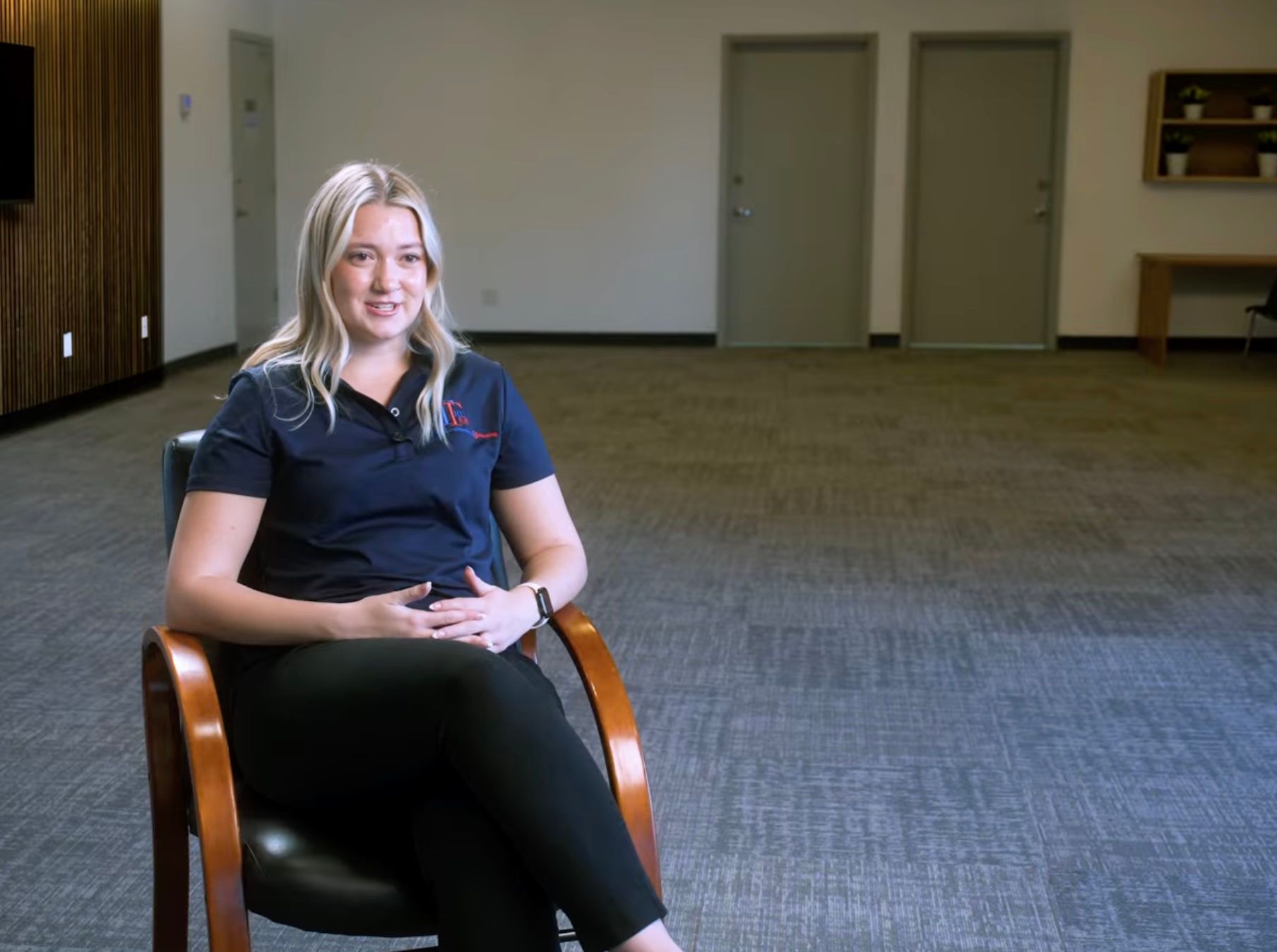
TruTek put all 120 crew on Workyard in two weeks
TruTek’s old software couldn’t show where its HVAC crews were working or what each job was costing. After a one-crew trial, all 120 employees were live within two weeks, and Isabel Tofstad caught over $1,000 in payroll errors in a single week.

How it works
Built for how you actually run
Payroll built on verified hours
Crews clock in as they walk through the gate, and every hour is checked against the job’s geofence. A missed clock-out is corrected from the geofence exit and flagged for a one-tap approval before payroll.

End of day · TuesdayMarcus R. · 26-104 Riverside
Signed off
- 8.0 hRegular
- 1.5 hOvertime
- 30 minMeal break
Every hour lands in your ERP, coded
Jobs, cost codes and employees come in from your ERP. Approved weeks go back with every hour on its job, cost code and pay type, so no one keys them in twice, and an open API covers anything else.

Protect every job’s margin
Every hour lands on its job and cost code as it’s worked, drive time included. Project managers see labor by cost code today, across every division, not when the invoice arrives.

Fairview Clinic · 27-203
Live
Labor today · as of 4:46 PM46.5 h
- Rough-in24.0 h
- Conduit & wire16.5 h
- Trim & fixtures6.0 h
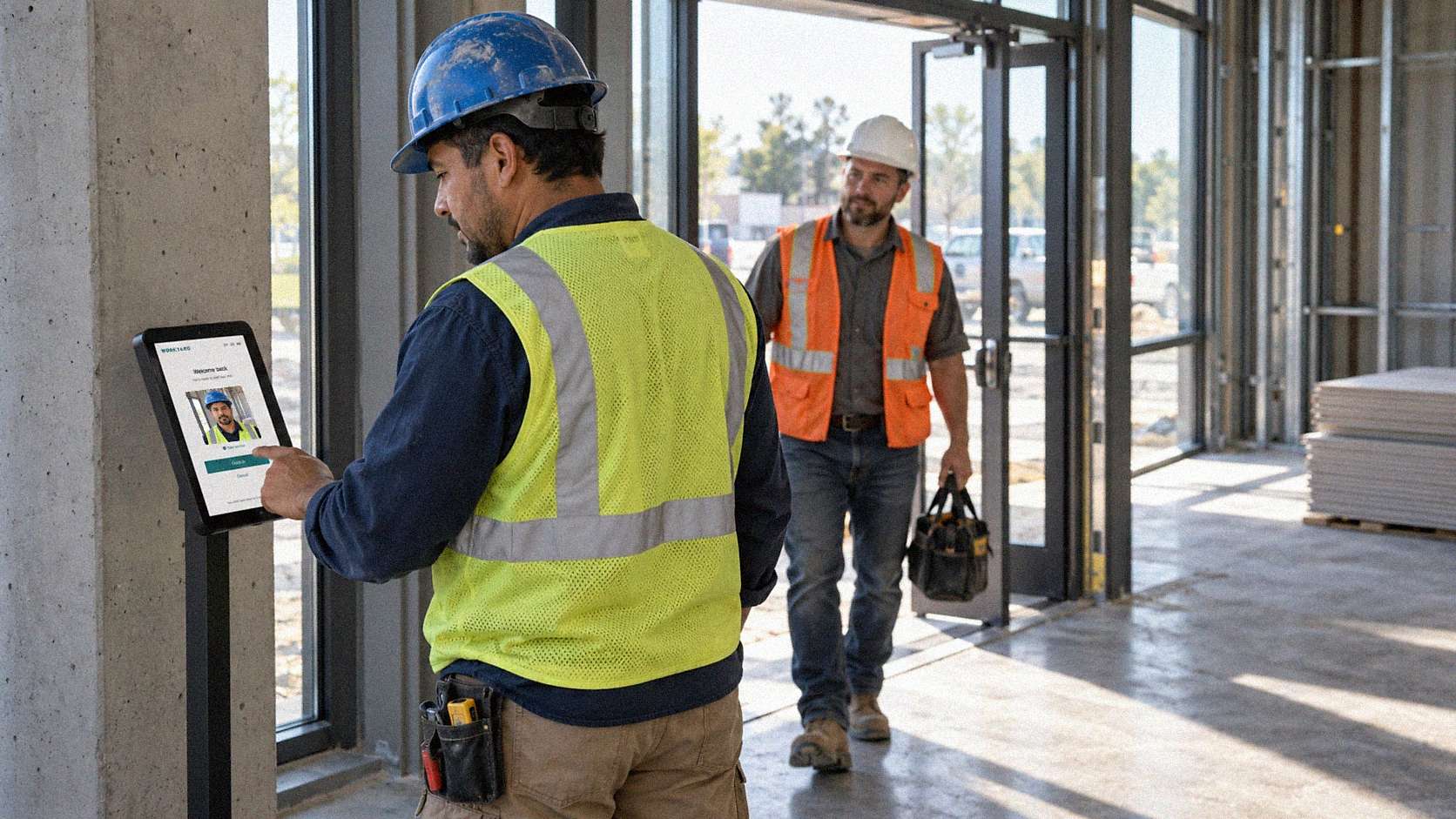
Kiosk, phones or foreman. One set of time cards.
Big companies run more than one way in: a kiosk at the shop with a face photo at every punch, a foreman clocking in a crew that arrives together, phones for crews on the move. Every punch lands on the same time cards, reviewed and exported once.

Each division, its own rules
Set up a rule group for each division, state or trade, and apply it to whole teams or to individual workers. Each group gets its own clock-in rules: auto clock-in at the geofence, a face photo, required cost codes, meal breaks and sign-off. Overtime rules follow the state, and each worker’s hours go to their own approver.


AI that does the work. You approve.
Other tools wait for someone to do the work. Workyard’s agents check every timecard and flag only what needs you. That’s the whole job.
Ask Workyard
NewFrom quick answers to hours of work, handled
- Answers about any crew, job or timecard
- Builds the schedule the way you run your crews
- Sweeps a whole pay period in one request
Timekeeping Agent
Time tracking that runs itself
- Clocks crews in and out, verified by GPS
- Codes every hour to the right project automatically
- Finds problem timecards and drafts the fix when you ask
Reporting Agent
NewReports you need, without the spreadsheet work
- Upload a report, or describe one
- Custom reports filled with live Workyard data
- Excel, CSV or PDF, ready to send
Straight answers
What enterprise teams ask us
Will it connect to our ERP and payroll?
Yes. Workyard has out-of-the-box connectors for the leading construction ERPs and payroll systems, a custom file in your system’s exact import layout for anything without one, and an extensive developer API for everything else. Find yours on the integrations page.
However it connects, the flow is the same. Your office approves the pay period and sends it in one step: each person’s hours go in by job, cost code and pay type, with overtime and double time already worked out by their state’s rules. With a connector, your jobs, cost codes and employees come in too, so crews clock into the records your books already use.
Nothing reaches your ERP until someone sends it, and connectors read your lists without editing them, writing only the time they send. Our integration team sets the connection up with you, with no developer needed, and tests it before anything moves.
How do we know the hours are real across dozens of sites?
Every punch carries the GPS location where it happened, and with location on through the shift the time card shows each job visited, how long the crew stayed and the drives between. Hours are settled by the record, not by memory or a round of phone calls. You choose the controls for each rule group:
- Site-only clock-in: workers can only clock in inside a job’s geofence. Outside it, the app shows the nearest job and how far away it is.
- Flags before payroll: punches made outside a fence, late clock-ins and early clock-outs are flagged on the card, and Time Cards filters by them.
- Forgotten clock-outs: a clock-out made later, from somewhere else, is trimmed back to when the worker left the job, and every trim is in the card’s log.
- Who punched: each worker clocks in as themselves, on their own phone or with their own kiosk PIN, and a face photo can go on the card at the punch. It’s a photo, not facial recognition.
Location is recorded only on the clock, so this is a record of the workday, not of anyone’s life. Live Locations shows every clocked-in crew, and the job they’re on, on one map right now.
Can hours land on job, phase and cost code the way our ERP is set up?
Yes, because the structure comes from your ERP rather than being rebuilt in Workyard. Jobs, phases and cost codes come in through the connector and go back in the shape your ERP expects. From Foundation, for example, a cost code and its phase come in together as one code (2610:03) and go back split into Cost Code and Phase No. Trades, categories and project tasks work the same way where your ERP uses them. How your system connects.
In the field, nobody scrolls a 70-code list. Each job shows only its own codes, cost code groups narrow them by team or person, and a default code means there’s nothing to pick. In Automatic mode the geofence puts time on the job the worker is standing on, and the code comes from the worker, the foreman for the whole crew or the default. When the work changes mid-day, the foreman switches the code for the crew or the worker switches their own, and a day nobody coded as it went can be split across jobs and codes on the time card afterwards.
Can we see what each job is costing across every division?
Yes, as of the last shift that ended. Each job’s labor and equipment hours and cost update by cost code as shifts end, before anything is approved, on the web and in the app. A crew running heavy on rough-in shows up on Tuesday afternoon, not on the month-end report.
Labor cost is each worker’s hours at their pay rate, with overtime at time and a half, double time at double and workers’ comp included. Taxes and benefits aren’t added. Equipment tagged at clock-in lands on the same job and cost code, beside the labor.
Managers see the jobs you give them, with or without the dollars, and pay rates stay with admins. What Workyard doesn’t do is compare against your budget or estimate: that stays in your estimating system and ERP, now checked against this week’s number. Live job costs.
Some crews share an iPad, some clock in with a foreman, some use their own phones. Can we mix?
Yes. Most large contractors run all three, and every punch lands on the same time cards, approved and exported together.
- Kiosk: an iPad at the shop, yard or gate. Each worker taps their name and enters their own 4-digit PIN, and the kiosk can take a photo at each punch. Give each kiosk a default job and cost code, choose which crews can clock in there, and run it in English or Spanish. It keeps working without signal.
- Foreman: the foreman picks the crew, sets the start time, job and cost code, and clocks everyone in at once from one phone. Breaks and job switches go on the whole crew or just the workers who moved, and each worker still gets their own card.
- Their own phone: workers who move between sites clock in on the app, with GPS on every punch, and the geofence can clock them in as they arrive.
A big gate takes a second iPad to split the 7 AM line. The kiosk runs on iPads with iPadOS 17.5 or later today; Android is coming soon.
Can each division have its own rules, managers and access?
Yes. Rule groups apply to whole teams or to individual workers, and each group carries its own time clock rules, so the office, the shop and each division’s field crews don’t share one setup:
- Clock-in: auto clock-in at the geofence, a reminder instead, or site-only clock-in.
- Location: through the shift, only at clock-in and clock-out, or off.
- Coding: job time from the geofence, required cost codes, defaults, and where drive time goes.
- Checks: face photos, meal break rules, daily and end-of-period sign-off, and whether workers can edit their own time.
- Time limits: the earliest clock-in, the latest clock-out and the most hours a card can run.
Overtime rules sit on each worker, with an effective date, so each state’s crews get their own preset. Managers see only what you give them: all projects or the ones they run, all time cards or only their crews’, job financials or just hours and activity, and the right to edit time cards or not. Administrators see everything, and pay rates stay with them.
Do you have an open API?
Yes, an extensive one. Workyard’s REST API comes with the Max and Enterprise plans, and your team or a partner can pull approved, GPS-verified time cards into any system you run, on your own schedule, including one with no connector.
You may not need it for the core flow: the direct connections already bring jobs, cost codes and employees in and send approved hours back. Enterprise adds custom integrations, so the one your setup needs can be built with you. Read the API docs.
Our ERP needs a specific import file and employee IDs. Can you match it?
Yes. If there’s no connector for your system, we build a file in the exact layout it imports during onboarding, so payroll uploads it as it is, with no reformatting in Excel.
For file exports such as Sage 300 CRE and ComputerEase, Workyard’s File Exporter saves each of your IDs the first time you enter them: employee, job, cost code and pay ID. Every line after that carries them, so two people with the same name never get mixed up, and each pay period takes a couple of minutes. New people, jobs and codes need their ID once, and every mapping can be changed under Mapped Records.
Regular, overtime and double time each get their own line, and 1099 contractors can be left out of the file. If your setup is unusual, we run a test export on your own data before you sign. Custom file export.
Our current time app keeps failing us. How do we switch without disrupting payroll?
Run Workyard beside it first. Put one division or a few crews on real jobs for a pay period or two, approve the hours in Workyard, and compare them, and the export, with what your current system produced. Move over once the numbers hold.
Nothing is rebuilt by hand. Jobs, cost codes and employees come in from your ERP; with Foundation, for example, only active jobs come over, and you decide for each one whether to add it, match it or leave it out. If payroll relies on an export from the old tool, upload it and Reporting Agent rebuilds it from Workyard data in the same layout, so payroll doesn’t change on switch day.
The crew app runs on iOS and Android, in English or Spanish, and keeps tracking with no signal. A real person walks your office through setup and the first pay period.
We need sign-off from finance and the field. Can we prove it first?
Yes. Give them evidence from your own jobs: start a free trial with a crew or a division on real work and let it run through payroll. What to bring back:
- For finance: the payroll errors caught before payday, the office hours no longer spent rebuilding the week, and the export landing in your ERP coded by job.
- For operations: live job costs by cost code while the work is running, and every crew on one map.
- For the field: how fast crews, foremen and the kiosk line actually move, from your own adoption.
TruTek tested Workyard with one crew and found over $1,000 in payroll errors in its first week. Bring your headcount and payroll hours to the call and we’ll work through the numbers with you.
How long does a rollout across divisions take?
The system usually isn’t what takes the time. Setup for your whole company can usually be done in hours: our integration team connects your ERP with you, with no developer needed, and your jobs, cost codes and employees come in from it, so nothing is rebuilt by hand.
The real work is change management: bringing foremen, crews and each division’s office onto a new way of working without disrupting payroll. We work with you to roll it out at the pace that makes sense for your team, a division at a time or everyone at once, with what the first crews learn built into the rule groups, kiosks and cost code groups for the rest.
Enterprise includes large rollout support and a dedicated account manager who owns the plan with you. TruTek, an HVAC contractor, tested with one crew, then had all 120 employees live within two weeks, and payroll went from a full day to under an hour. Read the TruTek story.
We work in several states. How are overtime and break rules handled?
Overtime rules sit on each worker, with an effective date. Start from a preset (Federal, California, California 4/10, Colorado, Alaska, Nevada, Minnesota, Puerto Rico or Standard 8/40), or describe your rule in plain English and Workyard builds it, then check it in the simulator on a typical and a heavy week before it runs. A California crew and a Nevada crew on the same payroll each get their own state’s rules.
With Sage Intacct, NetSuite and ADP Workforce Now, each person’s state comes in from your system, and their overtime follows it. Rules don’t switch by job site: a worker who crosses a state line for a week keeps their own rule.
For breaks, companies based in California or Washington can turn on the state’s own rules, with reminders on the state’s schedule, or set meal break rules per rule group. Workers confirm their breaks and sign at clock-out, and a no flags the card for their approver the next morning. Premium pay for a missed meal stays with payroll. Labor compliance.
We have union scales, prevailing wage jobs and several rates. Can it handle that?
Pay rates usually don’t need to live in Workyard. It sends every hour to your payroll or ERP coded by job, cost code and pay type, and that system applies the right rate for the job, task or classification, union and prevailing rates included. Foundation, for example, gets every line with its employee, job, cost code, trade and earn code, and applies the union, prevailing or shop rates it already holds.
Inside Workyard, a worker has one rate at a time, with its history by effective date, for the live job cost figures. Teams on prevailing wage work can be exported as their own batch, so public and private work stay apart.
What Workyard doesn’t do: calculate prevailing wage, produce the WH-347 or state certified payroll, or track per diem. Your payroll or certified payroll system does that from the same hours.
We run several companies. Is that one account or several?
Workyard follows the way your systems split them:
- ADP Workforce Now: hours split by each employee’s payroll group, and every company code gets its own worksheet.
- NetSuite OneWorld: each time entry carries its project’s subsidiary, or a default subsidiary for time with no project.
- Sage Intacct: each line carries its project’s location and department, or the entity’s location for time with no project.
- Separate company files, as in QuickBooks: each company gets its own organization in Workyard, connected one to one to its own file.
Crews who work for more than one company are set up during onboarding, so their hours land in the right books. Bring your structure to the demo and we’ll show you how it maps.
Who approves hours before payroll?
Each worker has a time approver, usually their foreman, and can have more than one. Project managers can approve the time on their jobs, and a card is approved once all its project time is. Approvers see their own crews’ cards with problems already flagged, such as a punch outside the fence, a late clock-in or a no on the break question, so they check the exceptions instead of every line.
It’s one approval, not a chain: the office can approve anything still open, one card or a whole crew at once. Workers can’t change a card once it’s approved, office edits ask for a reason, and the worker gets an email and a push when someone edits their card. Exported cards lock, and after that only an admin can change one, with a reason.
If a claim, a dispute or an audit comes up, what record do we have?
A time card that shows its working:
- The punch: when and where it happened, and whether it was automatic, by the worker, at a kiosk or by the foreman.
- The day: with location on through the shift, each site visited, how long, and the drives between, replayable for any past day.
- Who it was: the face photo at the punch, if you use them.
- The worker’s own word: their signed answers on injuries, rest and meal breaks and whether all their time is recorded, with the meal break’s start and finish on the card above them.
- Every change: who made it, when and why.
Time cards stay in Workyard with their logs, photos and sign-offs, searchable by worker and date range, and sign-offs come out by date range or pay period as PDF or CSV. Nobody can promise how a claim turns out, but the record will exist.
Can we get the reports our teams actually use?
Yes. The Time Card Report covers any team and date range, as PDF or CSV:
- Time Cards (Detail) or (Summary): every punch and break, or each person’s totals.
- Pay Period Time: the period’s hours, with approved paid and holiday time off if you include it.
- Time Off (Summary) and Time Card Sign Offs: time away, and each worker’s signed answers.
- By job: hours by job and cost code for any week, the record a T&M invoice needs.
For everything else, Reporting Agent, included in every package, builds the report from live Workyard data: upload the CSV or Excel report a division already uses and it matches the columns and layout, or describe the one you want. Every report is saved, so next week’s is one request away. It follows your permissions, so managers only see their own workers and jobs, and pay rates stay with admins.
Our field teams don’t want to be tracked. Is location on all the time?
No. Location is recorded only between clock-in and clock-out: never after hours, at night or on weekends, and every worker can see that in the app. Every worker gets a plain-language document, in English or Spanish, saying exactly what is captured and when.
You set the level per rule group: through the shift, only at clock-in and clock-out, or off, so a union crew or the office can run with less, or none. A crew with tracking off still clocks in at a kiosk with a PIN. If someone turns location off, the card shows the gap and why, and the clock keeps running for the office to decide what to pay. How we protect worker privacy.
Notice and consent rules vary by state, so check yours with your attorney.
How is Enterprise priced?
A per-user license for anyone who tracks time, in the field or the office, with volume pricing for larger teams. Enterprise is billed annually, and two- and three-year plans are available too. If headcount swings through the season, tell us and we build it into the quote, so you aren’t paying for a winter crew you don’t have.
Enterprise includes everything in Max (scheduling, daily reports, safety, forms and workflows, time card sign-offs and full API access) and the Timekeeping and Reporting Agents, plus large rollout support, a dedicated account manager and custom integrations. Onboarding and rollout help are priced into the quote by how much you need, and a 30-minute call gets you your exact number. Compare plans.
What happens on sites with no cell signal?
Nothing changes for the crew. The app keeps tracking offline and syncs the moment the phone finds a connection, and a kiosk holds punches and photos on the iPad the same way. Daily reports work offline too. Nobody loses a day’s hours to a dead zone.
Two exceptions: a brand-new worker’s very first kiosk clock-in needs a connection, and the geofence automations need location recorded through the shift.

Whatever size you are, see it on your own jobs
A 30-minute walkthrough with a Workyard specialist: your crew, your systems, your quote.