

100s of hrssaved a week routing supervisors by proximity
"It's preventing us from losing more on each project — saving us money."
Contractor scheduling software
Plan your work days, weeks or months ahead, not one task at a time. Every job is already on the board, the whole crew goes on at once, and you can see who has nothing on. When the weather turns, moving the work is one step, not a round of calls.
100s of hrssaved a week routing supervisors by proximity
"It's preventing us from losing more on each project — saving us money."

"I would probably ballpark it to be roughly about $5,000 and that's just something that we saw fairly immediate, where we were able to save roughly about five visits per job"
Victor Rodriguez, HR Field ManagerSynaptic Solar
$123Ksaved with Workyard’s Smart Forms
"Smart Forms pays for itself through accurate invoicing, insurance savings, and keeping our business moving every single day."

"We wanted more than a time tracking app since many exist. We sought something that helps beyond just tracking time."
Brian Mata, Project ManagerWagler Custom Homes

"Of all the solutions we’ve been exposed to, Workyard is the best. It’s a good value for the money, and the team is always willing to work with you to meet your needs."
James Monzello, CFOGreen Wall Tech

2 weeksto roll out to all 120 crew
"You should ditch the paper, get rid of the other software, get on something that can track your crew's time, track your job costing, and save you real money."

15–20admin hours back every month
"If you have field crews, Workyard is one of those tools that pays for itself. It saves us hours every payroll, keeps everyone accountable, and gives us real-time visibility into every job."

How it works
Put people and teams on jobs, the way you already plan the work. Checklists, notes, forms and start times go with the task, so the crew has what they need before they get there.
Schedule one person or a whole crew on a job: just drag and drop. Set a start and due date and the task runs as long as the job does, or repeat it daily, weekly or monthly. A year-long job gets scheduled once.

Each worker opens the app they clock in on to their day: every task, when and where, with directions, the form, the checklist and the notes. When plans change, notify the people on the task, or send everyone the week in one tap.
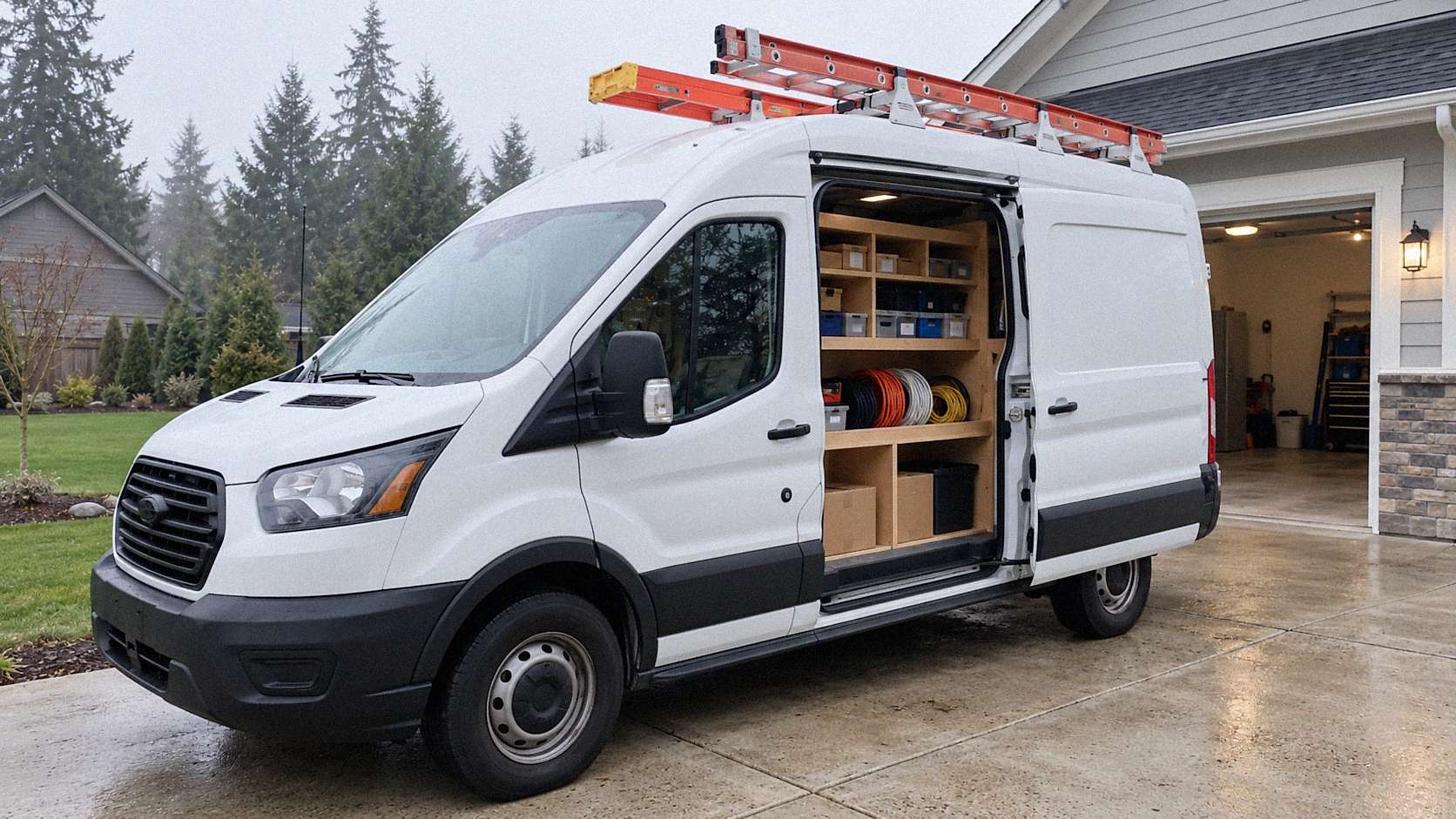
Put a form on the task and it goes on the crew’s list to finish before they clock out. The ticket, the safety check and the photos get done while they’re still on site, not chased by the office a week later.
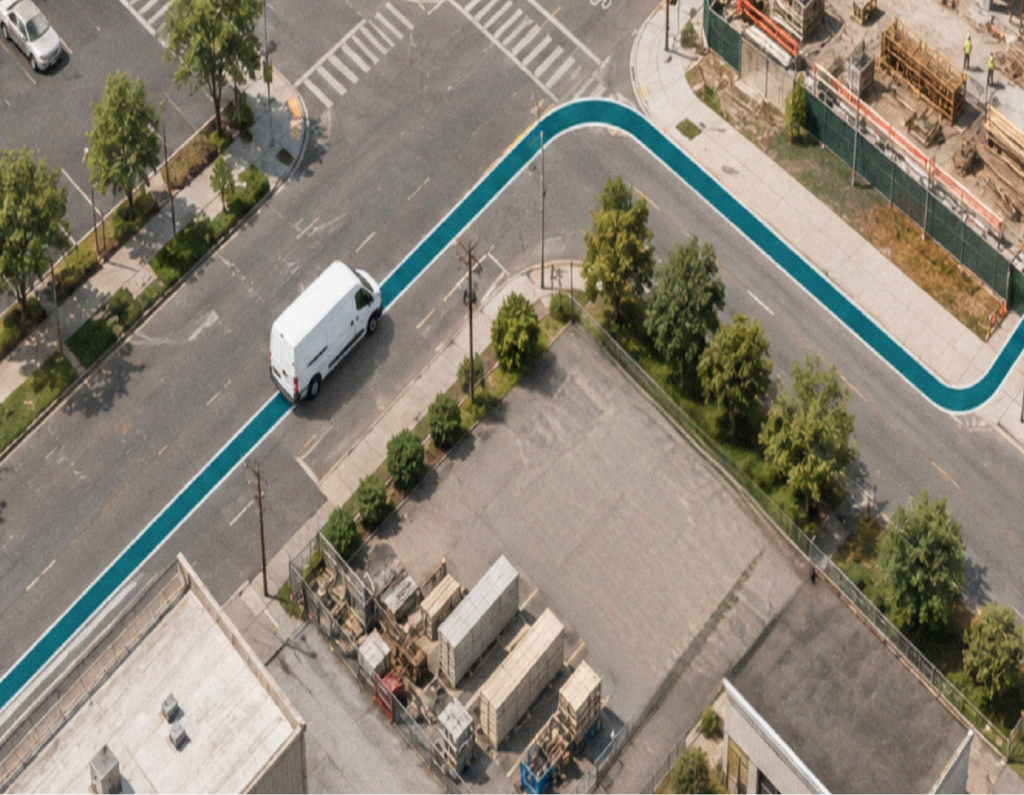
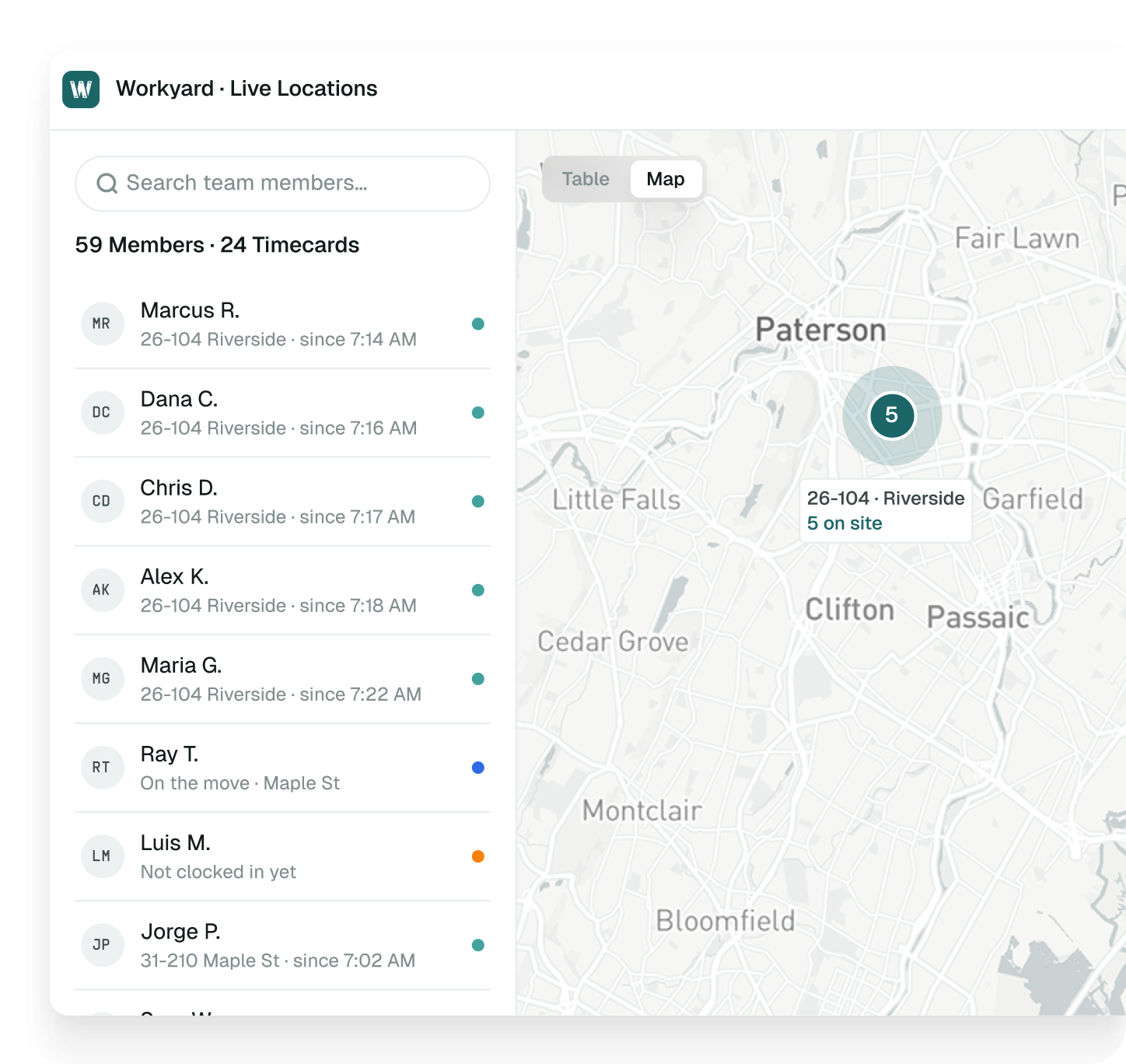
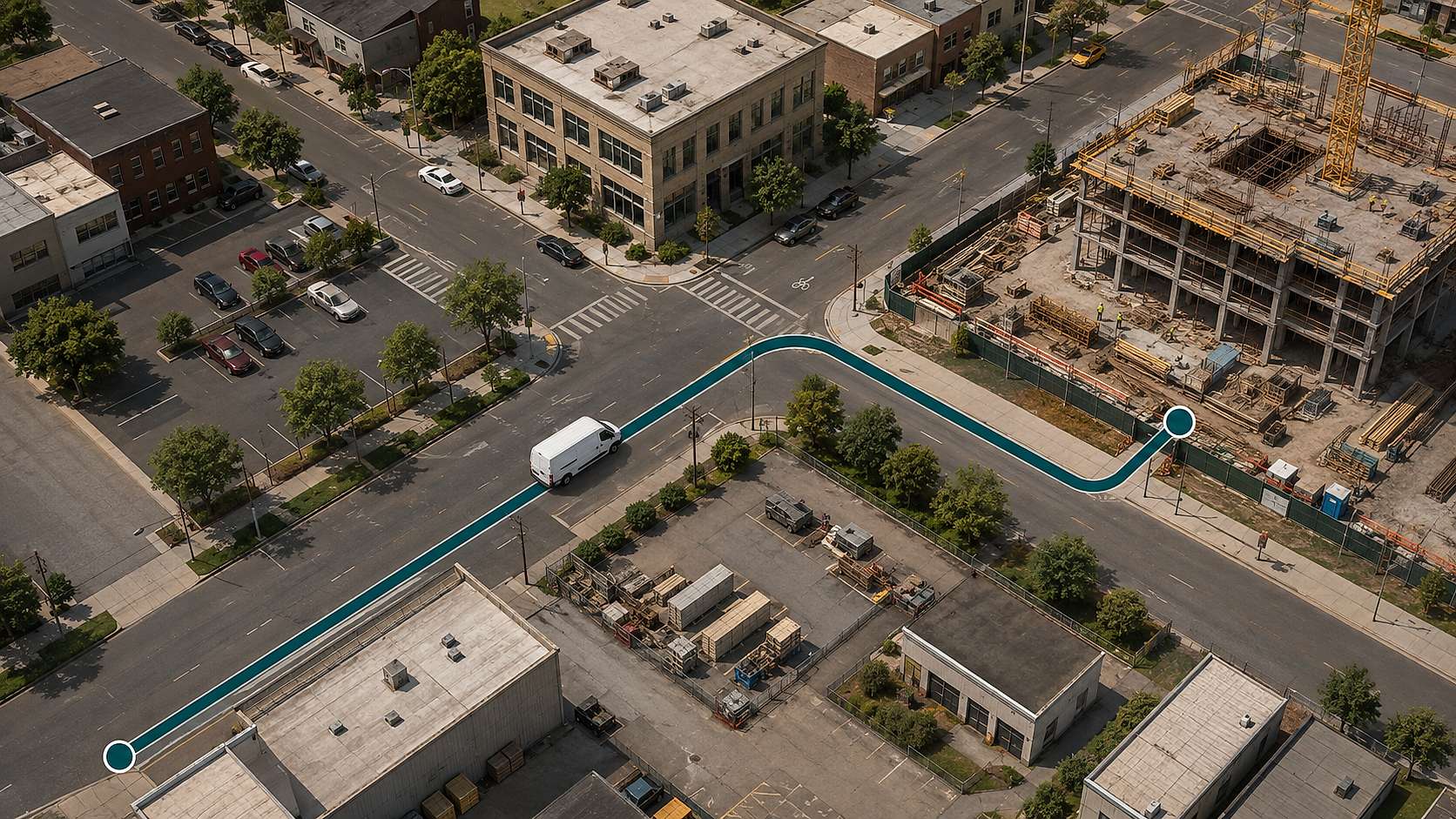
The schedule says where everyone should be. The live map shows where they are: every clocked-in worker, the job they’re on and who’s on the road, only while they’re on the clock. When a call lands at 2 PM, send whoever’s closest and notify them in one tap.
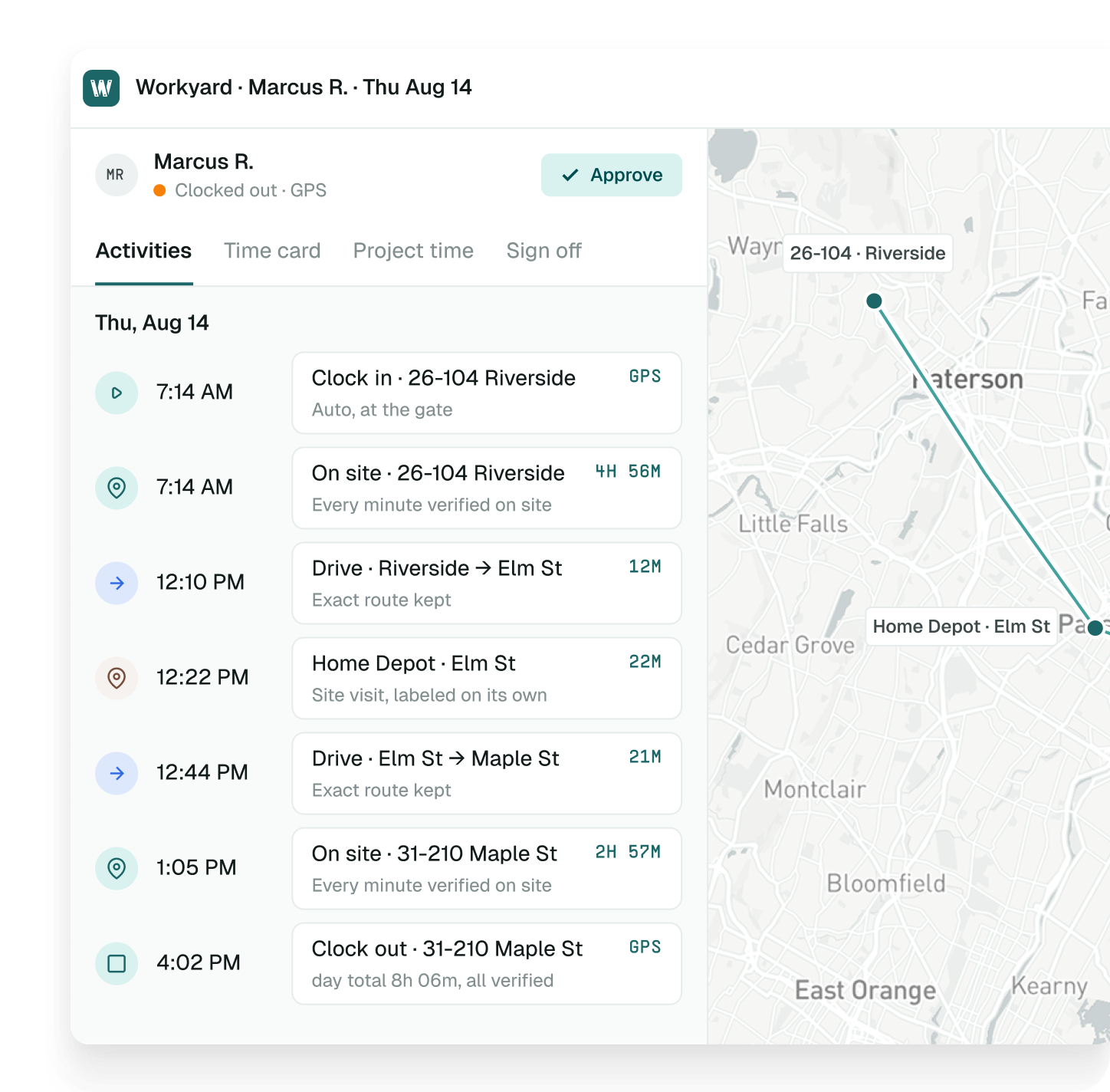
Each job has a geofence, so with Automatic mode on, time on site and on the road lands on the job where the crew actually was. The day arrives split by job, ready to approve, with nothing to re-code.

The payoff
One tap
sends the week to every phone
No texts, no calls, no photo of the whiteboard in the group chat.
In seconds
you see who’s where and who’s closest
“Where’s your guy?” answered from the live map, not a phone chain.
Forms done
on the task, before the crew clocks out
The ticket, the safety check and the photos, filed to the job.
Every hour
on the job it was worked
Job geofences put the hours on the right job, with nothing to re-code.
Every contractor runs the schedule differently. One scheduling coordinator for every crew, or each PM on their own jobs: however you do it, Workyard has you covered.
One person schedules everyone
Each PM schedules their own jobs


"It's preventing us from losing more on each project — saving us money."
100s of hrssaved a week routing supervisors by proximity
Read the story
"Moving our repair requests to digital forms with Workyard made a huge difference. Before, issues would get lost in the shuffle, and it could take too long to get equipment fixed. Now, as soon as a problem is reported, we get notified immediately, and our mechanics can take care of it right away."

"I would probably ballpark it to be roughly about $5,000 and that's just something that we saw fairly immediate, where we were able to save roughly about five visits per job"
$5,000 a weeksaved on payroll and job costs
Read the storyFeatures
Service calls on one board, sent to your techs’ phones, changed as the day changes.
Who works where, and when, for every crew and employee, with time off in view.
Drag-and-drop calendar
Drag people or teams onto a task, or onto an empty day to start one. Day, week and month views.
Timeline
Every task across the week, month, quarter or year, grouped by job, customer, team or person.
Repeating tasks
Daily, weekly, monthly or yearly, ending on a date or after a count. Edit one or all that follow.
Teams
Assign a whole team in one go, or pick people one by one.
Checklists
A checklist on the task that the crew ticks off on the phone.
Notes, photos and files
Plans, gate codes and site photos on the task. Assignees and watchers hear about each new note.
Attach a form to a scheduled task. The worker’s notification opens straight to it.
Notifications
A push and an email when a task is added or changed. Send the week to everyone in one tap.
Open in Maps
Directions to the job in Apple Maps or Google Maps, from the task.
Color coding and labels
Color the board by project, customer or task label, with a full legend, and read it at a glance.
Filters and labels
Filter by job, customer, team, status or label, and color the board by label.
Time off on the calendar
Approved and pending time off shows on the calendar, person by person.
Duplicate and bulk edit
Copy a task, or change the people, dates and labels of many at once in the list.
Unassigned tasks
Make the task now, pick the crew later. Unassigned tasks wait in their own group.
Task report
Download tasks and their status as a CSV or PDF.
Every clocked-in crew on one live map, only while they’re on the clock.
Hours by geofence
Walk onto a job and the hours go to that job, with the drive assigned by your rule.
Looking for something specific?
If a crew needs it, we probably built it.
Connect 21 payroll, accounting and project systems. Your jobs and employees sync automatically.









Fair questions, straight answers
Yes, on the live map. Every clocked-in worker and crew: which job they’re on, since when, and who’s on the move between sites. When a customer calls asking where your guy is, you answer from the screen instead of starting a phone chain. Location runs only while they’re on the clock.
Drag-and-drop. Drag a person or a whole crew from the side panel onto a job to start a task, or onto a task to add them. On the calendar, drag a task to another day, or stretch it in the day view to change its hours. See the work on the Timeline across weeks and months, or on the calendar by day, week or month, and group it by job, customer, crew or person.
You put people and crews on jobs. Each assignment is a task on the job, carrying its dates, the crew, a checklist, notes and any forms. Group the board by job and every active job is its own row, and one task can hold a crew on a job for as long as it runs. You’re never typing a task per person per day.
Through the Workyard app they clock in with. Each worker sees their tasks: the job, the start and due, directions in Apple Maps or Google Maps, the checklist and the notes with plans, photos and files. Choose to notify them when you add or change a task and they get a push and an email, and Send puts the week’s schedule in front of everyone in the view at once.
Yes. Build the form, or snap a photo of the one you use, and attach it to the task. The crew’s notification opens straight to it, and if it’s due on a day they’re clocked in, it’s on their list of forms to finish before they clock out. Every submission files to the job, with its photos and signature.
No. A task runs from its start date to its due date, so a crew can stay on a job for its whole run. For repeat work, set the task to repeat daily, weekly, monthly or yearly, and choose when it stops: on a date, after a set number of repeats, or not at all. When something changes, edit that one or all the ones that follow.
Fast. The live map shows who’s close. Start a task on the job, drag them onto it and notify them, and it’s on their phone with directions to the job. Their time goes to the new job when they get there.
You can make the job’s geofence the rule. Restrict clock-in so a worker can only clock in inside the job’s geofence, and in Automatic mode the hours go to the job they’re actually standing on. Clock-in isn’t tied to the schedule itself: the geofence decides.
Not from the schedule, from where the crew goes. In Automatic mode, time on each job and the driving between them is assigned from location, the drive going to the next job, split across the day’s jobs or left unallocated, as you set it. The cost code is the worker’s pick, or a default you set. Coding hours from the schedule isn’t how it works today.
Yes. Jobs sync in from QuickBooks Online and QuickBooks Desktop, Sage Intacct and Acumatica, so the board starts from your real job list instead of a second copy someone has to keep.
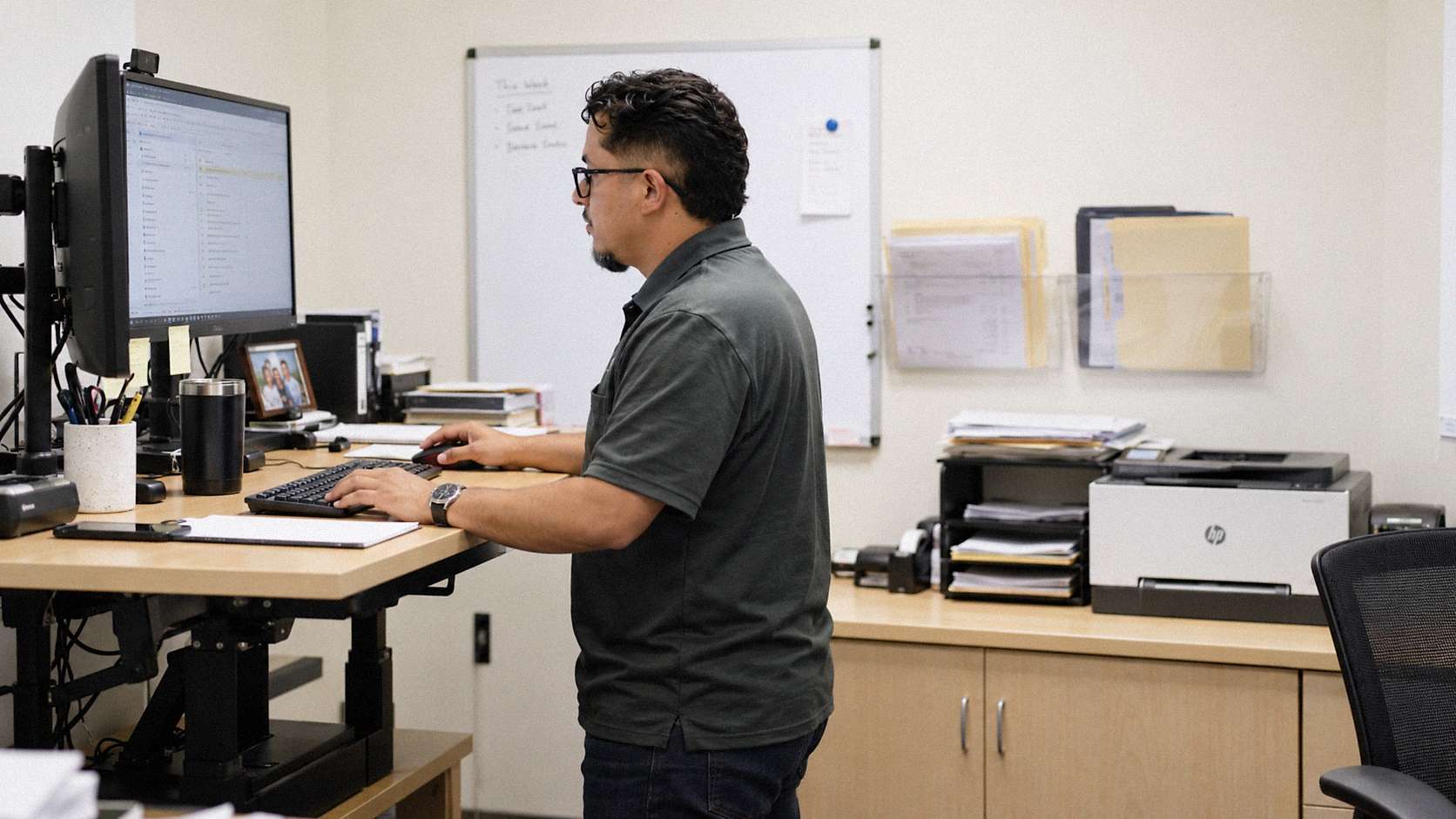
Yes, within limits you set. Managers and admins schedule; a manager can be limited to the jobs they manage, so each PM works their own jobs on one company calendar. Workers see only their own tasks, and a foreman can add a task from the phone on site.
Both. Put a whole crew on in one go, which adds each person on it, and untick anyone who isn’t going, or pick people one by one. Crews and individuals land on the same jobs and the same time cards.
Yes. Each task carries its own start and due, so the 6 AM site and the 7:30 site sit side by side on the board.
Yes. Group the calendar by person and approved and pending time off shows on it, so you can see who’s off before you put them on a job.
Yes. In Automatic mode each arrival inside a job’s geofence moves their time to that job, the drive between stops goes where your rule says, and the day comes back split by job without anyone retyping it.
It’s built for scheduling crews, with a Timeline for seeing the work ahead: each job’s tasks laid out as bars across a week, a month, a quarter or a year. For critical paths, dependencies and phases, keep your project scheduling tool alongside it.
Because the whiteboard can’t tell you where anyone is at 2 PM, and the photo of it in the group chat is out of date by 8 AM. The board keeps the plan, the phones keep the crew, and the hours land on the job without a re-keying step.
Scheduling is part of the Max plan. Compare plans

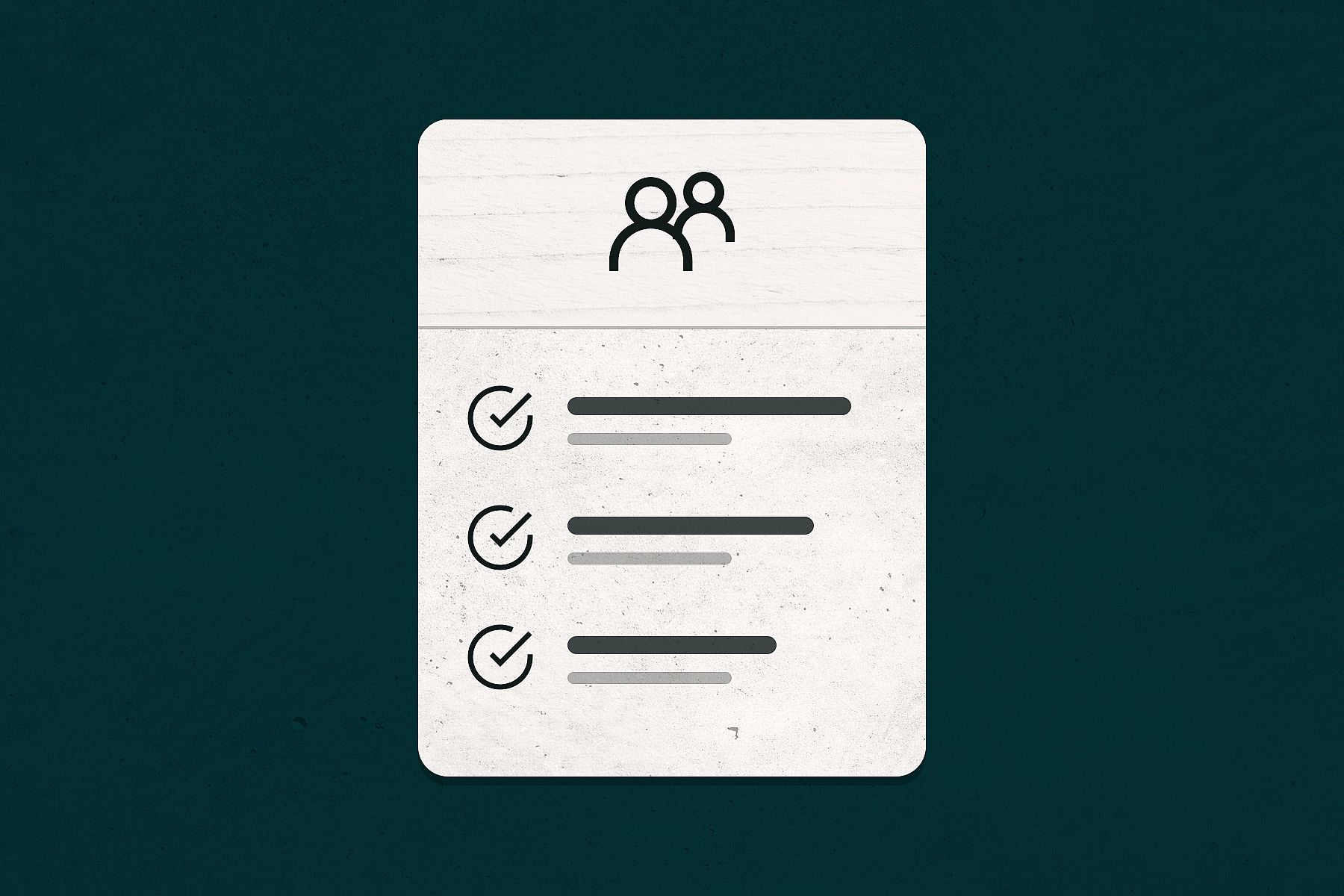

Live in days, not months, and a real person on the phone the whole way.