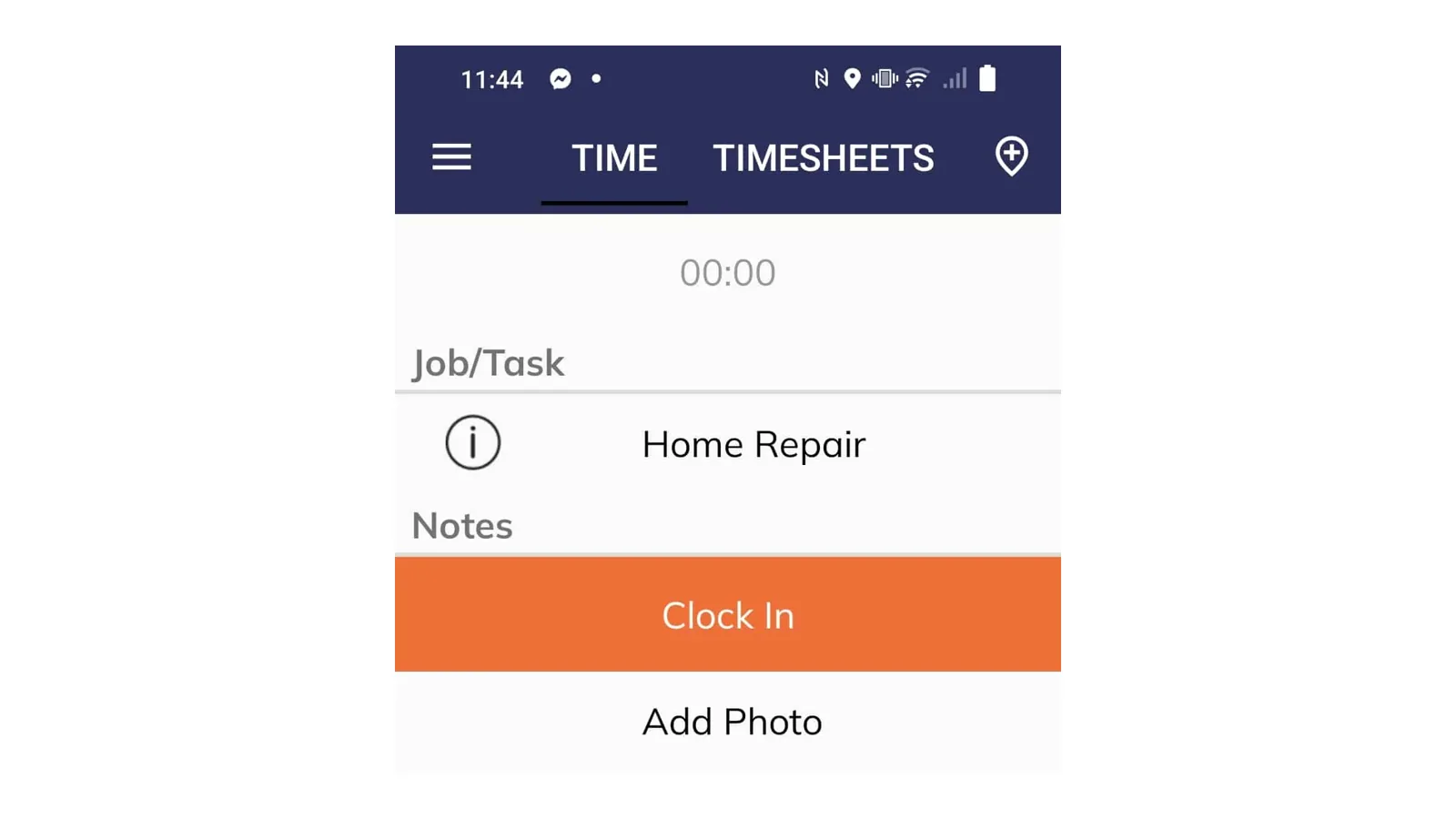
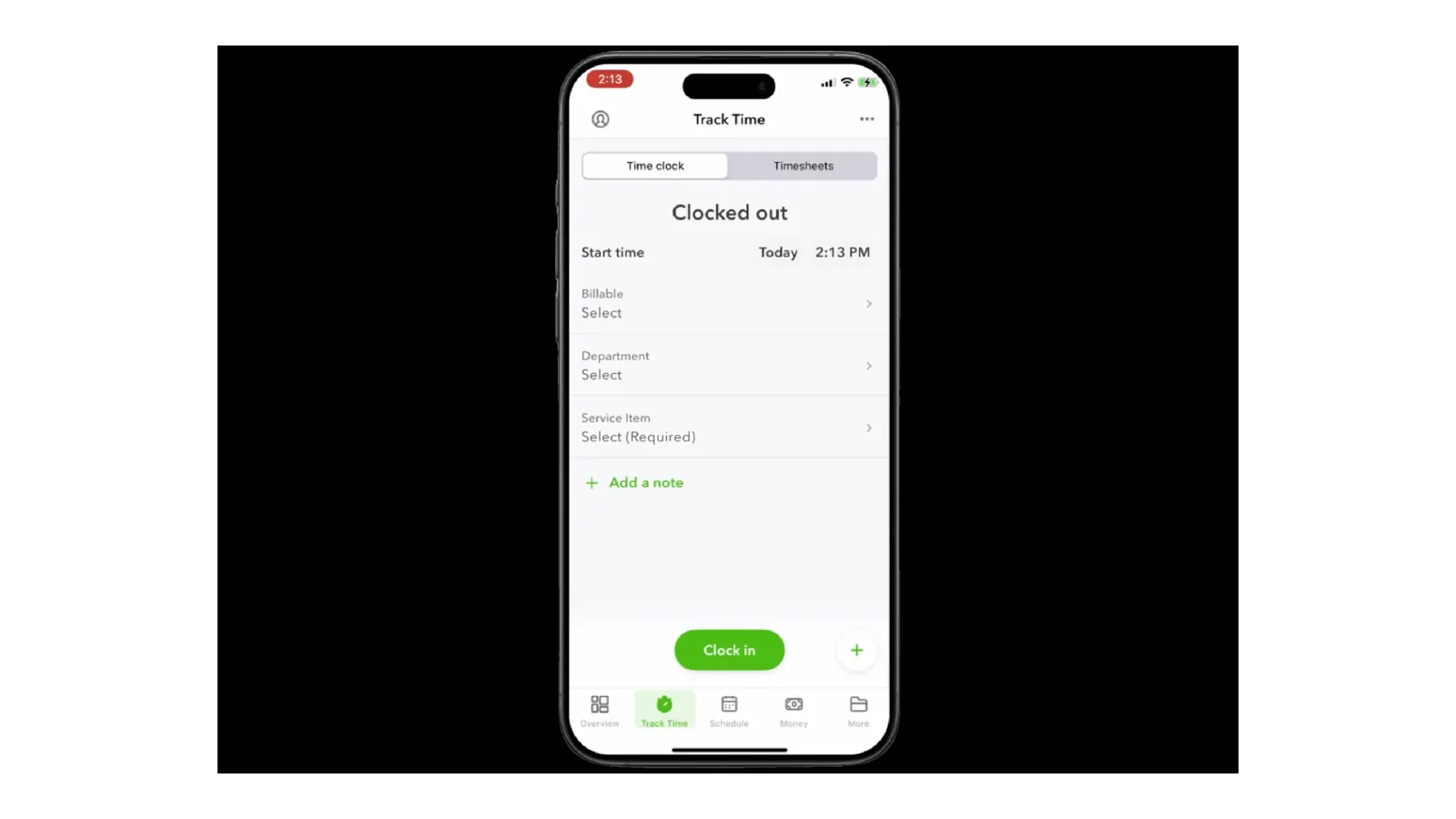
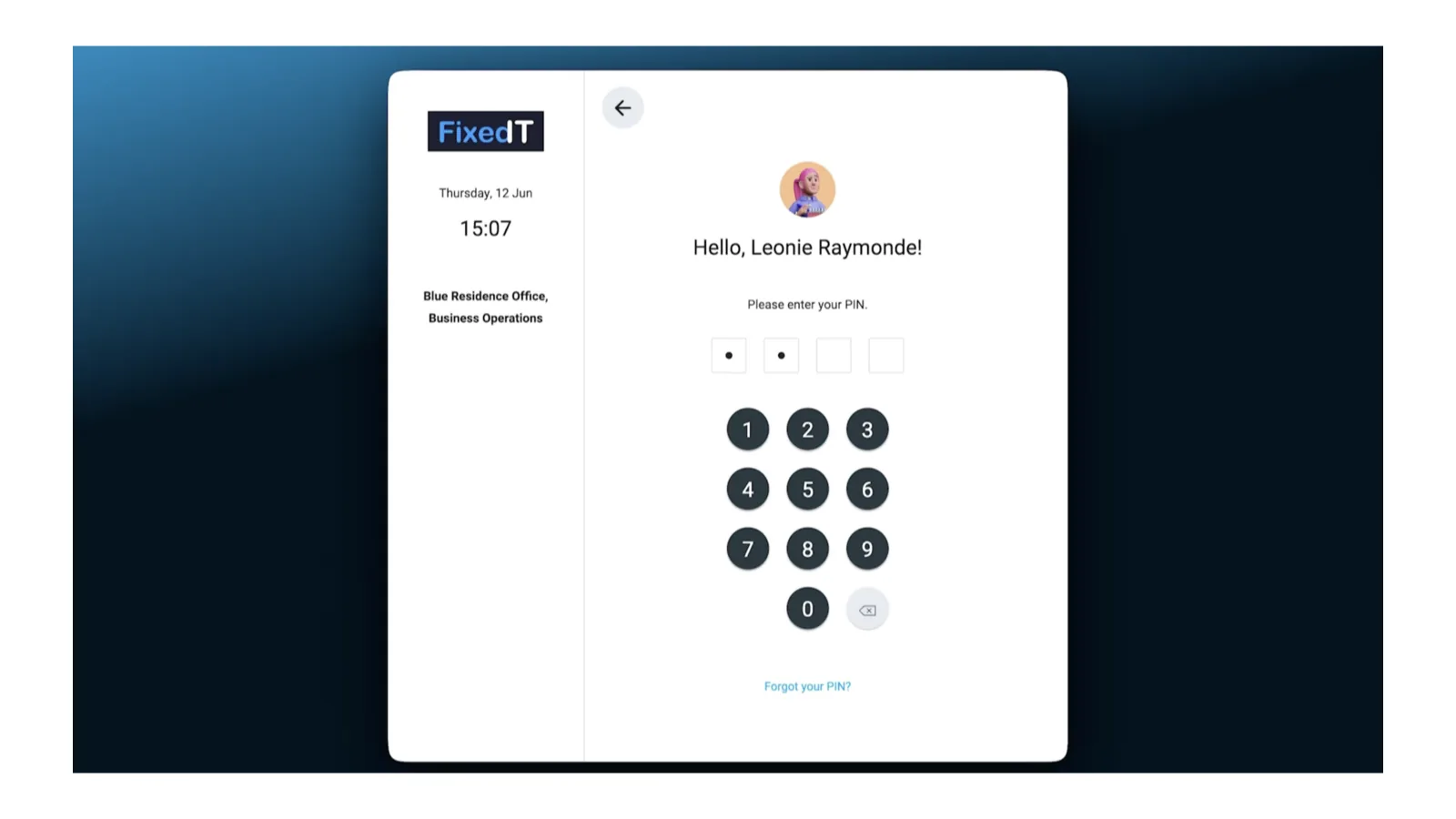
A shared tablet only stops buddy punching if something actually checks who punched. We read the documentation for nine kiosk apps. Here is what each one really does, and what the plan that runs a kiosk costs.
By Kyo Zapanta
· Reviewed by Rouselle Isla
· Last updated 19 August 2026 • Published 12 March 2024
TL;DR
These are the standout picks for construction and field teams. The full comparison of all nine apps follows below.
Best overall for construction and field crews: Workyard. Crews punch on a shared iPad and every hour lands against a job and cost code.
Best purpose-built jobsite hardware: SmartBarrel. A weatherproof box with its own LTE and solar power, so no site wifi and no worker phones. Pricing is quote-only.
Best free option: Connecteam. A genuinely free kiosk for up to 10 users, but photo verification needs the Expert plan at $99 a month.
Cheapest way to put a crew on a kiosk: Clockify. Kiosk-only seats cost $0.79 each, so 30 workers run about $27.69 a month. There is no identity verification of any kind.
Disclosure: Workyard competes directly with several of the platforms in this guide. This review reflects our honest assessment of each product based on our research, and we've flagged where we're not the right fit.
Ask a contractor why they want a kiosk and the answer usually starts with phones. One put it plainly on a call with us: if I'm asking them to use their phones, now I have to pay for their phone. He had 75 workers and was covering devices for the foremen and leads only.
That is the problem a time clock kiosk exists to solve. Mount one device at the gate or in the job trailer, and the whole crew punches on it. Nobody needs an app on a personal phone, and nobody gets left out because their battery died.
The harder question is what the device checks. Another contractor described the bar he actually needed: a picture of the face at clock-in, and whether or not it actually reads and confirms it's that person, it doesn't necessarily have to do that, as long as it is stored. So if we go back trying to see if someone had a buddy punch, we can see that.
That is a fair standard, and it is worth knowing which apps clear it. We read the help documentation for all nine here. Not one of them blocks a punch that fails its identity check.
Four compare the photo to a stored reference and flag it for review afterwards. The other five compare nothing at all. What you are really choosing between is the quality of the evidence you get later.
Price is the second problem. Most roundups quote a vendor's cheapest plan next to a kiosk recommendation. For several of these products, that plan cannot run a kiosk.
What is a time clock kiosk app?
A time clock kiosk app turns one shared device into the punch clock for a whole crew. Usually that is a tablet mounted in a job trailer, at a site entrance, or on a gang box. Workers identify themselves with a PIN, a QR code, a phone number or a photo, instead of each person installing an app on their own personal device. That is why kiosks get used where phone-based tracking does not: crews who leave phones in the truck, workers sharing a device, temp labor on a two-week job.
For construction and field teams, the apps worth paying for also tie each punch to a job or cost code, and use GPS and geofencing so hours are accurate to the jobsite. The differences that matter live below the feature names: some kiosks compare the punch photo to a stored reference, others just file it for someone to look at later; some queue punches on the device when signal drops, others simply stop working.
Key features to look for
Verification that produces evidence, not just a stored photo
Offline punching that queues locally and syncs when signal returns
Site binding on a fixed device, since a mounted tablet has no worker phone to read
Break and overtime rules that apply at the kiosk, not only in the mobile app
Job and cost code selection on the punch screen
How the kiosk is billed: per worker, per device, or at a lower kiosk-only rate
Watch the plan gates. In this list alone, the kiosk itself, photo verification and geofencing each sit behind a higher tier or a paid add-on on more than one app.
Two questions separate the contenders fastest:
What happens when the wrong person punches
What happens when there is no signal
Ask both of every vendor you speak to. The answers here range from a photo nobody reviews for a month to an admin alerted within seconds, and from punches queued on the device to no offline punching at all. Not one of these nine apps blocks the punch.
What devices can be used as time clocks?
Any iOS or Android tablet, an iPad, a Windows desktop or laptop, a smartphone, a web browser, or purpose-built hardware can run a time clock. A tablet mounted in a job trailer is the most common shared-device setup.
Two apps here are iPad-only. The full breakdown is in the buyer's guide below.
What's changed in this update (August 2026)
This update was a full re-verification rather than a refresh of the copy.
Expanded from 7 apps to 9. SmartBarrel, busybusy, QuickBooks Time and Timeero are in. ClockIt and TimeCamp are out.
Re-ranked around what each kiosk does on a failed verification, and how it behaves offline.
Corrected our own Workyard pricing. The earlier version quoted the Starter plan, which cannot run a kiosk.
Corrected our description of Workyard's photo check. It is face detection, not facial recognition, and we had called Workyard the best biometric option.
Re-verified every price and listed the tier that actually unlocks a kiosk. Buddy Punch's previously quoted price matched no current plan.
Replaced the numeric scoring system with the published criteria we applied.
Time clock kiosk apps compared
Starting price shows the tier that can actually run a kiosk, which is not always the tier the vendor advertises.
Kiosk-only seats at $0.79, multiple simultaneous kiosks
$3.99/seat/mo annual + $0.79/kiosk seat (Basic)
Pricing verified August 18, 2026. Check the vendor's page before you buy, since plans change.
How we chose these apps
We compared 20+ time clock kiosk apps and chose the 9 best for construction and field teams.
Verification behavior: What the kiosk does when a punch fails its identity check, and who gets told.
Offline punching: Whether punches queue on the shared device when signal drops, not just in the phone app.
Kiosk plan gate: Which tier actually unlocks a kiosk, and what it costs at real crew sizes.
Site binding: Whether geofencing applies to a fixed device with no worker phone to read.
Break & overtime rules: Whether enforcement reaches the kiosk or stays in the mobile app.
Evidence quality: What the time card can prove weeks later, in a wage dispute.
We read each app's product documentation and help-centre behaviour docs, re-verified live pricing pages, and read verified user reviews across Capterra, the App Store and Google Play, alongside anonymized analysis of Workyard research conversations where available. See our review methodology.
We have used ClockShark and Connecteam hands-on, but neither session included setting up a kiosk. Nothing here is written as first-hand kiosk testing.
Where a vendor's marketing and its own documentation disagreed, we went with the documentation and said so in the entry.
9 best time clock kiosk platforms
1. Workyard — Best overall for multi-jobsite construction crews
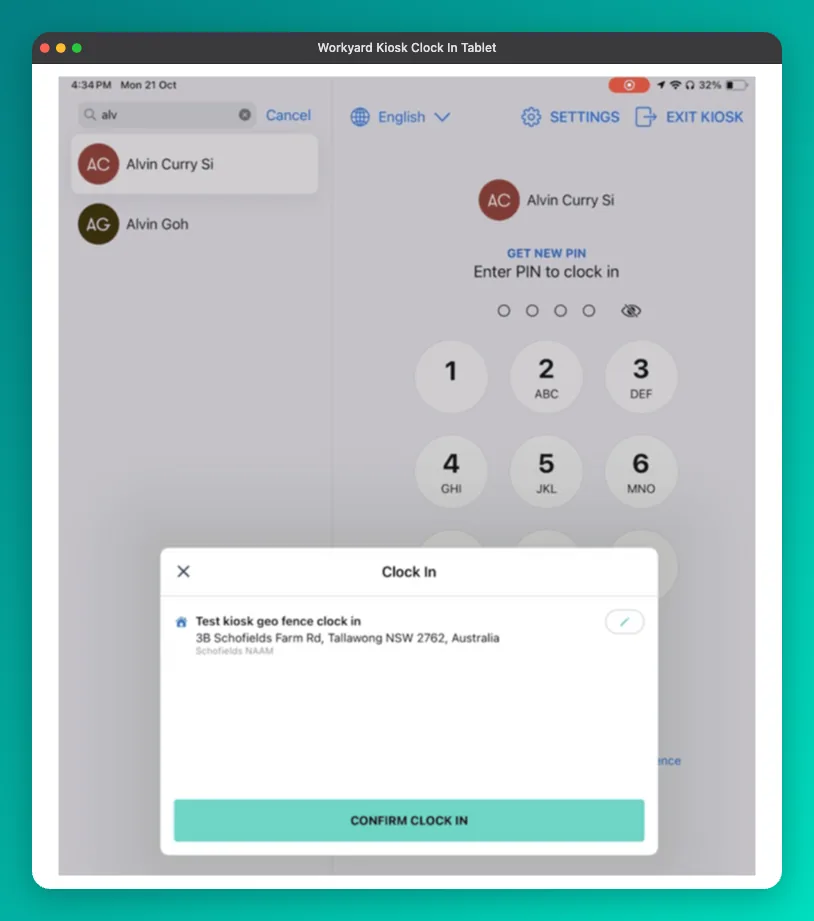
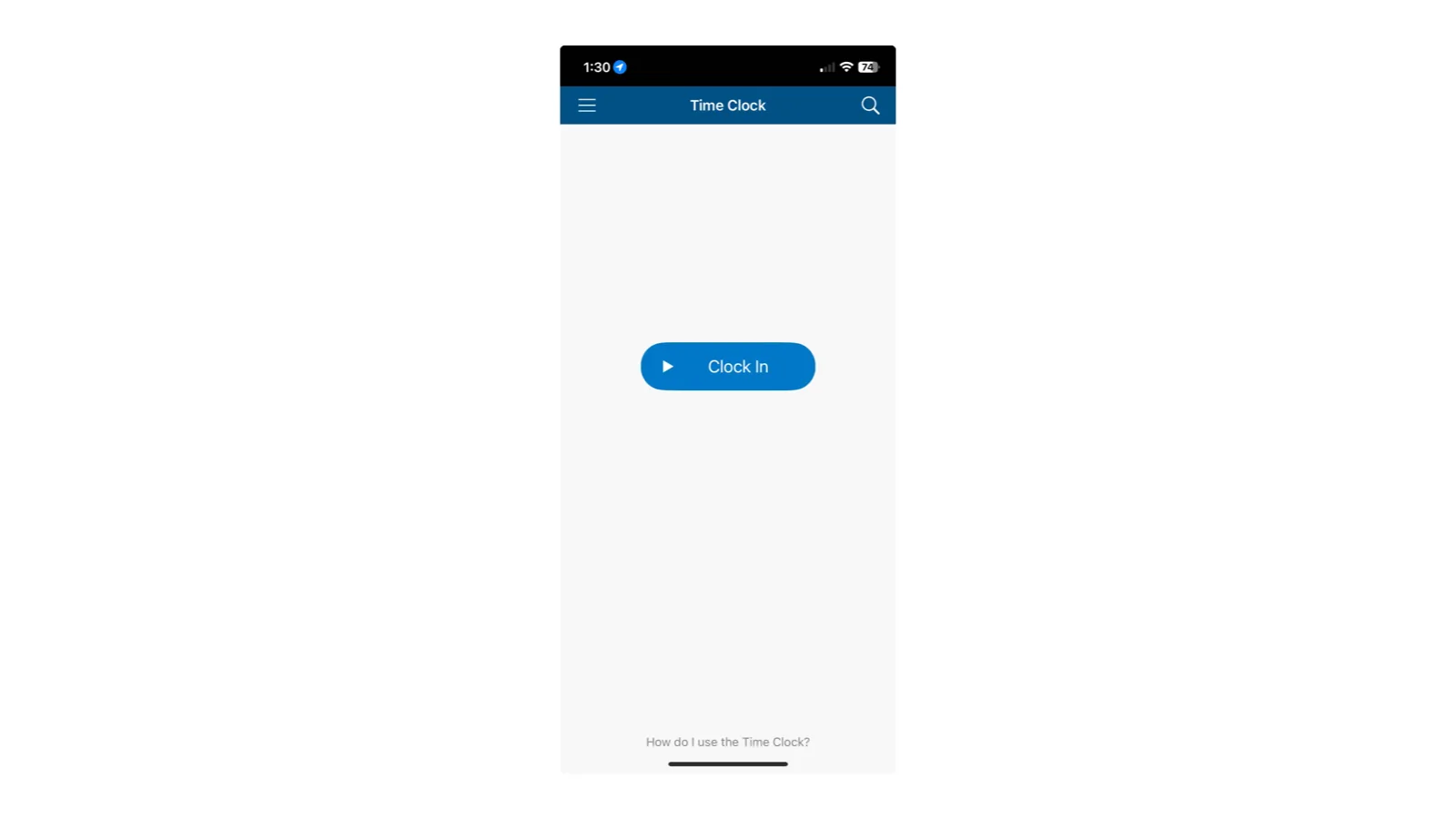
The kiosk clock-in screen on a tablet: identity is the PIN.
Workyard is built for contractors running crews across several active jobs at once. The kiosk is one way into that system, not the whole product.
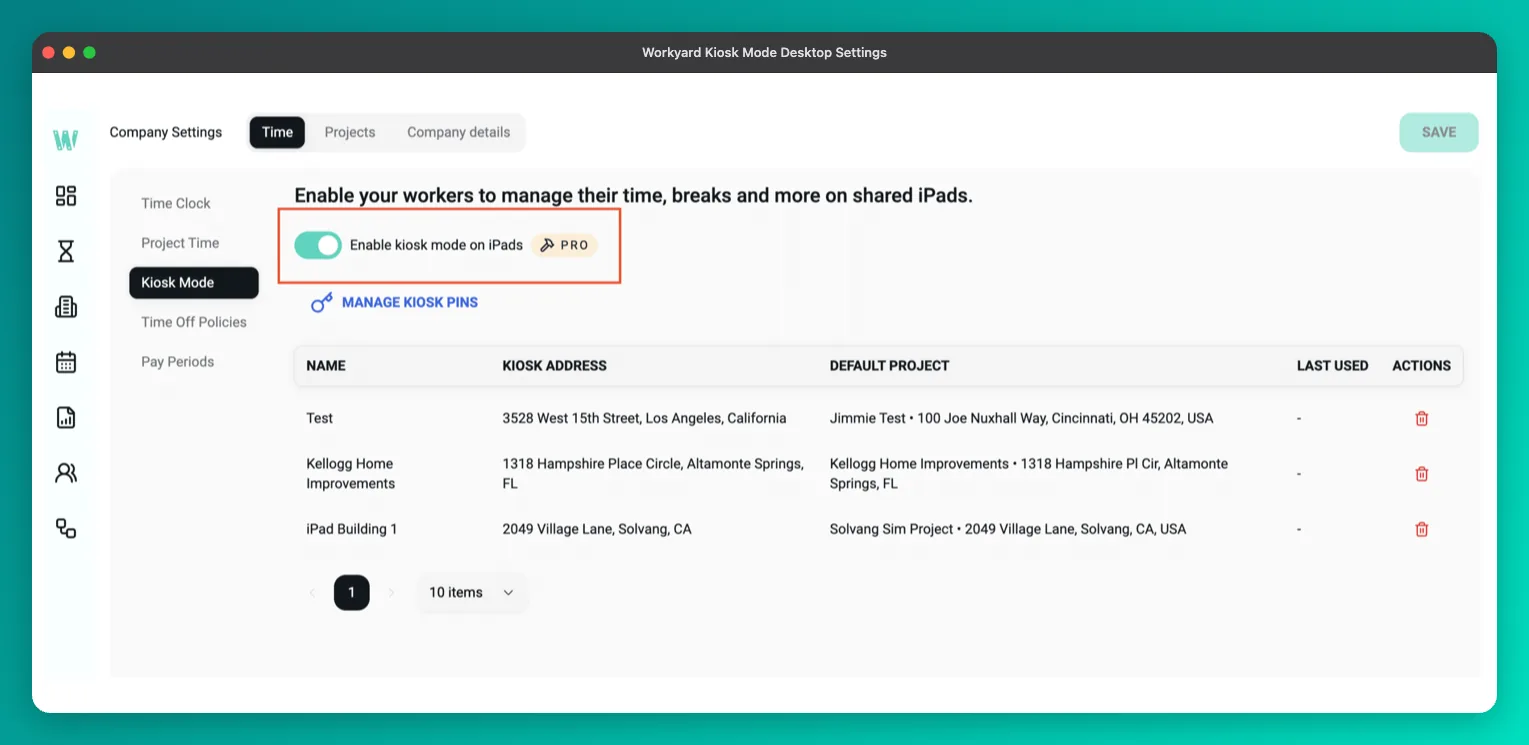
Mount an iPad on the job site and a crew punches in on a PIN. The punch lands on a time card tied to a job and a cost code.
Break and overtime rules follow state law. Hours export to QuickBooks Online, QuickBooks Desktop, ADP and Gusto. Sage, Foundation, NetSuite and Computer Ease connections sit two tiers up on Autopilot.
What it does not do is worth stating up front, because it is the opposite of what Workyard is known for.
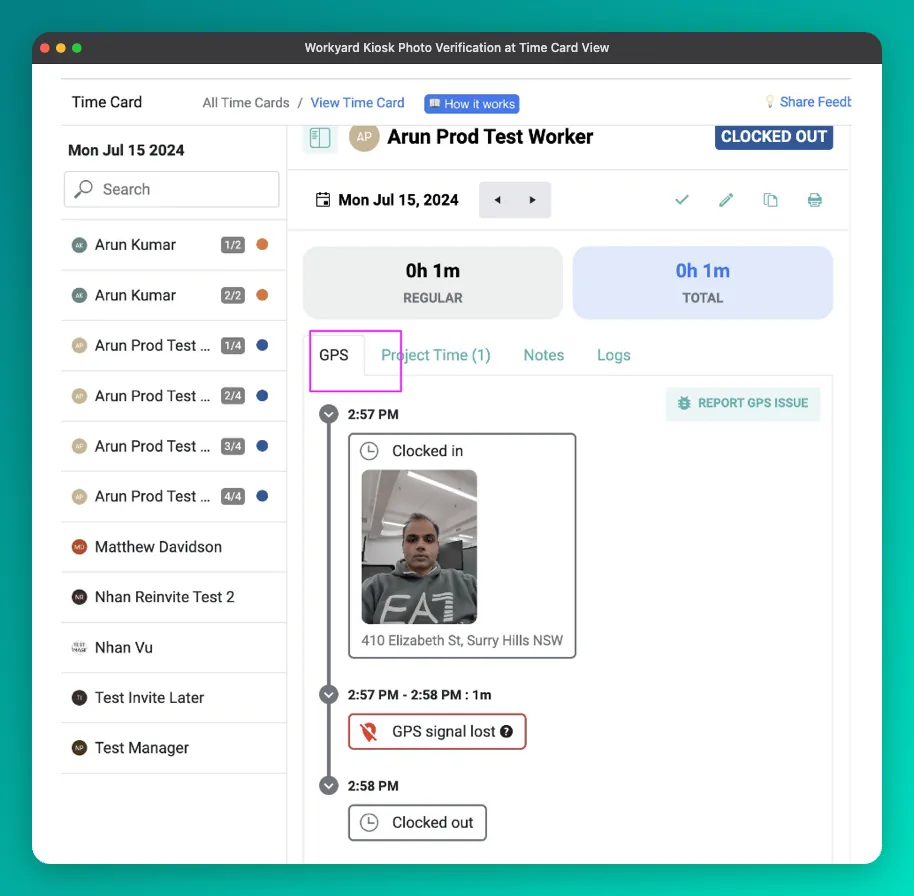
Kiosk time cards carry a clock-in and a clock-out location point, and nothing between them. Workyard's help centre says so directly: “By default, clock-in and clock-out location of the kiosk time cards are shown on the GPS timeline. However, kiosk time cards do not support continuous location tracking.” Continuous tracking runs on the mobile app, not on a shared kiosk.
That is the feature that catches a worker who left a job at two without clocking out. If your crews can carry phones, Workyard's mobile app gives you more enforcement than its own kiosk does.
In over a decade as a remodel contractor this is the best application I've found for project management and clocking job time.
Patrick Deitz · Remodel contractor · Google Play · 2026-07-06
”
This app absolutely sucks and drains phone battery tremendously!
lynda richardson · Google Play reviewer · Google Play · 2026-03-31
What our customers say about us
Hear positive experiences first hand from real conversations between our customers and Workyard.
$260K/yr saved on payroll admin
Job costing data the accounting team can actually break down.
”
Ever since Workyard has been implemented and we've been utilizing it to track job costing. Our accounting department has been able to break down all of that information and give us more realistic numbers.
Electrical & Technical Systems - HR Field Manager
Dive into testimonials from our customers increasing their margins with Workyard
Workyard is first because it treats a kiosk punch as the start of a job costing record, not the end of an attendance check. Workers pick the job and cost code on the screen, and labor cost updates the same day.
We also rank it first for what it refuses to claim. Workyard's kiosk FAQ says it does not use facial recognition, citing privacy concerns around biometrics. It uses face detection, which only confirms a face is present. Identity rests on the PIN.
Only Connecteam is as direct about it. Since none of these products block a bad punch, knowing what you are buying matters more than the marketing word attached to it.
The honest limit is real. Geofence automations do not run in kiosk mode: automatic clock-in on entry, restricting clock-in to a geofence, and clock-out trimming all apply to mobile tracking only.
2. SmartBarrel — Best purpose-built jobsite kiosk hardware
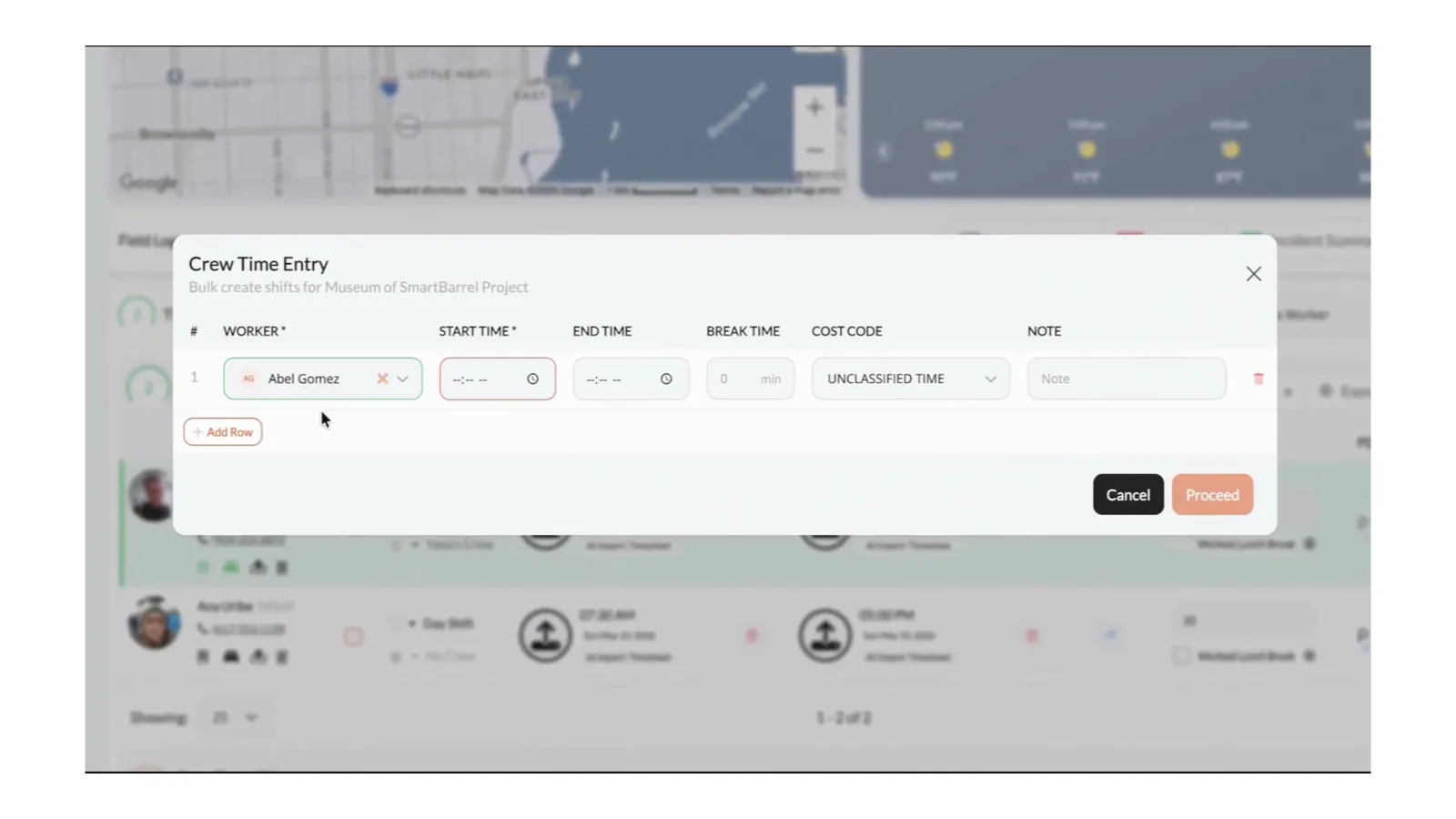
SmartBarrel's crew time entry, where punches from the site device land for review.
SmartBarrel is the only company here that answers the kiosk question with a device instead of an app.
The TimeClock 4.0 is a weatherproof, magnetic unit. It mounts by magnet or screw to fences, columns, trailers and containers. No mains power, no site wifi.
It runs on solar or tool batteries. Cellular is built in across T-Mobile, AT&T, Verizon, Rogers and Bell, with Starlink also supported.
A worker walks up, enters their phone number on the keypad or scans a fob, and the camera takes a photo. SmartBarrel's AI compares it to stored images.
A green circle means verified, red means no match. The company markets this as working with hard hats and safety glasses on, which is the right thing to design for.
There is also a software-only mode. Any phone or tablet becomes a shared check-in station with the same photo check and a geofence.
Key features
TimeClock 4.0 hardware, or kiosk mode on an iPad, Android tablet or phone you already own.
Weatherproof, magnet or screw mount, solar or tool battery, LTE on five carriers plus Starlink.
Punch by phone number or fob, with a 5MP camera capturing every punch.
AI photo comparison: green for verified, red for no match, with crew leaders notified immediately.
A manual verification queue on the timesheet for punches flagged grey or red.
Project geofences that hide the job from anyone outside the boundary.
Pros
Cons
LTE and solar built in; no site wifi or power
Publishes a real signal threshold and stored-punch count
Weatherproof, and replaced free if broken or stolen
Deep construction ERP connections including Procore and Foundation
A failed match notifies a crew leader; the punch stands
No published pricing at all
QuickBooks is the only mainstream payroll name
Verifies location at the punch only; no through-the-day tracking for moving crews
Pricing
Free trial or free plan: No free trial or free plan is visible on their website.
Custom quote: Contact SmartBarrel for a custom quote. There is no pricing publicly available on their site.
Quotes scale with company size, worker count, jobsites and how much hardware you need.
What real reviews say
”
I have 362 people on payroll, so being able to approve time in like 10 min the following morning is great.
Reviewer managing payroll for 362 workers · Capterra · 2025-07-09
”
Need to work out minor bugs, photos being blurry and some intermittent barrel issues that require rebooting.
Verified reviewer, construction · Capterra · 2024-07-08
What contractors told us about SmartBarrel
Themes from anonymized Workyard research conversations, with mention counts.
Weatherproof hardware is the draw 6 mentions
Facial verification and a weather-resistant shell were the reasons contractors looked.
”
We value being able to bolt the unit to the outside of a job trailer.
Steel industry, contractor
A fixed point does not fit a moving crew 4 mentions
The most common objection was structural rather than technical.
”
The kiosk is a fixed point and our crews are not.
Commercial General Contractor
Why we picked it
SmartBarrel is the only product here whose answer to the dead-zone problem is structural. Cellular is built into the device, so there is no site wifi to arrange and no worker's phone to depend on.
The help centre even publishes a signal threshold, which nobody else does. Good signal runs between -51db and -84db, and below -84 the unit might occasionally drop offline. When it does, the LEDs flash yellow and the screen shows how many punches are stored.
It is not first because of scope. SmartBarrel is strongest at a site entrance where a large headcount funnels through one point. Small crews moving between three jobs a day are better served by phones.
A red circle notifies a crew leader rather than stopping the punch, and the timesheet carries a third state most buyers never hear about: punches flagged grey or red need an admin to compare the two photos and click Verify.
SmartBarrel does not publish a price list. It does publish the shape of the bill, which is more useful than most manage: per worker and per physical time clock, no charge for admins, no upfront hardware purchase, and free replacement if a unit breaks or is stolen.
3. ClockShark — Best simple kiosk for specialty trades
ClockShark's clock-in screen.
ClockShark is aimed at small-to-mid construction and field-service teams of roughly 5 to 25 workers, usually QuickBooks-first on accounting.
Its Kiosk Clock does the obvious thing well. One shared device sits in the truck or the trailer, each worker punches with a PIN, and the app takes a photo.
Scheduling comes on every tier, which matters more than it sounds. A worker picking their assigned job from a schedule is a worker whose hours land on the right cost code.
There is also a crew clock-in, where a foreman punches an entire crew from his own device.
That is genuinely useful when ten people arrive together, and it gives a contractor who cannot mount a tablet a second option. ClockShark does not document whether that path carries a photo or a PIN.
Key features
Kiosk Clock lets a whole crew punch from one shared device using individual PINs.
Facial recognition fires three times per shift: clock-in, clock-out and job switch.
Crew clock-in lets a foreman punch a whole crew from his own device.
Drag-and-drop scheduling on every tier, including the entry plan.
Mobile app records through a signal drop, held in a Sync Queue a user must send manually.
QuickBooks Online and Desktop sync, plus Spanish support on all plans.
Pros
Cons
Scheduling included on every tier, including the entry plan
Records through a signal drop, then syncs on demand
Simple enough to set up without IT help
Documents plainly what a wrong-PIN punch does
Three-year contract term applies to every plan
Wrong-PIN punches are photographed and flagged, never blocked
Offline sync is manual; someone has to press Sync
Break enforcement is unavailable at the kiosk
Kiosk app needs iOS 18.2, ruling out older iPads
Pricing
Free trial or free plan: Yes, a 14-day trial with no credit card required.
Standard: $40/month + $9 per user / month. Time and attendance, GPS, job and task tracking, scheduling, manager roles, third-party integrations. Kiosk Clock.
Pro: $60/month + $11 per user / month. Adds paid time off, multi-department and location controls, advanced job costing controls, and shift wrap-up and compliance forms.
A contract term of three years applies to all pricing plans, per ClockShark's pricing page.
What real reviews say
”
Great app for managing time and different jobs.
Mike Stumm · Google Play reviewer · Google Play · 2026-08-01
”
Base monthly costs put this program at a higher monthly cost
Jeremiah M. · General manager, construction · Capterra · 2022-02-16
What contractors told us about ClockShark
Themes from anonymized Workyard research conversations, with mention counts.
Punches that do not complete 49 mentions
System reliability was the most-raised theme, clustering around payroll cycles.
”
Workers sometimes cannot clock out, or cannot clock in.
Mixed Trades - Operations Manager
Geofences prompt rather than enforce 48 mentions
GPS detail and insufficient geofencing came up together.
”
Location acts as a prompt to the worker rather than a control on the timecard.
Mixed Trades - Contractor
Why we picked it
ClockShark is the least complicated way to get a working kiosk for a small trade contractor, and the mobile app keeps recording when the signal drops.
Be clear about the recovery step. The sync is manual: time sits in a Sync Queue until someone presses Sync back in range, which on a shared tablet means whoever picks it up next is responsible for other people's hours.
ClockShark is also the clearest published example of how this category treats verification. Enter a coworker's PIN and the app photographs that person, alerts the admin, and stores the picture on the timesheet. Nothing blocks the entry.
The reference photo is whatever that worker's first kiosk punch captured, with no way for an admin to upload a known-good image.
Two things to read before you sign. A contract term of three years applies to all pricing plans, which no other vendor here asks for. And break enforcement does not reach the kiosk, while clock-out compliance questions are Pro-only, so a compliance-collecting kiosk is $60 plus $11 per user.
One number worth knowing: ClockShark rates 4.7 on Capterra but 3.0 on the App Store and 2.59 on Google Play. Buyers rate the admin console; the people standing at the tablet rate the app.
4. busybusy — Best for tracking crews and equipment together
busybusy ties the punch to a project and cost code.
busybusy is built for construction, and it is the only product here that treats equipment as a first-class part of the punch.
A tablet or phone becomes a shared kiosk. Workers tap their name from a roster and enter a PIN if an admin has switched one on.
From there they switch jobs and cost codes on the screen, record breaks, and can assign their time to multiple pieces of equipment.
For an outfit tracking a mini excavator and a crew on the same job, that is a real difference rather than a checkbox.
The photo check has a number attached to it, which no other vendor publishes. If a photo does not reach a match rate above 90%, the photo is flagged.
The reference image is whatever the worker enrolled on their first kiosk punch. Flagged punches surface in the Photo Verification report.
Key features
Kiosk mode on an iPad, Android tablet or phone. Workers tap their name from a roster.
The PIN and the photo check are both optional toggles, so the default is a list of names.
Photo match with a published 90% threshold, flagged into the Photo Verification report.
Equipment time at the punch, including one worker's time across several machines.
Supervisor Tools clocks crews in from a supervisor's own device, with delete and split.
Kiosk devices are free; each worker who punches counts as a billable user.
Pros
Cons
Equipment time captured at the punch, unique here
Publishes a real 90% photo match threshold
No multi-year contract, and kiosk devices are free
Job and cost code switching on the kiosk screen
PIN and photo are both optional toggles by default
Failed matches surface in a report defaulting to monthly
Supervisors can clock crews in with no photo or PIN
A $40 admin licence sits on top of per-user pricing
No kiosk page anywhere on busybusy.com to evaluate
Pricing
Free trial or free plan: Yes, a free plan, but it does not include kiosk mode. The free tier covers GPS.
Free: $0. GPS time tracking, job costing, equipment tracking, unlimited users. No kiosk mode.
Pro: $9.99 per user / month annually, $11.99 monthly, plus a $40 Admin license (first user included). Adds kiosk mode, photo matching, scheduling and reporting. Fifteen workers is $40 plus 14 seats.
No multi-year contract. A 90-day money-back guarantee applies, less setup and integration costs, which are non-refundable and not published.
What real reviews say
”
Great time keeping app with so much more. I'm able to see where my guys are spending their time. I can see if they leave the project.
Logan Owley · Contractor tracking a crew · Google Play · 2024-10-24
”
it's okay at first, but then I run into issues like I log in the morning, save, do my work and when I try to switch to a different job, all my data gets wiped clean
derrick huerta · Field worker switching between jobs · Google Play · 2026-02-25
What contractors told us about busybusy
Themes from anonymized Workyard research conversations, with mention counts.
Price and job costing keep accounts 15 mentions
Lower per-user pricing was the most-cited reason to stay, with job costing depth close behind at 14 mentions.
”
Equipment tracking, the feature busybusy is best known for, came sixth at four mentions.
Mixed Trades - Contractor
The interface gets in the way 12 mentions
Cluttered interface and overwhelming complexity, alongside 11 mentions of unreliable punches.
”
Unreliable clock-in and clock-out was flagged critical.
Mixed Trades - Contractor
Why we picked it
busybusy earns its place on construction fit. Equipment time at the punch, job and cost code switching on the kiosk screen, and no multi-year contract, which is a direct contrast with ClockShark.
It also publishes a detail almost nobody does. A kiosk punch creates a billable user, while kiosk devices are free. You pay for people, not screens.
Two cautions matter more than the feature list. The Photo Verification report defaults to a monthly window, so a flagged punch can sit unreviewed for weeks.
And busybusy states the fail-open design outright, on the PPE branch of the same photo pipeline: workers can still clock in even when an issue is detected. Flag, log, alert. Never block.
The bigger thing is Supervisor Tools, which busybusy advertises directly. Supervisors can always clock workers in or out, on a Manage Time permission rather than a job title, with no photo and no PIN. Useful for ad-hoc crews, and a documented way around every kiosk control you just paid for.
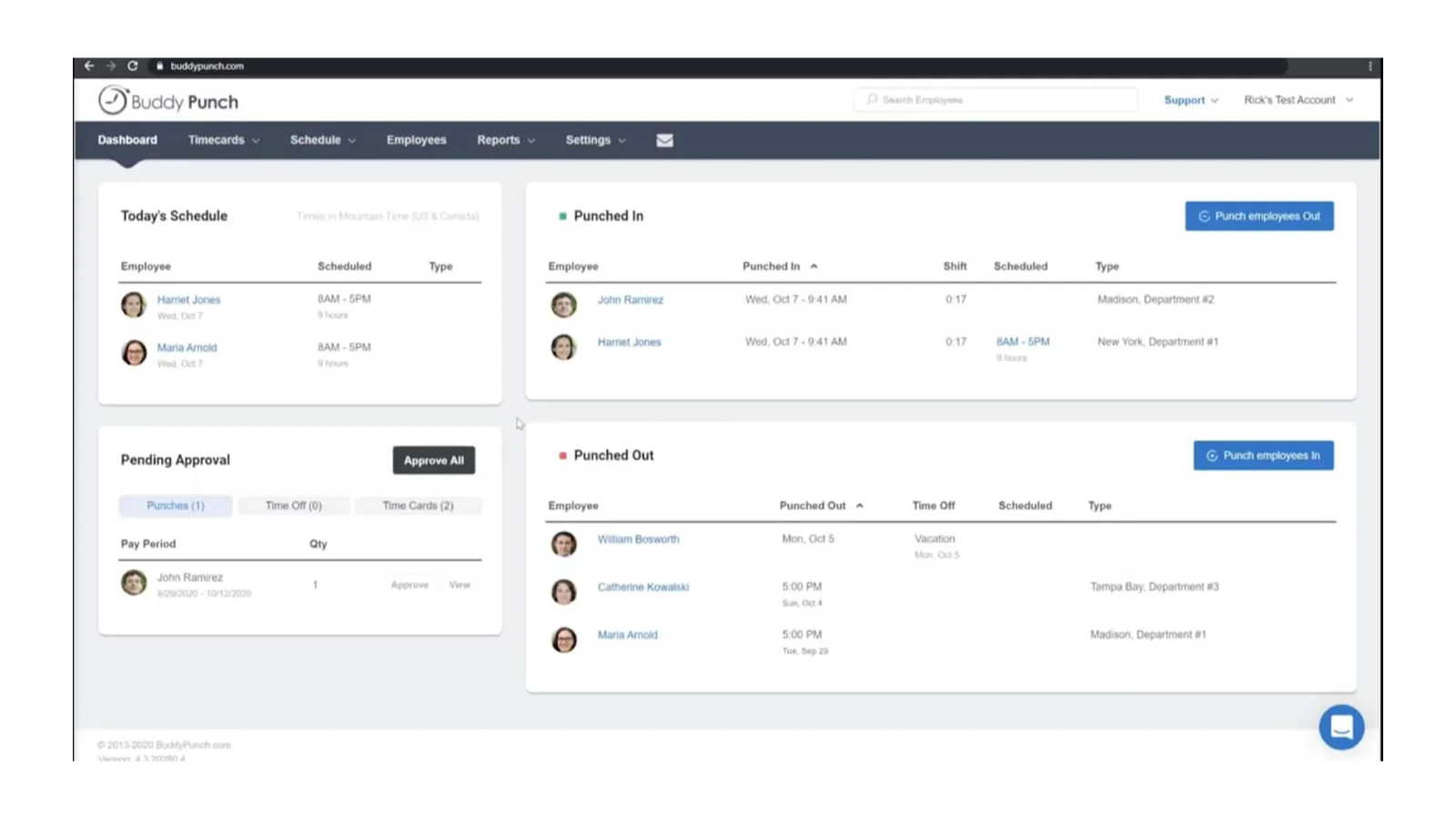
Buddy Punch identity at the kiosk is a PIN or a QR code.
Buddy Punch is the quickest way to turn a spare tablet into a working punch clock.
Workers identify themselves with a PIN or a printable QR code, and the webcam takes a photo on the punch.
Break compliance rules stop a worker clocking back in before a required break has run. Setup takes minutes and crews need no instruction.
It is priced for small outfits, and the arithmetic is worth doing properly.
The kiosk lives on Pro at $6.99 per user per month billed annually, plus a $19 monthly base fee.
Real-time GPS is a separate $2 per user add-on. So a kiosk plus live location costs $8.99 per user plus the base fee. That is about $1,846 a year for fifteen workers, against a $6.99 headline.
Key features
PIN punch or printable QR codes on a shared tablet, with webcam photo capture on Pro.
Face ID uses Apple's device biometrics on iPhone X or iPad Pro third generation and later.
Break compliance on Pro blocks a clock-back-in before the required duration has run.
Automatic overtime calculation with custom rules on every tier.
IP Address Lock ties a kiosk to a fixed network, since geofences need the mobile app.
Buddy Punch Payroll is a separate product at $8 per user plus a $49 base.
Pros
Cons
Cheapest configurable kiosk here once verification is priced in
Printable QR codes suit temp labor
Break compliance blocks an early clock-back-in
Scheduling included on Pro rather than sold separately
Offline tracking is not supported, per Buddy Punch
GPS set to Required blocks the punch on signal loss
Face ID cannot tell a crew apart on a shared device
Geofences need the mobile app; a browser kiosk gets none
Add-ons stack: kiosk plus live GPS is $8.99 per user
Pricing
Free trial or free plan: Yes, a 14-day free trial with no credit card required.
Starter: $4.99 per user / month annually, $5.99 monthly, plus $19 base. Cannot run a kiosk. PIN and kiosk punching is not included.
Pro: $6.99 per user / month annually, $7.99 monthly, plus $19 base. Adds PIN and kiosk punch, webcam on punches, basic geofencing, and scheduling included.
Advanced: $12.99 per user / month annually, $13.99 monthly, plus $19 base. Adds geofence alerts, real-time GPS included rather than as an add-on, advanced reporting and SSO.
Real-time GPS is a $2 per user add-on on Starter and Pro. Data retention is a $2 per user add-on on every tier, and cancelling deletes your data.
What real reviews say
”
Very easy to use and setup new employees. Technical support resources are comprehensive and when more assistance is required a real person is readily available to assist.
Anthony P. · General manager, consumer services · Capterra · 2025-02-10
”
We had a pattern of some employees with darker skin having problems with facial recognition. So that was bit embarrassing and led to the final decision to put everyone back on punchcards.
South Florida Caterer · Catering business with about 75 workers · Apple App Store · 2024-01-15
What contractors told us about Buddy Punch
Themes from anonymized Workyard research conversations, with mention counts.
Simple enough that crews just use it
Easy to hand to a crew with no training, often the deciding factor for a small outfit.
”
Contractors described it as easy to hand to a crew with no training.
Small Trades - Contractor
Job hours yes, job profitability no
Job codes and job-level hours exist on every tier; per-job profitability does not.
”
Contractors described hitting the absence of per-job profitability analysis.
Job-Costed Work - Contractor
Why we picked it
Buddy Punch is the cheapest genuinely configurable kiosk here, once you account for what Connecteam charges to add verification. Printable QR codes suit temp labor who will not remember a PIN.
The facial recognition needs correcting, because a competing roundup labels Buddy Punch the best kiosk with facial recognition. Its plan table does carry a Face ID row on all three tiers.
The mechanism is Apple Face ID, enrolled in the device's own settings, on iPhone X or iPad Pro third generation and later. Apple allows one face plus a single alternate appearance, and the data never leaves the device.
So a shared crew kiosk cannot use Face ID to tell workers apart. Buddy Punch's own instruction to scan all of your employees' faces does not match how Apple enrolment works. Identity here is a PIN or a QR code.
Offline is settled on Buddy Punch's own construction page, which asks whether it supports offline tracking and answers no. Worse for a jobsite, with GPS set to Required a lost signal blocks the punch outright.
6. Connecteam — Best free kiosk for very small teams
Connecteam's time clock on a shared device.
Connecteam is the most visible product on this search, appearing on every competing roundup we checked. Its kiosk is genuinely free.
Kiosk Station is available on the free Small Business plan and every paid tier above it.
Set a tablet up in minutes, give each worker a four-digit PIN, and a crew is punching on a shared device at no cost.
Around the time clock sits a broader frontline app with scheduling, chat, checklists and training. That is why mixed workforces like it.
If construction is only part of what you run, that breadth is worth something.
Key features
Kiosk Station runs as a separate app on an iPad or Android tablet only, portrait orientation.
Available on the free plan and every paid tier, with no desktop or browser version.
A unique four-digit PIN per worker, delivered by SMS and not customisable.
Kiosk Selfie Security on the Expert plan only, filed for manual review rather than matched.
Auto log-out on inactivity from the Advanced plan.
Break and overtime rules, daily sign-off and timesheet audit-log export.
Pros
Cons
The kiosk is genuinely free for up to 10 users
Strong scheduling, chat and checklists around the clock
Sets up in minutes on an iOS or Android tablet
Says in its own content that it has no facial recognition
Offline does not work at all, kiosk included
Photo verification requires the top Expert plan
Free and Basic kiosks have no photo check at all
Kiosk app reviewers report crashes on photo capture
Thin on cost codes and job costing
Pricing
Free trial or free plan: Yes, a free Small Business plan for up to 10 users, and the kiosk is included.
Small Business (free): $0 for up to 10 users. Includes Kiosk Station. No selfie verification. Archived users count toward the 10-seat cap.
Operations Basic: $29 a month billed annually for the first 30 users, then $0.80 per additional user ($1.00 on monthly billing). Real-time clock in and out with GPS, unlimited jobs, payroll integration, basic scheduling. Kiosk included.
Operations Advanced: $49 a month billed annually for the first 30 users, then $2.50 per additional user ($3.00 monthly). Adds full time clock customisation, auto clock out, up to 10 geofence sites, repeating shifts.
Operations Expert: $99 a month billed annually for the first 30 users, then $4.20 per additional user ($5.00 monthly). The tier that adds Kiosk Selfie Security. Also unlimited geofence sites, auto-reports, API access.
Enterprise: Custom. Adds unlimited time clocks, SSO, two-factor authentication and a biometric app lock, a device lock.
Annual billing saves 18% against monthly. Each hub bills separately at the same ladder, so adding chat or HR multiplies the plan price. Fifty users on Expert run $183 a month billed annually: $99 for the first 30, then $4.20 for each of the next 20.
What real reviews say
”
This is a great app! I have not experienced any of the issues that others have mentioned.
Amanda Harrold · Kiosk app user · Google Play (Connecteam Kiosk app) · 2024-08-20
”
Doesn't give the ability to "log out" and won't work for multiple users on one device
Jamie Mitchell · Kiosk app user · Google Play (Connecteam Kiosk app) · 2024-12-07
What contractors told us about Connecteam
Themes from anonymized Workyard research conversations, with mention counts.
Aggressive low pricing 42 mentions
By far Connecteam's strongest competitive weapon in our call records.
”
Reps repeatedly heard that it is cheaper and I'm already using it.
Mixed Field Workforces - Contractor
Connectivity failures 8 mentions
Punches lost or entered late when a site had no signal.
”
It really sucked at staying connected in remote areas.
Remote & Multi-Site Work - Contractor
Why we picked it
Connecteam is the most SERP-visible tool in this category and it still sits sixth. The reason is offline.
Its own help centre states it is not possible to use Connecteam offline, whether from the mobile app, the Kiosk application, or desktop. Nothing queues locally. It has been on the roadmap since September 2024, and a ten-month changelog audit shows nothing shipped.
For a trailer on a site with no signal, that is close to disqualifying, however good the rest of the app is.
The free kiosk also needs a caveat its marketing obscures. Kiosk Station is free, but Kiosk Selfie Security is Expert-only at $99 a month annually. So a free or Basic kiosk is a shared tablet with no photo at all.
Even on Expert the selfie is filed for review rather than matched. Connecteam's own roundup lists no AI facial recognition as a con, which is unusually direct. Only Workyard is as plain about the same limitation.
One point in its favour, and it is the only tool here that earns it. Connecteam has no supervisor bulk clock-in, confirmed absent in our research. Where busybusy, ClockShark and Clockify all ship a documented way for one person to punch a whole crew, Connecteam does not. If attributable punches are the reason you are buying, that omission is worth more than it sounds.
7. Timeero — Best iPad kiosk for a fixed yard or shop punch point
Timeero's clock-in screen. The kiosk app is iPad only.
Timeero's strength is mileage. Its segmented tracking breaks a driving day into stops and routes.
That is genuinely valuable for service crews, inspectors and installers who spend more of the day in the truck than on one site.
The kiosk is a separate app called Timeero Terminal. Facial recognition runs on the Premium plan at $10 per user per month billed annually.
The device constraint is stricter than a preference. Timeero Terminal lists 80 supported devices and every one is an iPad, with a minimum of iPadOS 14.
There is no Android kiosk app on Google Play at all. If your crews have Android tablets, this product cannot run your kiosk.
Key features
Timeero Terminal runs on iPad only, across 80 models at iPadOS 14 or higher.
No Android kiosk app exists on Google Play at all.
Facial recognition on Premium, where the first photo becomes the reference image.
Kiosk punches queue offline and sync on reconnect, confirmed in two vendor sources.
Segmented tracking splits a driving day into stops and routes, as a $5 per user add-on.
Commute mileage, time off management, EVV and a public API on Premium.
Pros
Cons
Kiosk punches queue offline and sync on reconnect
Best mileage and route tracking in this roundup
Clean iPad app with no separate photo enrolment
No base fee, so small crews pay per seat only
A face mismatch does not block the punch
No photo is kept unless a mismatch fires
iPad only; no Android kiosk app exists
Vendor contradicts itself on whether the kiosk records location at all
Segmented tracking cannot be used through the kiosk
Pricing
Free trial or free plan: Yes, a free trial. No free plan.
Basic: $5 per user / month annually, $6 monthly. Time tracking and GPS. Hard cap of 10 users, the 11th hire forces Pro.
Pro: $7.50 per user / month annually, $9 monthly. Adds scheduling and geofencing.
Premium: $10 per user / month annually, $12 monthly. Adds kiosk facial recognition, time off management, commute mileage, EVV and API access.
Segmented tracking is a $5 per user add-on on top of Premium and cannot be combined with automatic clock-in and clock-out.
What real reviews say
”
The app is straight forward, and the segmented tracking feature is what really sold us!
Timeero User 123 · Verified App Store reviewer · Apple App Store · 2025-11-24
”
clocks you out if you lost signal of phone dies, says your location is off if no signal.
Steven Butler · Field worker · Google Play · 2026-03-31
What contractors told us about Timeero
Themes from anonymized Workyard research conversations, with mention counts.
Price is why it gets shortlisted 7 mentions
The most-mentioned reason Timeero makes a shortlist, from 23 companies in our records.
”
Price was the reason it made the list at all.
Mixed Trades - Contractor
The iPad requirement is the kiosk objection 1 mentions
The only company to raise the kiosk raised it as a constraint.
”
They raised the iPad-only requirement rather than the capability.
Field Services - Prospect
Why we picked it
Timeero has a problem the spec sheet hides: the thing you would buy it for cannot be used through its kiosk. Segmented tracking is built from the worker's own phone GPS, costs $5 per user on top of Premium, and is mutually exclusive with automatic clock-in and clock-out.
Timeero also contradicts itself on kiosk location. Its help centre says location cannot be tracked via the kiosk; its marketing FAQ says GPS on the kiosk needs an iPad with GPS tracking. We are printing both rather than picking one.
The verification is real but fails open, and Timeero states both halves. Users are not blocked when there is a face mismatch, though admins are notified with both photos side by side.
The harder limit is that photos are only sent if a mismatch is detected. So there is no punch-photo audit trail. Several other products here at least retain the image for review.
Credit where it is due. Timeero documents kiosk punches queueing offline and syncing on reconnect, which on a jobsite matters more than most feature lists.
8. QuickBooks Time — Best only if QuickBooks is already your system of record
QuickBooks Time's clock-in screen.
If your books live in QuickBooks Online, QuickBooks Time is the path of least resistance. Hours flow into payroll without an export step.
The kiosk is a real product rather than a repurposed mobile screen. Set a tablet, desktop or laptop up as a kiosk and give workers four-digit PINs.
Workers who have no QuickBooks Time login of their own can still punch through it. Photo capture is available, and every timesheet edit is logged.
One prerequisite is easy to miss. Intuit's pricing page states that a QuickBooks Online account is required to use QuickBooks Time, so budget for two subscriptions.
Intuit's own May 2026 accountant channel still describes it as usable standalone, so confirm before you buy.
Key features
Kiosk mode on an iPad, Android tablet, desktop or laptop, needing iPadOS 16 or later.
Added by installing the Time Clock Kiosk add-on at no extra cost.
Four-digit PIN punch, and workers with no QuickBooks Time login can still clock in.
Photo capture on clock in and out, attached to the timesheet, with every edit logged.
Photo capture needs Chrome, Firefox or Edge. Safari cannot do it.
Geofences on Elite only, notifying a worker's phone rather than gating the kiosk.
Pros
Cons
Hours reach QuickBooks payroll with no export step
The kiosk add-on costs nothing extra
Workers without a login can still punch
Every timesheet edit is logged
Both kiosk apps last shipped in 2024; iOS rates 1.9
The kiosk needs a live connection for every punch
Verification is a photo filed for manual review, with no automated matching
Pricing page requires a QuickBooks Online account, so budget two subscriptions
Geofencing is Elite only and cannot be locked down on a computer at all
Pricing
Free trial or free plan: Yes, a free trial. A QuickBooks Online account is required to use QuickBooks Time.
Premium: $20/month base (includes 1 admin) + $10 per user / month. Kiosk add-on available at no extra charge. Reflects the 1 July 2026 increase from $8.
Elite: $40/month base + $12 per user / month. Adds geofencing, which is Elite only, uses a 100 to 1,000 metre radius, and notifies.
New customers get six months of price protection before the higher per-user rate applies. A QuickBooks Online account is required.
What real reviews say
”
I came from ADP payroll systems and did not have high hopes for QB Workforce but I have been plesantly surprised so far. Clear and easy to use interface, prompt updates, and relevant add-ons.
L B Jo · Reviewer who switched from ADP · Google Play (QuickBooks Workforce app) · 2026-07-02
”
I don't know if an update came out or what, but now it does not work. As soon as we try to log in to the app, the screen turns white and nothing.
Jake Wiebe · Shop owner running the kiosk · Google Play (QuickBooks Time Kiosk app) · 2024-06-10
What contractors told us about QuickBooks Time
Themes from anonymized Workyard research conversations, with mention counts.
Tight QuickBooks integration 267 mentions
The single strongest reason contractors choose it.
”
Contractors picked it because their accountant already ran QuickBooks.
Small & Mid-Sized Outfits - Owner
Dated, clunky mobile app 200 mentions
The most-raised complaint in our call records.
”
The field experience was treated as a secondary consideration.
Mixed Trades - Contractor
Why we picked it
QuickBooks Time loses ground on maintenance rather than capability. Both dedicated kiosk apps last shipped in 2024, the iOS one rated 1.9 out of 5 from 54 ratings, and Intuit's help articles now steer readers toward Workforce Premium or Elite.
We report store metadata as observed rather than guessing at intent. But a 2024 app at 1.9 stars is not something to build a jobsite process on in 2026.
The offline position is the wrong way round for a jobsite. Intuit says the punch clock works on any device with an internet connection, while advertising its phone app as clocking in even without wifi or service.
So the one surface you mount in a trailer needs a connection, and the one in a worker's pocket does not.
Verification is a photo for a person to look at, with no automated matching and no failed-match alert. Reviewing the product, business.com calls it a substitute for true biometrics authentication.
Two constraints worth knowing before you deploy. Intuit documents that you cannot lock the kiosk down on a computer at all, so a desktop kiosk is a browser a worker can leave. And once time is submitted, a worker cannot clock in again on a day they have already submitted, which is the kind of rule that surfaces at the worst moment on a Friday.
9. Clockify — Cheapest way to put a whole crew on a kiosk
Clockify's kiosk: a browser page with PIN entry, and no identity matching.
Clockify is a general-purpose time tracker rather than construction software. It is on this list for one reason.
It is by far the cheapest way to get a crew punching on a shared device.
Kiosk workers are billed as limited seats at $0.79 per seat per month billed annually on the Basic plan, against $3.99 for a full seat.
A 30-person crew on one kiosk costs about $27.69 a month, counting one full admin seat. Thirty full seats would be $119.70.
Workers are added by name with no email address required, and punch with a personal 4 or 6-digit PIN. You can run several kiosks at once across locations.
Clockify's feature page also advertises CSV import for kiosk users, though its help centre documents only name-by-name entry.
For a contractor who needs attendance records and nothing more, that is a lot of value for the money.
Key features
Runs in a browser on any iPad, Android tablet or Windows machine.
Kiosk-only limited seats at $0.79 per seat per month annually, against $3.99 for a full seat.
Workers added by name with no email address required.
QR login needs Standard, plus an email and the worker's own phone, so limited members cannot use it.
Personal 4 or 6-digit PIN punch, with multiple simultaneous kiosks across locations.
Photo capture on Pro, stored for manual review with no matching.
Pros
Cons
Kiosk-only seats at $0.79 are the cheapest crew route
No email addresses needed, so there are no invitations to chase
Multiple simultaneous kiosks on the entry paid plan
Runs in a browser, so nothing to install
No face matching or verification of any kind
No geofencing on any plan; GPS is mobile only
Kiosk needs live internet, and limited seats cannot use the offline apps
A Universal PIN lets one person clock in others
Sessions expire every 24 hours and need an admin to relaunch
Pricing
Free trial or free plan: There is a free plan, but the kiosk requires a paid plan.
Basic: $3.99 per seat / month annually ($4.99 monthly), plus $0.79 per limited kiosk seat. Unlocks the kiosk, unique PINs, break clocking and multiple simultaneous kiosks.
Standard: $5.49 per seat / month annually, plus $1.19 per limited seat. Adds approval workflows and time off, plus a configurable kiosk session length, which fixes Basic's daily-relaunch problem, and QR code login.
Pro: $7.99 per seat / month annually, plus $1.59 per limited seat. Adds photo capture, GPS on the mobile app and scheduling.
Enterprise: $11.99 per seat / month annually, plus $2.39 per limited seat. Adds SSO and audit logs.
A limited member has no email address, cannot use the web, mobile or desktop apps, and cannot record location.
What real reviews say
”
Easy to pickup and easy to master. A lot of supported customizations as well. It supports freelancers, individuals, and companies.
L Jones · Long-term user · Google Play · 2026-07-24
”
It's extremely annoying that I can't even name my own employees in the app, especially when I pay for their licenses.
Greg Hassler · Employer paying for worker licences · Google Play · 2026-03-10
Why we picked it
Clockify buys you attendance and very little else, and the gaps matter on a jobsite. There is no facial recognition, no face matching and no verification of any kind anywhere in the product.
Photo capture exists but is Pro-gated and passive: stored for a human to look at, with no match result, no alert and no blocked punch. There is no geofencing on any plan.
The offline story inverts into the sharpest weakness here. The kiosk is a browser URL needing live internet, while Clockify's actual offline capability lives in apps that limited members are barred from using.
So in a dead zone, the exact population the kiosk exists to serve has no way to punch at all.
Two operational details before you mount one. A kiosk session expires after 24 hours and only an admin can relaunch it, and there is no automatic clock-out, so a forgotten Friday punch runs through the weekend.
The integration list settles it for most contractors. There is no Procore, no Sage, no Foundation, no Viewpoint, no CMiC, no ADP and no Gusto. For an office team tracking project hours that is irrelevant. For a contractor who has to get hours into construction payroll, it means exporting a file and doing the rest by hand.
The right kiosk depends on what you need it to prove and where your crews actually work. Use these seven steps to narrow the field.
1. Decide what verified has to mean for you
Ask the vendor three things. Does the system compare the photo to anything? What happens on a failed comparison? Where does that failure show up?
If the answer is a report, ask what window it defaults to. One product here defaults to a month, so a bad punch can sit unread until after payroll has gone out.
Who: PIN, QR code, phone number, photo, or a face match
What happens on a miss: blocked, alerted, flagged, or nothing
Where it surfaces: a report, an email, or the timesheet itself
How fast: within seconds, or a monthly review window
2. Test the dead zone before you buy
Several products have solid offline handling in the phone app and none at the kiosk, then describe offline capability in terms that make you assume both.
Take a tablet to your worst site, put it in airplane mode, and punch. If a vendor cannot answer the question in writing, treat that as the answer.
Ask about the kiosk specifically, not the phone app
Confirm punches queue on the device, and how many
Ask what happens to the photo while offline
Check whether sync is automatic or someone must press a button
3. Price the tier that actually runs a kiosk
The advertised price is usually not the price. On Workyard and Buddy Punch the kiosk sits behind a higher tier. On Connecteam it is free, but photo verification costs $99 a month.
Work out your real number at your real headcount, on the tier that includes what you need. Fifteen workers on Buddy Punch with a kiosk and live GPS is about $1,846 a year, against a $6.99 headline.
Base fee plus per-user rate, at your actual crew size
Add-ons: live GPS, scheduling, data retention
Contract length — ClockShark applies three years to every plan
Whether you are billed per worker, per device, or both
4. Decide who is allowed to punch for someone else
Several products ship a documented path that bypasses the kiosk. busybusy advertises it plainly: supervisors can always clock workers in or out, on a permission rather than a job title, with no photo and no PIN.
None of that is misuse, and on a job where ten people arrive together it saves real time. But if you are buying a kiosk to make punches attributable, decide deliberately who holds that permission.
busybusy: Supervisor Tools, no photo and no PIN
ClockShark: a foreman can clock in a whole crew
Clockify: a supervisor Universal PIN, by design
Connecteam: no bulk clock-in at all, the only one here
5. Check what the time card can prove in six weeks
A kiosk earns its money the day someone disputes a punch, so look at the record from that end.
Some products store a photo on every punch. One stores a photo only when it already suspects a mismatch, so the punches you most want to review are the only ones with no image.
A photo on every punch, not only on a failed match
Location at punch-in and punch-out
Job and cost code attached to the hours
An edit history showing who changed what, and when
Ask to see a real time card in a demo, not a dashboard, and ask what it would look like in a wage claim.
6. Check which kiosks run on iPad, and lock the device down
Two apps here are iPad-only, and one has no Android kiosk app in existence. Check before you buy hardware.
Any browser, including Windows: Clockify and QuickBooks Time
Its own hardware: SmartBarrel, or kiosk mode on a tablet you own
Almost none of these ship their own kiosk lock, so budget ten minutes per device for Guided Access on iOS or Screen Pinning on Android. On a Windows machine, QuickBooks Time documents that locking it down is not possible at all.
7. Decide whether you need scheduling in the same app
This is the question contractors ask most often after the kiosk itself, and the answers are not close.
Included on every tier: ClockShark
Bundled: Connecteam, busybusy, QuickBooks Time
Workyard: on the same Pro tier that unlocks the kiosk
Paid add-on or absent: Buddy Punch ($1/user), Timeero, Clockify, SmartBarrel
A worker who picks an assigned job at the punch is a worker whose hours land on the right cost code, without anyone correcting them on Friday.
My payroll system already has a kiosk. Do I need this?
Often not, and it is worth checking first. Paycom, Paycor, Paylocity, ADP, Gusto and QuickBooks all have some form of kiosk or web clock. If your crews are already in one of those systems, the integration you have may beat a new tool you have to roll out. Where those built-in clocks fall short for contractors is job costing and location. They record attendance well, but struggle to tell you which job the hours belong to.
Kiosk or phones, or both?
Both is usually the honest answer, and most of these products support a mix. Phones give you a stronger record, because location can be tracked through the shift rather than at two moments. That is how you catch a worker who left a job at two without clocking out. Kiosks solve adoption: shared devices, temp labor, and anyone whose battery dies by mid-morning. A common setup is phones for permanent crews and a kiosk at the gate for temp labor and subs.
Is a rugged device worth it over an iPad?
It depends on whether your problem is the device or the connection. An iPad in a case on a trailer wall is cheap and fine where you have wifi or a hotspot. SmartBarrel's argument is that a jobsite has neither reliably, so its unit carries its own LTE and solar power. If you have one entry point with substantial headcount, that is a real advantage. Worth knowing: the rugged JobClock hardware from Arcoro Time identifies workers by coloured key fobs, with no photo at all.
Most of these apps run on a standard iOS or Android tablet, and several also run in a desktop browser or on Windows. The constraints are specific. Workyard's kiosk is iPad only. Timeero is iPad only with no Android app at all. QuickBooks Time runs on a desktop or laptop too, but cannot capture photos in Safari. Clockify runs in any browser. SmartBarrel supplies its own weatherproof device. Buddy Punch and Clockify also support printable QR codes.
What is the best time clock kiosk app for iPad?
The iPad is the most common kiosk device on a jobsite, and two apps here require one. Workyard's kiosk runs on iPad only, at iPadOS 17.5 or higher. Timeero Terminal is also iPad only, across 80 models. QuickBooks Time needs iPadOS 16 and cannot capture photos in Safari. Clockify runs in any browser, so any iPad works. Whichever you pick, turn on Guided Access. Almost none of these apps ship their own kiosk lock.
Is there a free time clock kiosk app?
Connecteam's Small Business plan includes Kiosk Station free for up to 10 users. That is the only genuinely free kiosk here. Two catches. Photo verification requires the Expert plan at $99 a month, so the free kiosk secures identity with a PIN alone. Archived users also count toward the 10-seat cap. Clockify is the cheapest paid route, at $3.99 per full seat plus $0.79 per kiosk-only seat. busybusy has a free tier, but it does not include the kiosk.
Does a time clock kiosk work offline?
Offline support varies more than any other feature here, and most kiosks do not have it. Connecteam says offline is not possible from the mobile app, the kiosk application or desktop. Buddy Punch does not support offline tracking. QuickBooks Time needs a connection for every punch. Clockify's kiosk is a browser page with no offline queue. SmartBarrel stores punches on its device and shows the count. Timeero queues punches and syncs on reconnect. Ask about the kiosk specifically, because several vendors answer about the phone app.
How do time clock kiosks prevent buddy punching?
Time clock kiosk apps make buddy punching documented rather than impossible. A punch carries a timestamp, usually a photo, and sometimes a location. That is far better evidence than a foreman's recollection. But none of the nine apps here blocks a punch that fails its identity check. Four compare the photo to a stored reference and alert an admin afterwards. The rest store the image for manual review, or compare nothing. Also check who else can punch for a crew.
Kyo Zapanta
Construction technology writer, 10+ years covering workforce management & SaaS
Kyo Zapanta is a B2B technology writer with more than 10 years of experience covering workforce management and SaaS. At Workyard, she writes about construction labor compliance, GPS time tracking, job costing, and crew scheduling. She has personally tested and reviewed more than 30 construction technology platforms, combining hands-on product research with a family background in carpentry and construction to connect software capabilities with the realities of field work.