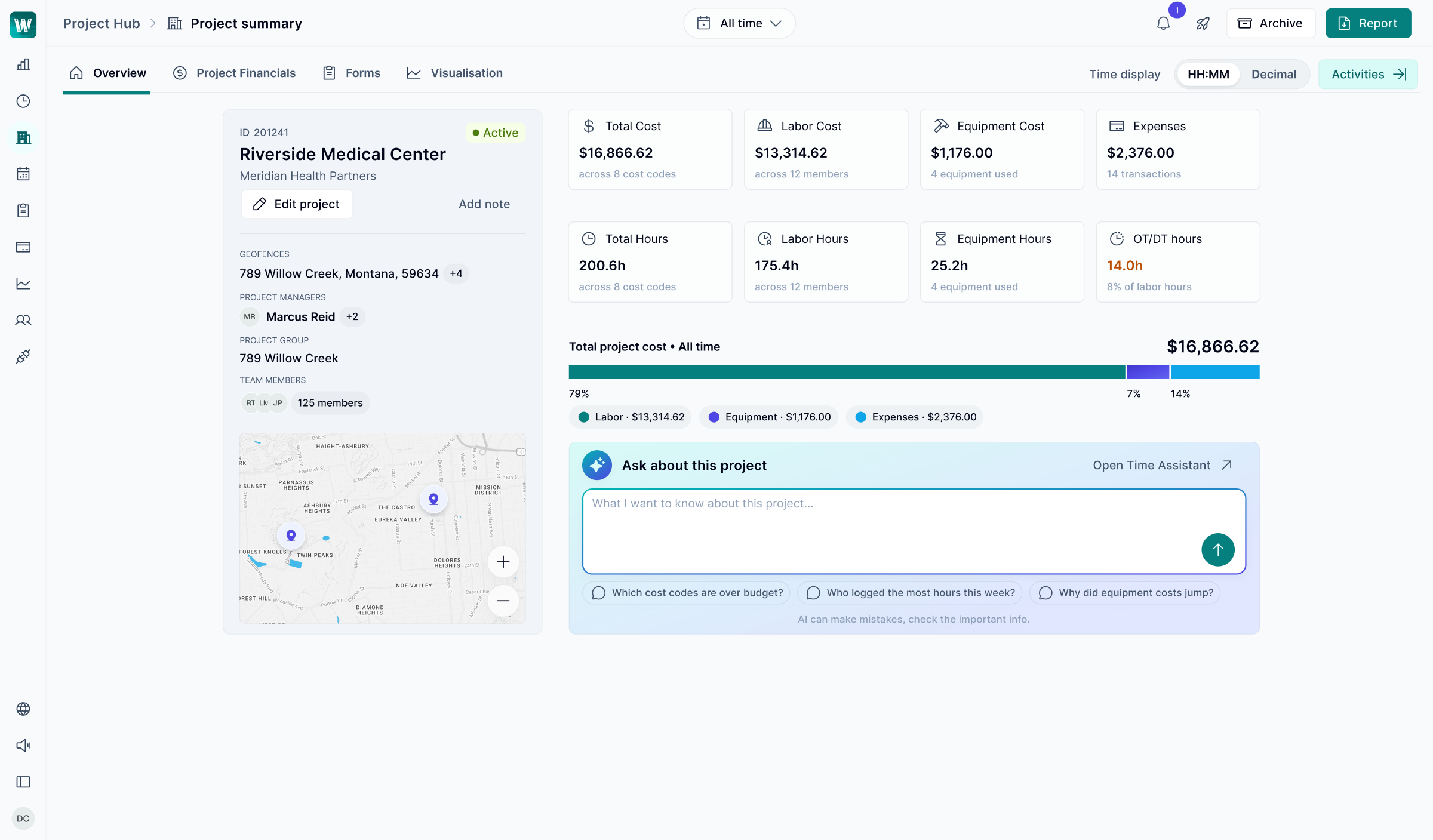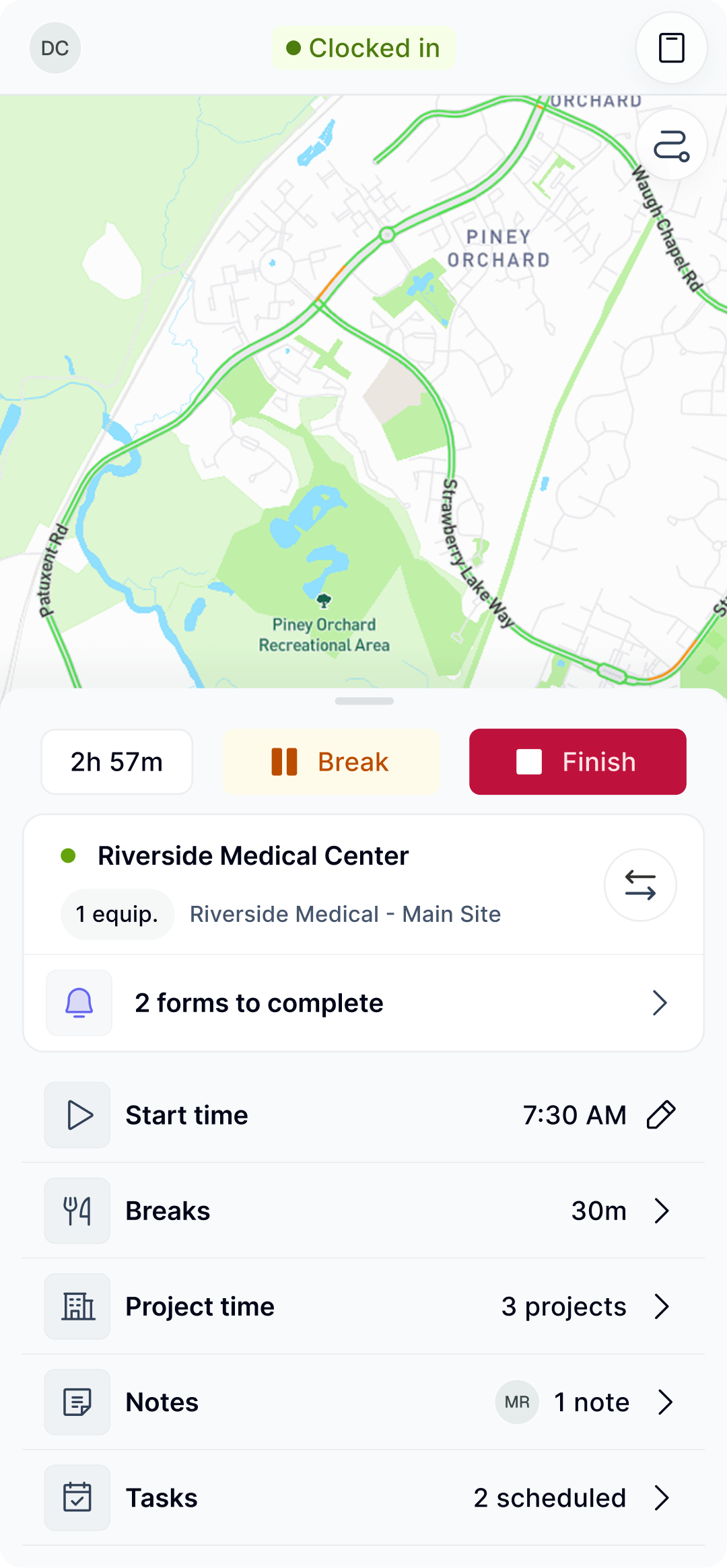





Construction employee scheduling software should keep the office and field working from the same information. Without that connection, crews can miss reassignments, office staff can lose track of who is where, and labor hours may need payroll cleanup. The buying decision should focus on whether one workflow keeps assignments, field updates, and labor data connected.
Workyard’s analysis of 336 market research conversations about scheduling across 241 accounts identified 1,358 scheduling-core needs. Getting the schedule to the field appeared in 295 needs across 117 accounts. The sample covers contractors already looking at scheduling software, so it should not be read as market prevalence.
The right software can reduce those handoffs and make schedule changes easier to act on. This guide covers seven feature checks, five options by use case, and practical trial tests.
If you’re looking for a head-to-head vendor comparison, the crew scheduling software roundup goes deeper on individual tools.
How do I choose construction employee scheduling software for field crews?
Choose construction employee scheduling software that matches how your crews move between active jobs. Prioritize fast field updates, clear availability, multi-jobsite visibility, mobile use, and clean handoffs to time, cost-code, and payroll workflows.
Among 108 accounts that named a current scheduling method, 40 were still using Excel, whiteboards, paper, calendars, or messaging. Replacing the calendar alone does not remove the calls, texts, and re-entry around it.
That connection matters when schedule data affects labor costing and payroll. Separate systems can create extra reconciliation work when hours, jobs, and cost codes do not line up. Connected workflows can reduce re-keying, but field mappings and export behavior still vary by payroll or accounting destination.
Construction crew scheduling focuses on who is assigned where and when. Project scheduling manages phases, milestones, and resource planning across a job’s timeline. For contractors moving crews between active jobs, field crew scheduling is the more relevant layer. Teams that also manage long-horizon project planning may need both. For a broader explanation, see our construction planning and scheduling guide.
Recent research supports connected digital coordination, with important limits. A 2025 systematic review included 28 studies on construction productivity technologies. It linked digital tools with better resource allocation and scheduling through improved coordination. The authors said long-term benefits and scalability still need more evidence.
A separate 2025 study combined a systematic review with construction professionals’ evaluation. It found mobile apps, software tools, cloud computing, tracking technologies, and mobile computing can support communication management.
7 features to look for in construction employee scheduling software
Start with features that match how your crews actually work. Check GPS-verified time, live updates, worker availability, conflict warnings, multi-jobsite visibility, work-order fit, cost codes, offline behavior, qualifications, payroll connections, and field adoption. Each feature should remove a specific handoff your office can test.
1. GPS-verified clock-in tied to the schedule
GPS-verified clock-in records where a worker clocked in and can help resolve time or location disputes. It can also reduce manual review when the office needs to confirm jobsite attendance.
Some systems can clock workers in when they enter a project geofence. This behavior depends on the product, plan, rule settings, and mobile permissions. For Workyard, auto clock-in must be enabled in time-clock rules.
2. Live schedule updates and crew availability
Look for mobile notifications that send schedule changes to affected workers without a separate call or text. Also check availability and time-off visibility before assigning work. During a trial, change an assignment and confirm what the worker sees on the phone.
A demolition and site-preparation contractor described the goal plainly.
“We’re looking to schedule our team and have it send automatic notifications to them of where they’re supposed to go for the day.”
During a trial, publish once and confirm the affected workers receive the right assignment. Compare construction dispatch software for keeping crew assignments and field updates in sync.
3. Multi-jobsite visibility for employees and subcontractors
For multi-jobsite work, look for one view of active jobs and crew assignments. If you schedule employees and subcontractors, confirm how both groups appear and what access each needs. If GPS is part of the workflow, confirm when location data is collected and how current it is.
Workyard’s scheduling-needs research found real-time who/where visibility in 90 needs across 63 accounts. A useful multi-jobsite view should connect location with assignment context, not just show a phone on a map.
4. Job cost coding at clock-in
Check how the software assigns labor to jobs and cost codes. Some products can apply project defaults or let crews choose from approved cost codes. Test whether the office can review and correct those allocations before payroll.
Good cost-code workflows reduce choices in the field without hiding corrections from the office. If service work matters, check whether work orders stay attached to the scheduled job. Then confirm supervisors can correct coding before the data reaches payroll or job-cost reports.
5. Offline capability for dead zones
Offline support varies by feature. Test the exact actions your crews need in poor-signal areas, such as viewing assignments, recording time, or completing forms. Then reconnect the device and confirm which records sync. A field workflow that fails in dead zones can create a second process crews have to remember.
6. Compliance, certifications, and conflict warnings
If qualifications affect who can work a job, check whether the software tracks certifications, licenses, or training beside availability. If conflict detection matters, test overlapping shifts before publishing. A missed credential or double-booking can create staffing risk.
Also check whether expired credentials only appear in reports or can affect assignment decisions. A warning after the schedule is published may be too late for your workflow.
7. Payroll integration without re-keying
Look for payroll and accounting connections that match your current stack. Workyard supports payroll and accounting integrations and exports, including QuickBooks and other major systems. Mapping and supported fields vary by destination, so test the exact export your office will use.
Use a real pay period or sample file during the trial. Check job names, cost codes, overtime fields, notes, and any destination-specific mappings your office depends on.
Construction scheduling apps by use case
The right construction scheduling app depends on the work you are scheduling. For construction crew scheduling, office teams should prioritize live updates, field notifications, and job-linked labor data. Service contractors may need work orders and dispatch. Teams managing long-horizon project plans need a different scheduling layer. These five options cover different use cases.
For deeper field crew scheduling comparisons, see our roundup of the best crew scheduling software.
Do not read this list as a single ranking. Each product fits a different scheduling problem, and not every product passes every test above.
Workyard
Workyard fits contractors that want daily crew scheduling connected with GPS-verified time and job-cost data. It is a Construction Operations Platform, not an advanced project-planning or automated conflict-detection system.
Assignar
Assignar fits civil and infrastructure contractors that need to schedule crews and equipment together.
Connecteam
Connecteam fits teams that want scheduling alongside broad crew communication and general workforce tools.
Jobber
Jobber fits smaller service contractors that need scheduling tied to client jobs, work orders, and invoicing. For deeper service-focused comparisons, see our field service scheduling software roundup.
Procore
Procore fits teams that need broader project coordination around drawings, submittals, RFIs, and financials. For that use case, see our construction scheduling software roundup.
Questions to test during a free trial or demo
What a vendor demonstrates in a sales call and what the tool actually does on a jobsite are often different things. Scheduling software for contractors has enough moving parts that edge cases only surface under real conditions. Run these five workflow tests before you commit.
Use the same test jobs, workers, and payroll destination for every vendor. Have at least one office scheduler and two field workers use each product. This makes differences easier to compare and exposes adoption or configuration work before rollout.
Can you move a worker between jobs mid-week without making a phone call?
Reassign a crew member to a different site while the schedule is live. Confirm the worker receives the change on their phone without a separate manual message. Also check whether the old assignment is clearly replaced.
If the office still needs a separate call or text, note that extra step in your trial results.
Also check what happens to the original job details, notes, and start time when the worker moves. The reassignment should not create a second conflicting instruction.
When you change a published schedule, what does the crew actually see?
Edit a shift that has already been sent to the field. Then open the worker’s mobile view and confirm when the change appears.
Record whether the worker receives a notification, must refresh the app, or needs a separate message. That tells you how much manual follow-up remains.
If your process needs acknowledgement, ask whether the product records a delivered, seen, or accepted state. Notification delivery and worker acknowledgement are not the same thing.
Does the tool catch a double-booking before the schedule is saved?
Try to assign the same worker to two overlapping jobs on the same day. If conflict detection matters to your operation, check whether the tool warns you before publishing. Not every platform includes this capability. Workyard does not currently provide automated schedule-conflict detection.
Repeat the test with split shifts or a worker scheduled across two sites. That can expose conflicts a simple same-day duplicate test misses.
What can a worker do in the app without a strong signal?
Turn off Wi-Fi on a test device and open the mobile app in a low-signal area. Confirm what the worker can still view, record, or submit without a connection.
Then restore signal and verify what syncs back to the office. Test the exact field actions your crews rely on, because offline support can differ by feature.
How many manual corrections does a payroll export still require?
At the end of a trial week, export time data to your payroll or accounting system. Record any corrections and identify why they were needed. Check field mapping, configuration, unsupported data, and source-record quality before judging the integration.