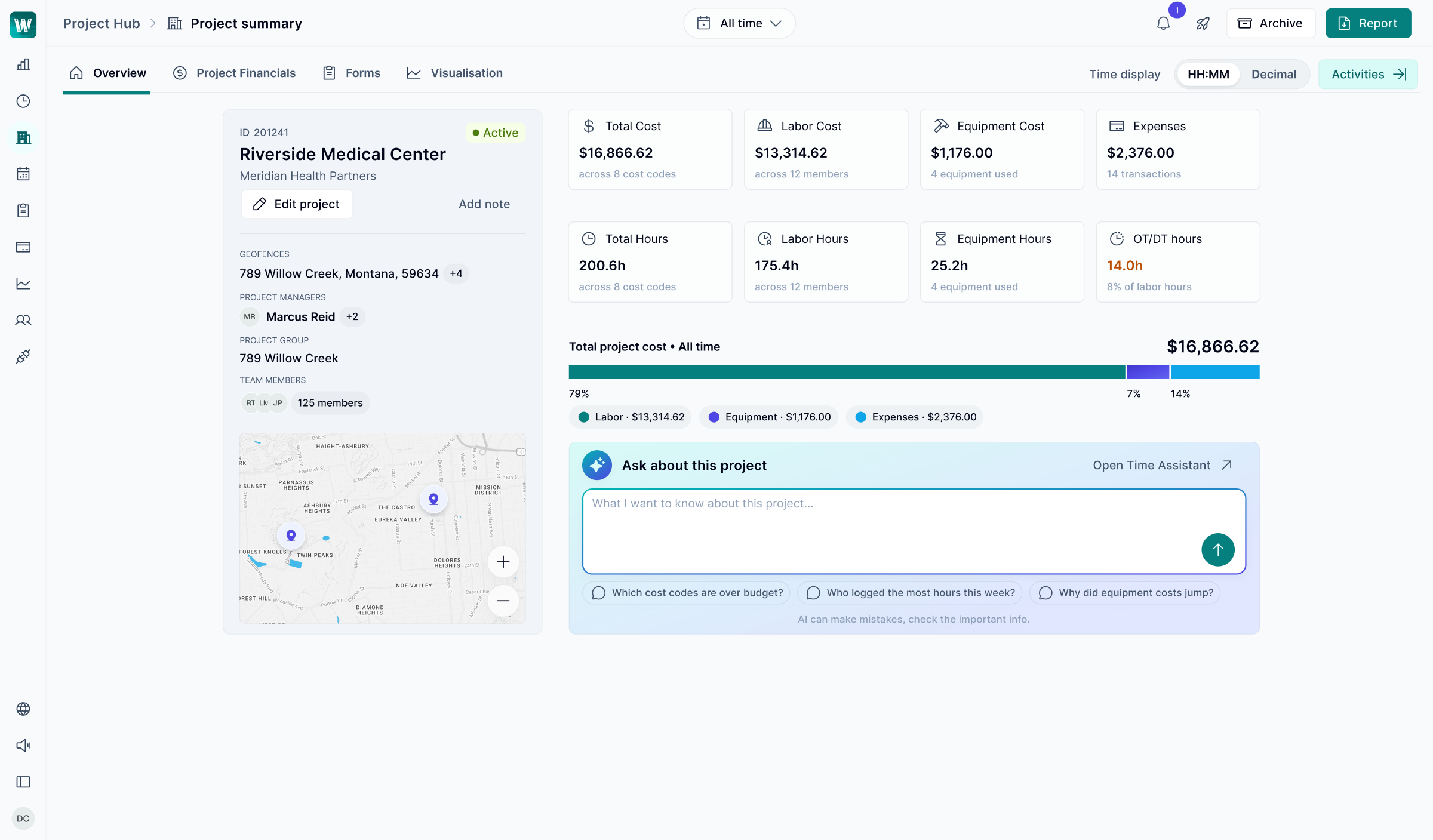





In Workyard’s customer conversations, we found contractors manually combining data from multiple reports just to calculate labor hours and costs by job. If you’re doing the same, you’re spending time rebuilding information that should already be available.
Construction reporting doesn’t have to involve so much manual work. Spreadsheets, reporting software, dashboards, and AI tools can help you automate repetitive tasks. Some generate reports on a schedule, while others work on demand.
You can automate reports for labor hours, payroll, job costs, and job progress. This means less time collecting and organizing data, and more time making decisions about your jobs.
AI is becoming another option. The 2026 AGC and Sage construction outlook survey found that 61% of respondents use AI or plan to increase their investment. That compares with 44% the previous year. Office and administrative work was the most commonly reported AI use, at 45%.
In this guide, you’ll learn how to create automated construction reports in five steps. You’ll also compare four approaches to find the right fit for your reporting needs.
Related in WorkyardBuild labor reports on demand with Workyard.The daily report goes out at clock-out on every job, built from a photo of your paper form; the foreman adds notes and approves.What counts as an automated construction report?
An automated construction report uses software to organize, calculate, or present job data with less manual work. Instead of rebuilding a spreadsheet each week, you use the same report structure with updated records. A scheduled job-cost summary pulls new figures into a set format. A connected dashboard refreshes as its source data changes. An on-demand labor report gives you results for the dates, workers, or jobs you select.
You can automate daily field reports as well, including records of job activity, weather, photos, and notes. Those reports serve a different purpose from the labor, payroll, and job-cost reports covered here. For these financial and workforce reports, accurate timecards and cost codes are essential.
A labor report shows who worked on each job and how their hours were assigned. You can also see which crews logged overtime. You can use those details to prepare payroll, review labor spending against a job, or support a billing request. Depending on the tool, you may still need to import records or approve the report before sharing it.
Keep in mind that tracked hours alone won’t tell you the full cost of a job. To calculate actual labor costs, you’ll also need pay rates and labor burden. Complete job financial reporting requires other cost records and accounting data, too.
Why contractors still rebuild reports by hand
Contractors still rebuild reports by hand because their records and required formats often differ. You may need to combine timecards with job data, then rearrange the columns for payroll, an accountant, or a GC.
In Workyard’s July 2026 analysis of 1,224 conversations involving 449 companies with at least 50 workers, 324 companies raised reporting or dashboard needs. These were Workyard-related conversations, not a representative industry survey.
Within that research, report building, exporting, and customization accounted for 410 need statements. These were statements, not 410 distinct contractors.
Repeating exports and cleanup takes office time. Changing a report’s columns or layout may also require additional spreadsheet work or vendor support, depending on the system.
One contractor on those calls described paying a previous time tracking vendor to build a single custom report. Another lost every custom report they’d built when their payroll provider pushed an update.
Different invoicing requirements can create similar administrative work. Bill Kapaldo, president of Construction Punch Services, described serving around 30 clients, each with their own invoicing requirements. This case study concerns billing preparation rather than measured report-generation time.
How to create automated construction reports in 5 steps
To create automated construction reports, start by identifying what you need to measure. Then organize your data, choose a report format, connect your records, and check the results.
You can follow these five steps whether you’re using spreadsheets, reporting software, dashboards, or AI tools. The setup may differ, but you’ll still need accurate information to produce reports you can trust.
1. List the questions each person needs answered
Start by asking what decision you need the report to support. For example, if you’re reviewing weekly labor hours, you may want to compare actual crew time with the hours allowed for each cost code.
| Who asks | Their question | The report that answers it |
|---|---|---|
| Owner or GM | Which jobs are eating labor hours? | Hours by job and cost code, weekly |
| Project manager | Is my crew on pace this week? | Hours vs. budgeted hours by cost code |
| Payroll admin | Is every timecard ready to pay? | Missing and unapproved timecards before cutoff |
| Controller | Where is overtime coming from? | Overtime by crew and job, each pay period |
| Client or GC | What are we paying for? | Hours by phase as billing backup |
If you can’t identify a clear question the report answers, you probably don’t need that report.
2. Fix the inputs at the source
For labor reports, check timecards and job assignments soon after the work happens. If you’re building financial or daily field reports, review the accounting entries or field records they depend on. If you keep fixing the same spreadsheet errors, the problem may be in your source data or how fields are mapped.
- Assign hours to the correct jobs and cost codes as work happens. Late corrections can make the allocation harder to verify.
- Distinguish approved from unapproved time. Provisional records are useful for monitoring work in progress, but payroll totals should be checked after approval.
- Map job and cost-code identifiers consistently between systems. Different names are workable when the mappings are reliable; missing or incorrect mappings can distort totals.
- Use a time-recording method that crews and supervisors can review. GPS evidence can help check location-related clock events, but it does not by itself prove every hour’s job assignment.
This step matters especially for job-cost reports. If hours are assigned to the wrong job, automating the report won’t fix the totals. Our guide to cost reporting in construction explains why accurate job assignments matter.
3. Build each report once as a template
Decide which columns, groupings, and dates your reader needs. You might use the same time records for payroll and client billing, but each report will need different details. Save the layout if your reporting tool supports it, and adjust it when a client’s requirements change.
For a weekly hours-by-job report, specify the week, worker, job, cost code, regular hours, overtime hours, and total hours. Group by job and cost code, then check that the grouped totals match the source timecards. This specification works as spreadsheet columns, a saved software report, or an AI request.
4. Connect or import the report data
Next, decide how you’ll get data into the report. A built-in report uses records already in its application. A dashboard may pull data through a connector, while a spreadsheet may refresh from a connection or import a consistent CSV file. An AI assistant can query the records it’s allowed to access. We’ll compare these methods in the next section.
To judge how much you’ve automated, look at what you still have to copy, calculate, or format each time. Even if you import a file manually, the report can calculate totals for you. A scheduled data connection can also handle the refresh.
5. Refresh on a set rhythm and spot-check
Choose how often to refresh each report based on when you need the numbers:
- Payroll reports: every pay period, before cutoff
- Job reports: weekly, while there’s still time to adjust crews
- Client backup: every billing cycle, alongside the invoice
For the first few reporting cycles, compare your totals with a trusted source, such as approved timecards or a payroll register. Check the date range, missing records, job mappings, and overtime rules. Review your setup again whenever payroll rules, cost codes, or client requirements change.
Four ways to automate the report itself
You can automate construction reports using built-in software reports, spreadsheet templates, dashboards, or AI reporting tools. The best choice depends on the information you need, how often you need it, and how much setup you’re willing to manage.
| Method | Best for | Where it falls short |
|---|---|---|
| Built-in reports in your time tracking or payroll software | Standard timecard and payroll summaries | Customization varies. Some built-in reports cannot match unusual groupings or client-specific layouts. |
| Spreadsheet templates fed by exports | Offices comfortable with formulas | A manual CSV process still needs an export; connected sheets take setup and maintenance. Changed columns can disrupt formulas or queries. |
| Dashboards and business intelligence (BI) tools | Tracking the same metrics over time | Setup often needs technical help. One-off questions need a new view. |
| AI report assistants | One-off questions and client-specific layouts | Access and scheduling vary. Review generated figures against source records. |
You don’t have to rely on just one method. For example, you might use a dashboard to monitor overtime across your jobs. Then pull a detailed report showing hours by worker, day, and cost code.
If you often need reports in different formats, an AI reporting tool may save you some setup work. But you’ll still need to check the results. AI reports depend on the data the tool can access, and incorrect records can lead to incorrect totals. For related uses of AI in construction, see our roundup of the best AI construction tools.
Reports to automate first
Start with the reports you prepare most often, especially timesheet reporting, overtime, payroll approvals, and job costs. These are good candidates because you can use the same report structure with updated data each week or pay period.
Here are some requests you can use with an AI reporting tool or adapt into spreadsheet templates and saved reports:
- “Hours by job for last week, split by cost code.”
- “Overtime hours by crew for the current pay period.”
- “Show me all workers who logged more than 50 hours last week, including which jobs they worked on.”
- “Timecards still waiting on approval this pay period, grouped by supervisor.”
- “PTO taken by each worker so far this year.”
- “Weekly hours on one job since it started, as a PDF for the GC.”
- “Labor cost by worker for the last pay period.”
If your report includes labor costs or pay rates, make sure only authorized people can access it.
When creating a report, specify the date range, how you want the data grouped, and the format you need. If you’re using an AI reporting tool, you can refine your request after reviewing the results. With spreadsheets or standard report builders, you’ll usually adjust the filters and columns instead.
How Workyard helps with construction reporting
Workyard helps you turn crew records into construction reports without rebuilding the same spreadsheet each week. Describe what you need, review the generated report, and ask for changes in the same conversation.
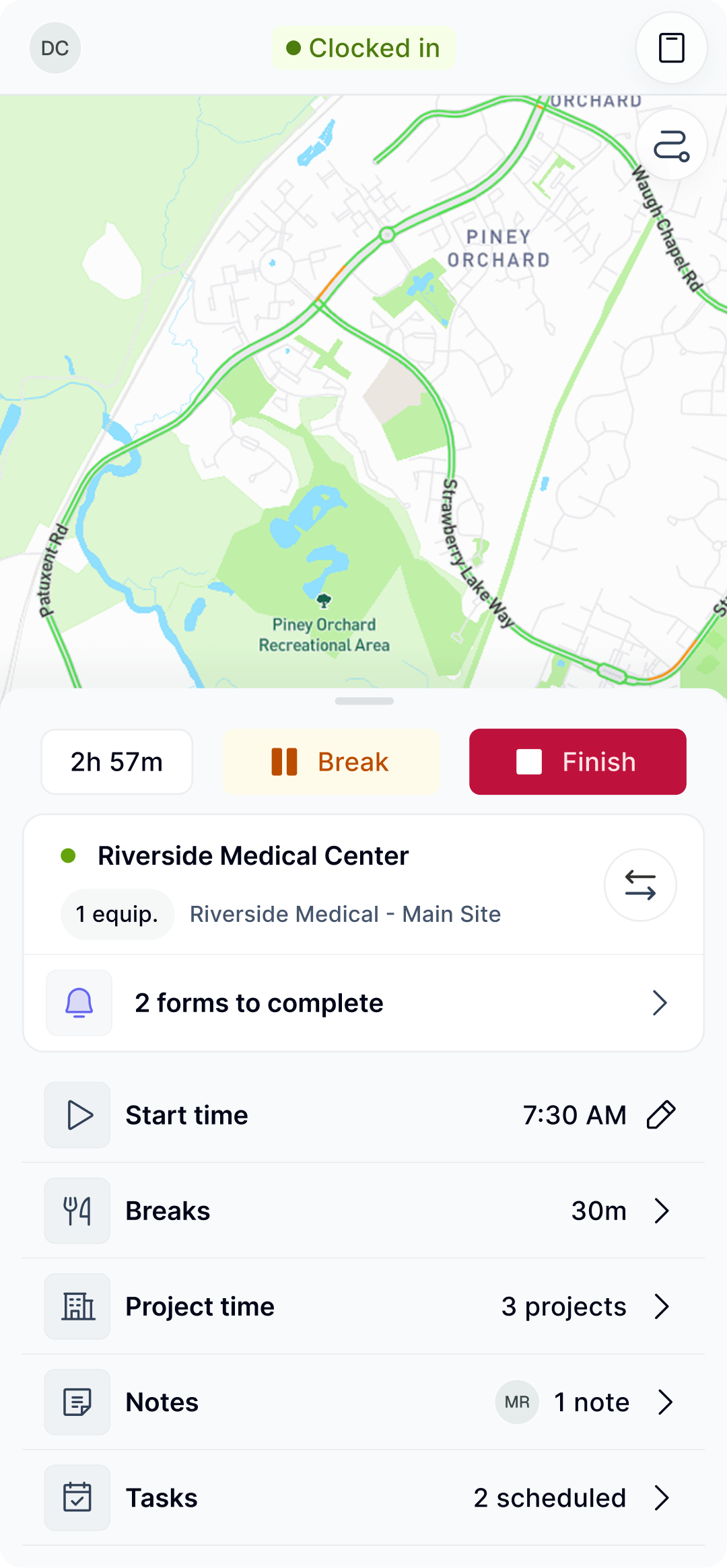
Workyard’s Construction Operations Platform collects crew time and supports timecard review and approval. Reporting Agent uses those records to build reports on demand in the web app. You initiate each request; recurring automatic delivery is not yet supported.
How to generate a report with Workyard’s Reporting Agent
If your accountant needs hours split by job and cost code, start with that requirement. You can describe the report in plain language or upload an existing layout as a template.
- Describe the report. For example, ask: “Show labor hours by job and cost code for September 1 through 30, 2026. Put regular hours and overtime in separate columns, and include totals.”
- Review the output. The report opens beside your conversation. Check the dates, columns, and calculations against approved timecards before using the figures for payroll review or billing.
- Request a change. Ask for a different grouping or fewer columns. In our test, we changed a job-level report to show hours by cost code across all jobs.
- Use it again. Return to the saved conversation under Recent conversations and request another date range. To update the current report, select Refresh data.
We tested both actions. Refresh data rebuilt the September report, and a follow-up request produced a report for October 1 through 15 with the same columns.
The report panel also includes a Download control. We previewed generated Excel files during testing. If an output fails to load, review the error and request a rebuilt file before relying on it.
Uploading a template is useful when a GC or accountant requires a particular layout. The upload provides a reference for the report; check the result against the required columns and totals.
What you can include in a Workyard report
You can report on Workyard records your role allows you to access. That supports questions beyond total hours, including where overtime occurred or which timecards still need approval.
- Hours and job allocations: Timecards, breaks, approval status, jobs, cost codes, and labor allocations.
- Crew and payroll details: Workers, crews, pay periods, time off, and authorized labor-cost data. Compensation and pay-rate information stays restricted to admins.
- Field activity: GPS activity, drive time, and site visits recorded in Workyard.
- Other operating records: Tasks, checklists, and submitted Work Forms, plus available payroll and accounting identifiers.
Choose a standard report when its filters and columns already answer your question. Use Reporting Agent when you need another grouping or a specific format.
Workyard handles crew-hour collection and timecard approvals within its time tracking workflow. Your office still reviews payroll and billing; generating a report does not approve the underlying records.
Complete job financial reporting also needs the relevant materials, equipment, subcontractor, and accounting costs. Reporting Agent can only work with supported records available in Workyard.
The value of those underlying records is already documented. Construction Punch Services recovered about one day each week from administrative work after adopting Workyard. Earned Run Property Management reported client reimbursements increasing by more than 30% year over year.
Those case-study results came from Workyard’s established workflows. They are not measured outcomes from Reporting Agent.
Build the report your office needs
Still combining exports for payroll review or client billing? Book a demo to see how Workyard captures crew hours and turns those records into reports. Bring an example of the format your office needs.