




Employee timesheets should be fairly straightforward. Employees clock in, clock out, and you pay them for the hours they work. Sounds pretty simple, right? But in practice, it’s not always that simple.
Timesheet reporting turns the hours your crews log into records you can pay, bill, and defend. It starts with accurate construction time tracking, because a report can only total the hours that went in.
Late paper time cards, missing punches, and incorrect job codes create extra work for supervisors and payroll staff before each pay period closes.
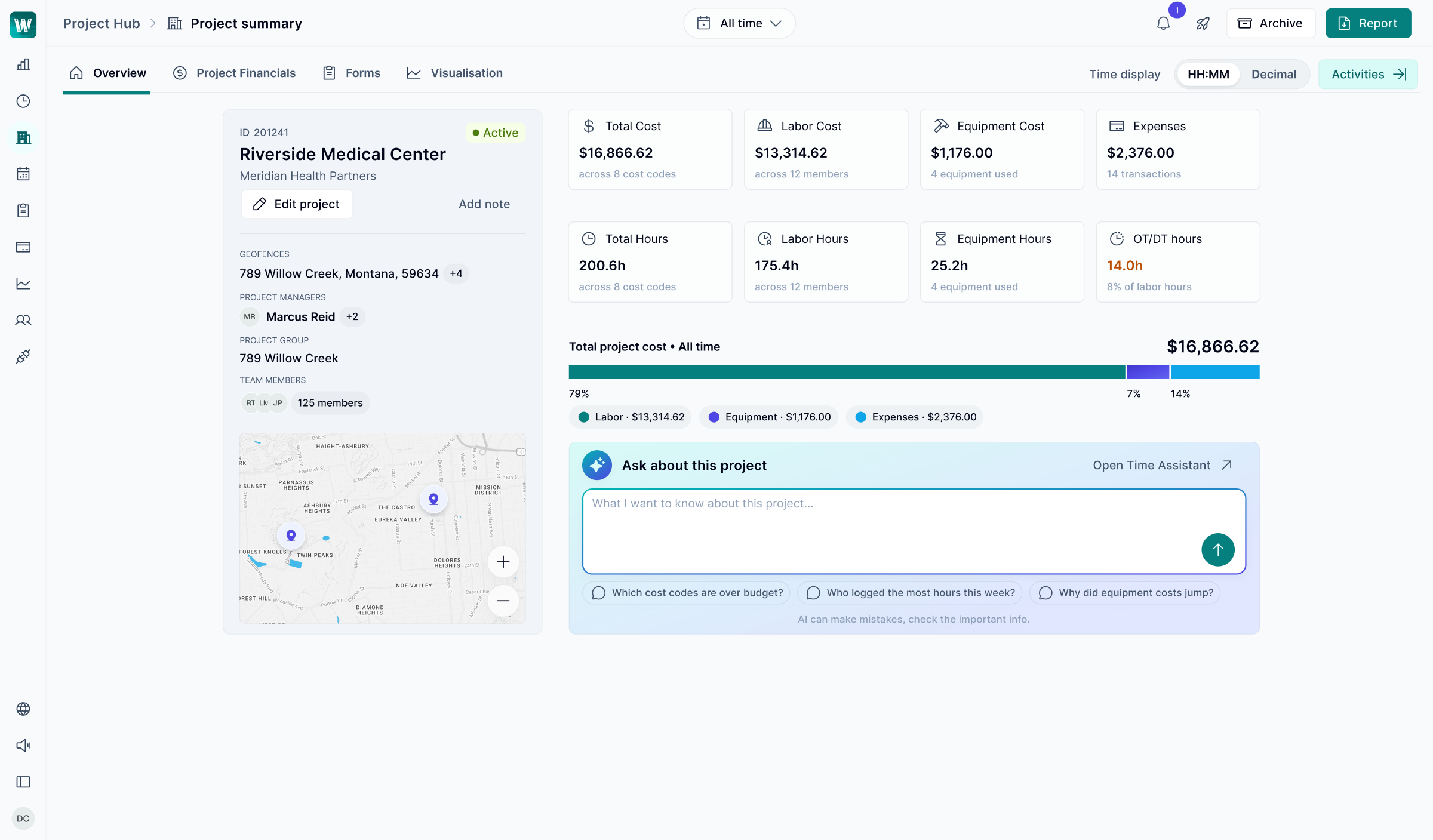
Related in WorkyardSee how Workyard turns GPS-verified crew hours into payroll-ready reports.The daily report goes out at clock-out on every job, built from a photo of your paper form; the foreman adds notes and approves.What Is Timesheet Reporting?
Timesheet reporting turns logged work hours into a summary someone can act on, such as payroll, a client invoice, or a job cost review.
A timesheet report usually breaks hours down by worker, day, and pay period, often with the time spent on specific tasks. Construction reports add the job and cost code, so the office can see where labor dollars went.
Some reports also carry the client name, billing rate, overtime hours, and notes from the field. The right fields depend on who reads the report: payroll, the owner, or a general contractor.
Why Timesheet Reporting Matters
Timesheet reporting matters because every paycheck, client invoice, and job cost number starts with logged hours. When those hours are wrong, the error spreads to everything built on them.
- Job cost visibility: Hours tied to each job and cost code show where labor is going. You see it while the work is still underway.
- Better office decisions: Construction back-office administrators use timesheet data to plan budgets and staffing across active job sites.
- Accountability: Accurate, reviewable time records can help resolve pay disputes. Supervisors can also spot a crew that keeps running long on one phase before it happens again.
- Invoicing and billing: GPS-verified time tracking gives clients a record behind every billed hour.
- Recordkeeping: Timesheet records are part of the wage records the FLSA (Fair Labor Standards Act) requires covered employers to keep (see the U.S. Department of Labor entry in References).
How to Conduct Timesheet Reporting
Timesheet reporting stays accurate when the office runs it the same way every pay period. These steps set that routine up.
- Set it up: Add your jobs, cost codes, and crew members before the first pay period. Configure job and cost-code selection or assignment rules before the first pay period so hours can be allocated correctly.
- Train the crew: Show workers how to clock in, pick a job, and log breaks. A short walkthrough can help reduce corrections later in the pay period.
- Analyze the data: Compare hours against the estimate for each job and cost code. When the same task runs over on every job, the estimate usually needs fixing. Check out our construction cost reporting guide.
- Bill from it: Build client invoices from approved hours, so every billed hour traces back to a time card.
- Coach with it: Use hours by task to recognize strong crews and find where a foreman needs support.
How to generate accurate timesheet reports for payroll
To generate accurate timesheet reports for payroll, capture hours worked and review missing punches and job codes. Get supervisor approval, then build the report for the pay period with worker, job, and overtime hours. Check the totals before you hand it off.
Six steps to a payroll-ready report
- Capture hours at the source. Have crews clock in from their phones on the job site. A GPS time clock records where each punch happened, so nobody rebuilds Tuesday from memory on Friday.
- Fix missing punches and wrong job codes. Look for open shifts, missing breaks, and hours coded to the wrong job. Correct them while the foreman still remembers the week.
- Check overtime and breaks. Confirm daily overtime, weekly overtime, and meal breaks follow your state’s rules. California overtime law, for example, counts daily hours as well as weekly totals (see the California Department of Industrial Relations entry in References).
- Approve the time. Have the supervisor who saw the work sign off, following a set time card approval process. In Workyard, the Time Cards page puts the whole crew’s hours on one screen, with bulk edits and bulk approval for the period.
- Build the report for the pay period. Pick the date range and the fields payroll needs, such as worker, job, cost code, regular hours, and overtime hours.
- Check totals, then hand off. Compare total hours to the last pay period and the schedule. If totals jump without a schedule change, look for a missed clock-out first.
What a clean payroll report still needs
A timesheet report gives payroll a set of hours to review and process. Your payroll system still applies pay rates, tax withholding, and deductions to the hours you send.
Getting the hours right first pays off. After moving to Workyard, the Director at Allied Restoration reported no payroll issues in three months. The company previously spent at least $1,000 a month dealing with avoidable payroll administration problems, according to its published case study.
Custom timesheet reports in your payroll’s format
Workyard’s Reporting Agent can reduce the repeated work of rebuilding reports each pay period. It produces custom timesheet reports in the layout your payroll team or accountant already uses. Upload the report you send today, or describe it in plain English, and Reporting Agent fills it with live Workyard data.
Most offices know the routine. Export a CSV, open Excel, delete columns, and rename headers. Then do it again next pay period, because the payroll provider wants a specific layout.
A CTO at a contractor with more than 50 workers described exactly that. Each week, the team exported the time file and ran it through homemade scripts to match the payroll provider’s format.
A mid-market mechanical and plumbing contractor had it worse. It paid for a custom report in its previous time tracking app and reported that the vendor couldn’t fix it when the report broke.
How Reporting Agent builds the report
Reporting Agent turns an uploaded report or a one-line description into a finished file in four steps:
- Upload the CSV or Excel report template you already send, or describe it: “Hours by worker and cost code for the Main St job, last pay period.”
- Ask for changes, such as adding an overtime column.
- Review the preview Reporting Agent shows you, and check that the report contains the correct workers, jobs, and date range.
- Download the completed report. Check it against your approved time cards and required columns before it goes to payroll.
Reporting Agent pulls from time cards, jobs, cost codes, crews, pay rates, overtime rules, tasks, forms, paid time off (PTO), and pay periods. Reporting Agent can reference payroll and accounting IDs from connected integrations. Check the exported columns and the receiving system’s required mappings before payroll.
Each conversation is saved. When the next pay period closes, open it and rerun the report with fresh data for any job, crew, or date range.
Here’s a typical payroll layout built this way. Your columns come from your own report, so yours may differ.
Example payroll report layout
| Worker | Job | Cost code | Regular hours | Overtime hours | Pay period |
|---|---|---|---|---|---|
| [Worker name] | [Job number and name] | [Cost code] | [Hours] | [Hours] | [Start date to end date] |
This diagram illustrates four stages of preparing timesheets for payroll, common manual problems, and the Workyard tools used in each stage. Reporting and payroll export are separate steps.
Source: Falcon Drilling & Blasting case study and Workyard Help Center reporting and export guides.
Who can use Reporting Agent, and what it won’t do
Reporting Agent comes with every package, in the Workyard web app under Reports. It isn’t available in the mobile app yet.
Permissions carry over. Each manager sees only what their Workyard permissions already allow. Pay-rate data stays limited to admins.
Reporting Agent builds the report but doesn’t replace time-card approval. Review and approve hours before sending a report to payroll. For a step-by-step walkthrough, see how to create automated construction reports. See Workyard’s construction reporting features for the full set of reports.
The right tool depends on where your crews work. A shop crew working out of one yard needs something different from crews spread across five job sites.
GPS timesheet apps
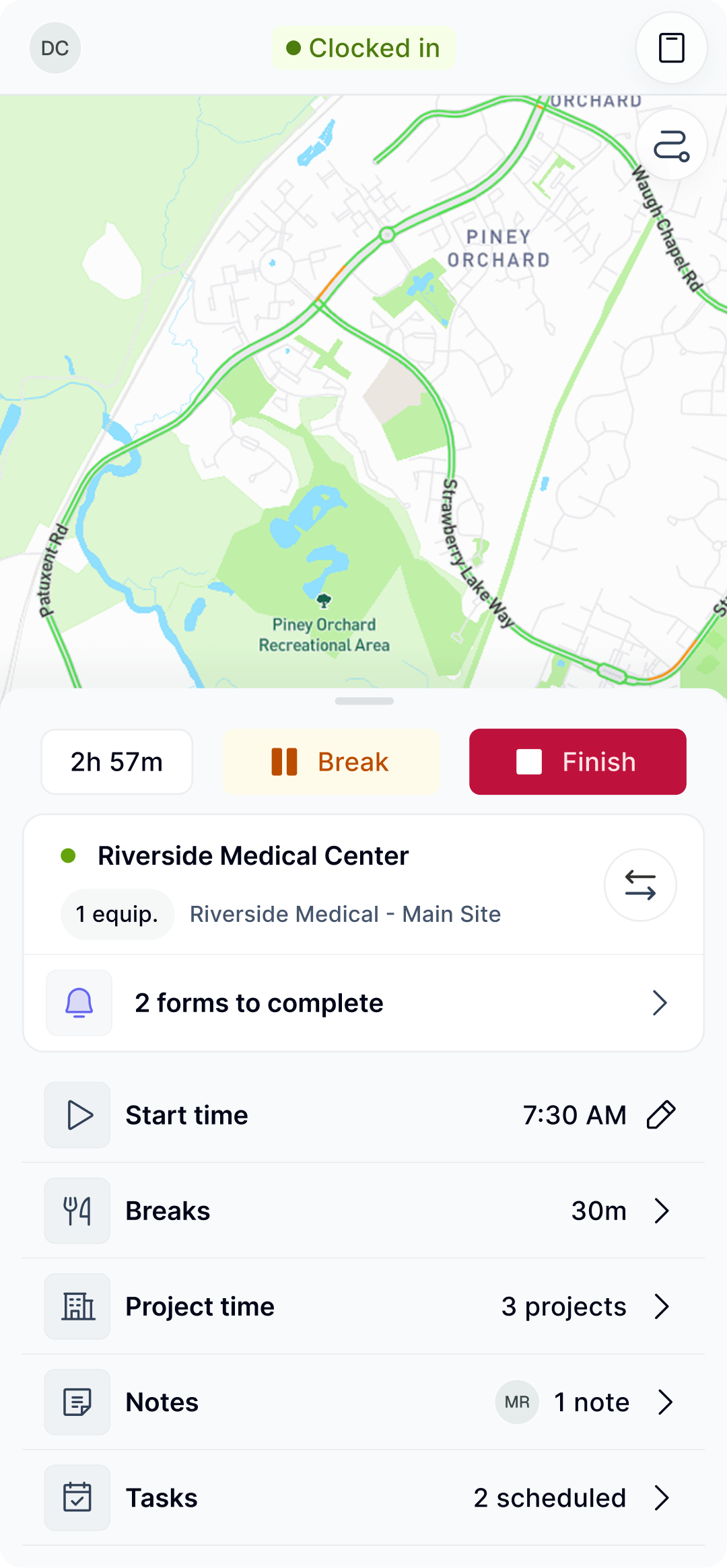
A GPS time clock app lets crews clock in from their phones and records the location of each punch. Each GPS punch carries a location, so a disputed hour comes with location evidence attached.
GPS apps like Workyard also create time cards from those punches automatically. The office reviews hours instead of typing them in, which removes the retyping step where payroll errors creep in.
Traditional time tracking software
Traditional time tracking software runs in a browser or on a desktop. Workers enter start and stop times or run a timer, and the software totals the hours for payroll and billing.
Tools like Clockify fall into this category. A detailed Clockify review can help you decide whether its features fit your team before you commit.
This approach works well for office teams. Without GPS, though, the office can’t confirm where field hours were worked. For construction project tracking across several job sites, a GPS time clock is the better fit.
Manual clock-in and clock-out systems
Wall-mounted time clocks suit shops and yards where every worker starts at the same door. Biometric fingerprint models are designed to stop one worker from punching in for another. No wall clock follows crews to the job site, though.
Digital timesheet reports
Digital timesheets produce reports from time data captured electronically, so the reports are ready when the pay period closes. Totals, overtime, and hours by job come straight from the punches.
Most tools let you filter by worker, job, cost code, or date range. A time tracking report from a digital system can also show labor cost by job. Paper can’t do that without a calculator and an afternoon.
For a deeper look at how these reports fit together, see this guide to building a time reporting system.
Paper-based timesheet reports
Paper timesheets are cheap and need no setup. Workers write their start time, end time, and breaks on a sheet or card. The office collects them at the end of the week.
The weak point is memory. Paper depends on workers remembering to log hours. The office then reads handwriting, chases missing sheets, and types every number into payroll.
Is there an easier way to track job hours than paper timesheets?
Yes. A mobile time clock replaces the sheet. Crews clock in on their phones at the job site, and hours reach the office the same day, already tied to the job.
Supervisors then review and approve time during the week. Corrections still happen, but supervisors make them on a screen before payday.
Before switching, the Office Manager at Falcon Drilling & Blasting dealt with crews across the Midwest sending timecards by email, text, and paper drop-off. The office lost hours every week chasing missing forms and fixing payroll errors.
Features to look for in timesheet reporting software
Reliable timesheet reporting software needs these features. To compare specific tools, see this guide to the best construction reporting software.
- Time tracking: Mobile clock-in and clock-out, break tracking, and manual entry that a supervisor has to approve.
- Custom reports: Reports built with the fields and layout your payroll team or accountant needs, beyond a fixed list of presets.
- Integrations: A connection to the payroll and accounting software you already use, so nobody types the same hours twice.
- Reporting and analytics: A time tracking report with hours and labor cost by job, cost code, and crew.
- Mobile access: A phone app crews can use from the job site or the truck.
- Automatic reminders: Prompts to clock in, clock out, and take breaks, so fewer entries go missing.
- Real-time GPS tracking: Live location data confirms where field hours were worked. It can also capture drive time and mileage. Put a written location-tracking policy in place first, and check your state’s notice rules.
- Overtime, break, and wage calculations: Rules that calculate overtime and flag missed breaks before hours reach payroll.
Try Workyard for accurate timesheet reporting
Workyard is the construction operations platform for specialty contractors and self-performing general contractors determined to grow without sacrificing job control or margins. Its timesheet reporting covers the full path from clock-in to payroll file.
If you’re comparing options, our roundup of Clockify alternatives for construction shows how field-focused apps differ from a general-purpose time tracker on GPS, payroll export, and construction workflows.
- QuickBooks export: Workyard exports labor hours to QuickBooks Online and Desktop. Map jobs to customers and cost codes to service items to include those details in QuickBooks timesheets.
- Overtime and break rules: Workyard applies your overtime and meal break rules before hours leave Workyard. Check the destination’s mappings to confirm how regular and overtime hours are transferred.
- Better estimates: Hours tracked against each job and construction task show where bids ran long, so the next estimate protects your margin.