
$123Ksaved with Workyard’s Smart Forms
"Smart Forms pays for itself through accurate invoicing, insurance savings, and keeping our business moving every single day."
Construction photo documentation app
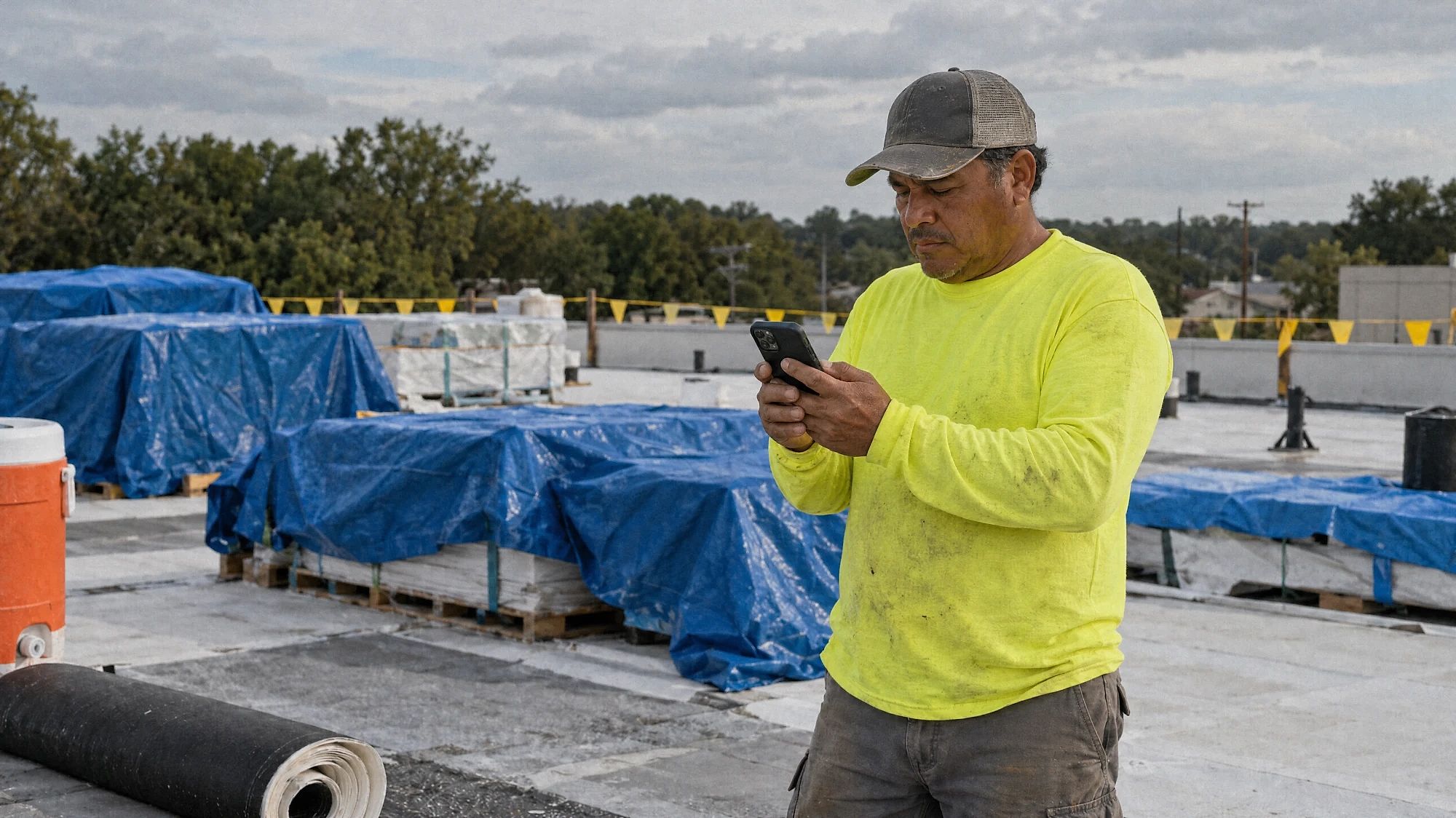
A construction photo documentation app turns the photos your crew takes into a record of the job. Workyard stamps each photo with the GPS location and time it was taken, and files it to the job whose geofence it was taken in, so nobody picks a job or sorts photos later.
$123Ksaved with Workyard’s Smart Forms
"Smart Forms pays for itself through accurate invoicing, insurance savings, and keeping our business moving every single day."

"I would probably ballpark it to be roughly about $5,000 and that's just something that we saw fairly immediate, where we were able to save roughly about five visits per job"
Victor Rodriguez, HR Field ManagerSynaptic Solar

"We wanted more than a time tracking app since many exist. We sought something that helps beyond just tracking time."
Brian Mata, Project ManagerWagler Custom Homes

100s of hrssaved a week routing supervisors by proximity
"It's preventing us from losing more on each project — saving us money."

"Of all the solutions we’ve been exposed to, Workyard is the best. It’s a good value for the money, and the team is always willing to work with you to meet your needs."
James Monzello, CFOGreen Wall Tech

2 weeksto roll out to all 120 crew
"You should ditch the paper, get rid of the other software, get on something that can track your crew's time, track your job costing, and save you real money."

15–20admin hours back every month
"If you have field crews, Workyard is one of those tools that pays for itself. It saves us hours every payroll, keeps everyone accountable, and gives us real-time visibility into every job."

How it works
A job photo is only a record if it shows where and when, and ends up with the right job. Workyard reads where each photo was taken, stamps the time and place, and matches it to the job’s geofence, so the record builds itself while the crew works.
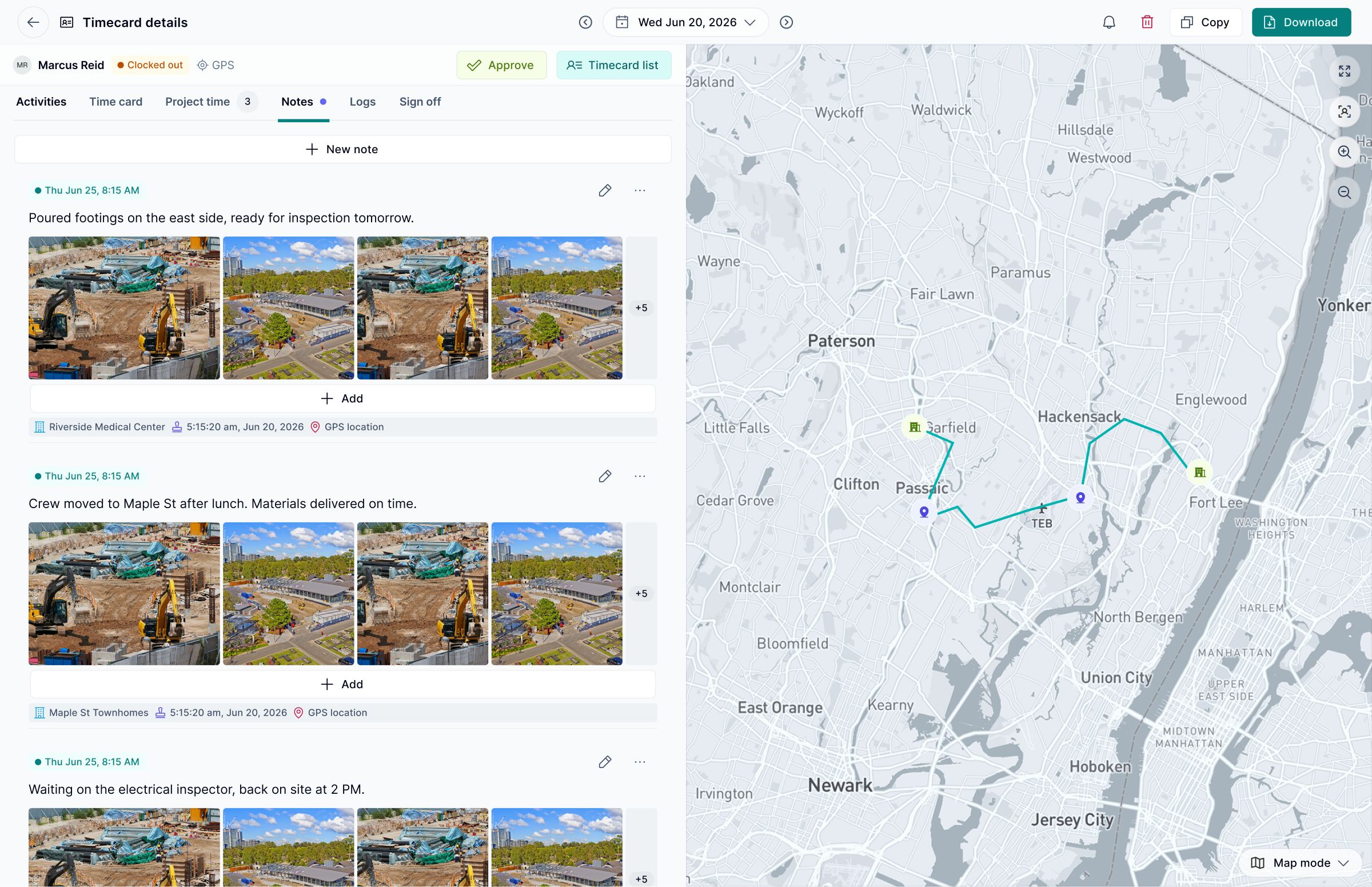
Turn on the location and time stamps for a photo question, and each photo records the GPS position and the time it was taken. Set the form to open on arrival, and the job is filled in from the geofence the crew just walked into. On the PDF you send the GC or an adjuster, every photo carries its time and address.

Put a photo question on the form your crew fills in at clock-out and mark it required. It’s waiting on their phone as they finish, and the app holds the clock-out until it’s done, so the day’s progress photos come in with the day.
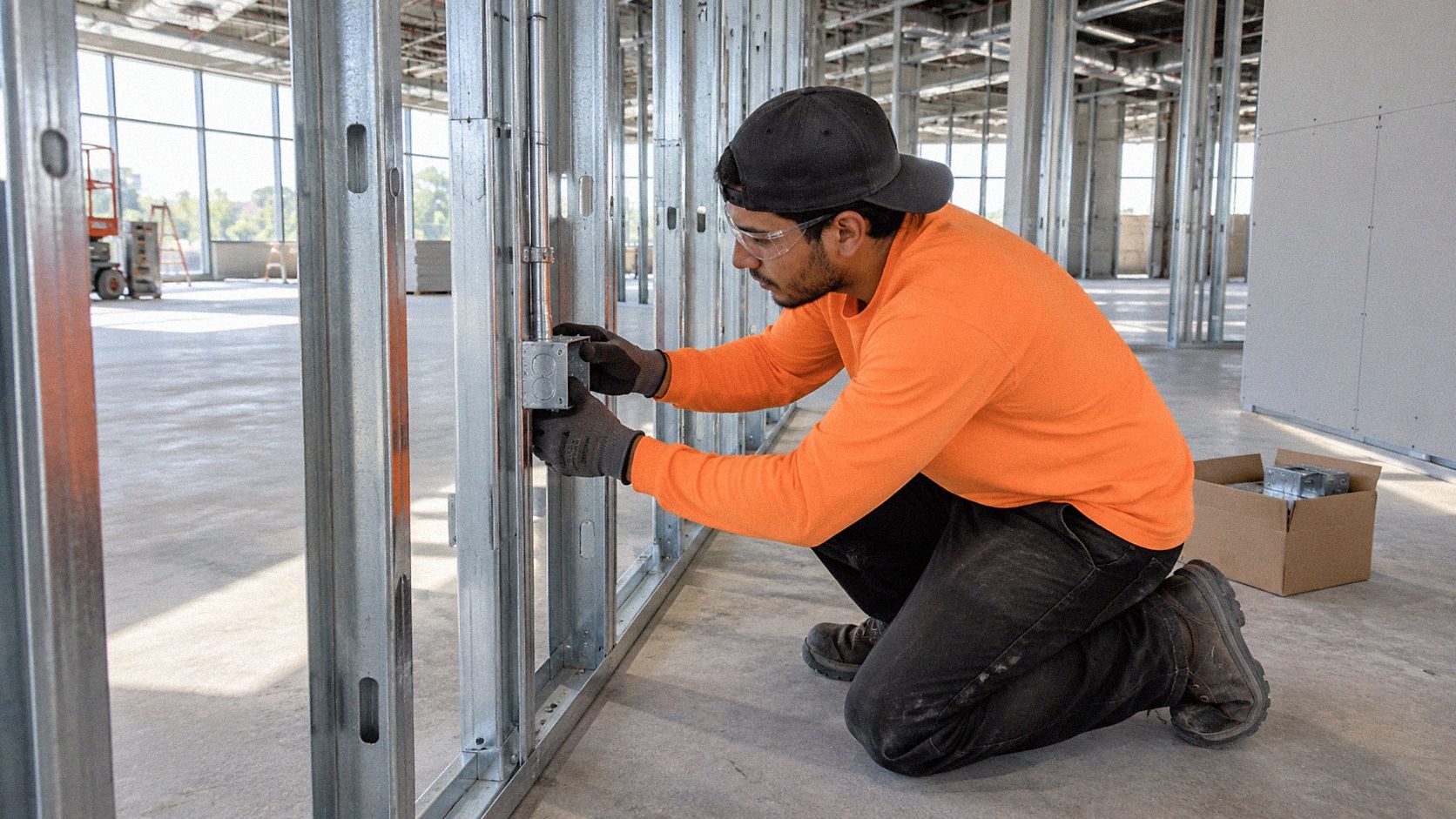
Attach a photo form to a scheduled task, like the rough-in walk before drywall. The crew opens it from the task, and if it’s due that day it’s on their list before they clock out. Notes on the task take photos and files too, and each new note reaches everyone on it by email and push.
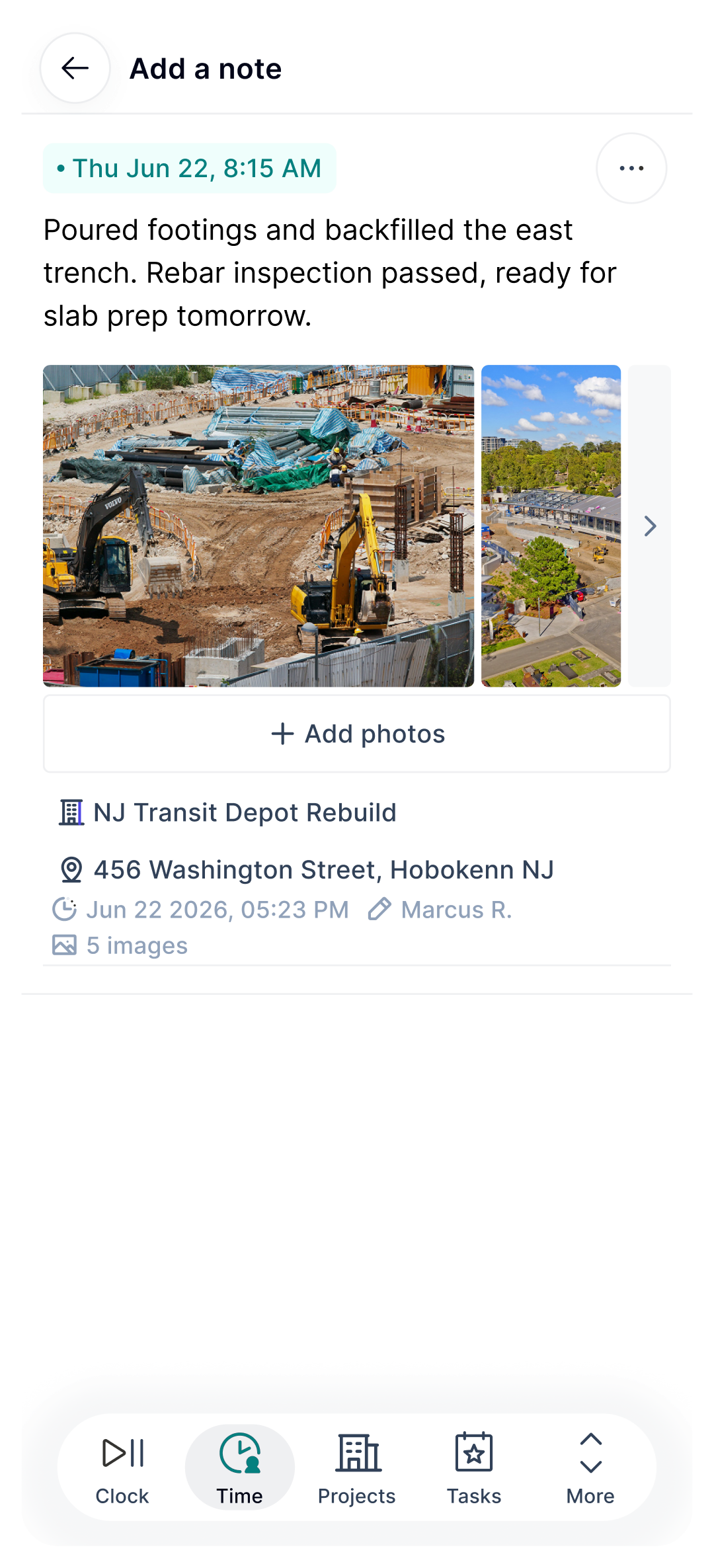
Every form files to its job, photos and all. Notes with photos find their job the same way: the app reads where the photo was taken and fills in the job whose geofence it’s inside. Open the job’s Forms tab and filter by date range or worker, or its activity feed for notes.

The payoff
Where and when
on every photo you stamp
The GPS location and time it was taken, printed under the photo on the PDF.
No sorting
photos land on the job
On-arrival forms and notes take the job from the geofence the photo was taken in.
Every day
photos in before clock-out
Make the photo form due at clock-out, and the day can’t close until it’s done.

"Smart Forms pays for itself through accurate invoicing, insurance savings, and keeping our business moving every single day."
$123Ksaved with Workyard’s Smart Forms
Read the story
"Moving our repair requests to digital forms with Workyard made a huge difference. Before, issues would get lost in the shuffle, and it could take too long to get equipment fixed. Now, as soon as a problem is reported, we get notified immediately, and our mechanics can take care of it right away."

"Of all the solutions we’ve been exposed to, Workyard is the best. It’s a good value for the money, and the team is always willing to work with you to meet your needs."
Features
What the crew taps on site, and what the office gets back.
On any form. A required one has to be filled before it submits.
GPS and time stamps
Each photo records where and when it was taken, once you turn it on.
Filed by geofence
On-arrival forms and notes take the job from where the photo was taken.
Required at clock-out
The day’s photo form, done before the day can close.
Due on arrival
Opens when the crew reaches the job, with a reminder if it’s not done.
A photo form on a scheduled task, on the list the day it’s due.
Notes with photos
On time cards and tasks, from the camera or the phone’s photos.
Works offline
Clock-in and clock-out forms send, photos and all, when there’s signal.
Filed to the job
Each job’s forms on its Forms tab, photos and all.
Photo report PDF
Your logo, each photo with its stamp, at the size you pick.
Every photo at once
Download all of a submission’s photos in one go.
Sent to the right person
Each submission to the people you name, by email and push.
Site photos beside the crew’s hours, done at clock-out.
A photo on each check that needs proof.
Looking for something specific?
If your crews photograph it, ask us how it would work.
Connect 21 payroll, accounting and project systems. Your jobs and employees sync automatically.









Fair questions, straight answers
An app that turns the photos crews take on site into a record of the job: each one stamped with where and when it was taken and filed to the job it shows, so you can find it when a GC, an owner, an insurer or a dispute asks. In Workyard it runs in the app your crew already clocks in on:
Yes, once you turn it on for the photo question: tick Record location stamp and Record date & time stamp in the form builder. Each photo then records the GPS position where it was taken and the time, with the time zone. In the app the place reads as the job when the photo was taken inside its geofence, otherwise as the street address; the PDF prints the address. If a phone couldn’t get a location, with location services off, say, the report lists it. An admin can fix a wrong answer, with every change logged; photos and signatures stay as submitted.
By where they were taken, in two cases. A form that opens on arrival at a job, for crew on the clock, gets a “Which project were you on?” question filled in from the geofence they walked into; if two jobs share it, the one they’re clocked into is picked, and they can change it. A note with photos fills in its job from the photos’ GPS: inside one job’s geofence it’s set, inside two the app asks them to pick, outside any it fills in the nearest address.
Forms at clock-in, clock-out or on a task take the job the crew picks from your list, one tap.
Ask at a moment they can’t miss, and make it required. A required photo question won’t let the form submit without one. Make the form due at clock-out and the app holds the clock-out until it’s done. For photos as the crew gets to the job, have it open on arrival, with a reminder 15, 30, 45 or 60 minutes later. Ask only for the photos you’ll use: two questions get done, twelve don’t.
Mostly, in two places. Every form filled in on a job, photos and all, is on the job’s Forms tab: filter a form’s submissions by date range or worker and open the one you need. Notes with photos, from time cards and tasks, show in the job’s activity feed in the web app, filtered by date, person or kind of note, each photo opening full size. What Workyard doesn’t have is one gallery of every photo on the job across forms and notes.
No. Workyard keeps each photo as it was taken, with its stamp, but has no tools to draw, add arrows or write on it, and photos aren’t pinned to drawings. Put the explanation in a text question or the note beside the photo. If markup is central to how you work, a dedicated photo app does it better.
Download the PDF and send it. Any submission comes out as a clean report with your logo, each photo at the size you pick with its stamp under it, and fields you mark internal left off. Need the files themselves? Download all of a submission’s attachments in one go. Workyard doesn’t email clients or make share links, so you send it the way you do today.
Yes. A photo question goes on any form, and each photo stays with the answers around it:
A crew member can also add a note with photos to their own time card. Every photo arrives on a form or a note, so none land loose.
Depends what the photos are for. If they’re the record of the work, Workyard keeps them with the job, the time cards and the forms your crews already fill in: one app to open, one login. If you want a photo-first tool, with every photo in one gallery, markup, before-and-after layouts and share links for homeowners, keep a dedicated photo app beside it.
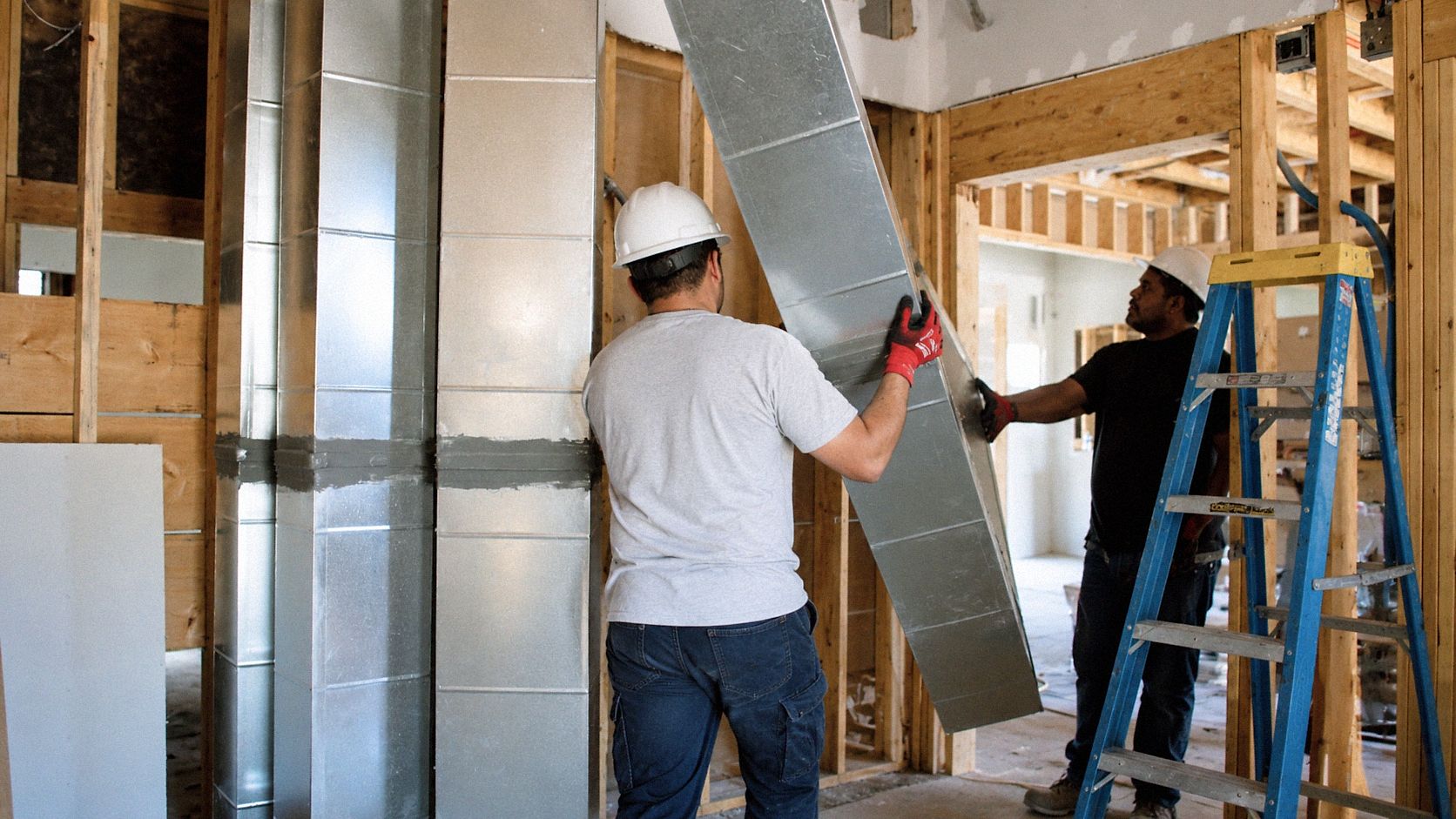
Whatever you’d need to show later. A sound routine:
Turn each into a form question and the crew gets a checklist, not a reminder. Our pre-drywall inspection checklist and daily construction report are free to start from.
Yes, as two photo questions: one on a form that opens when the crew arrives, one on the form due at clock-out. Or put both on a task’s form. Each photo is stamped and filed to the job. Workyard doesn’t lay them side by side as a pair; the PDF shows them in the order the form asks.
Yes. A form can open at clock-in or clock-out with photo questions on it, and a crew member can add a note with photos to their time card. A clock-in photo is something else: a photo of the worker’s face, to show who clocked in, not the work.
Yes, for forms that open at clock-in or clock-out: the crew fills them in, photos and all, and they send once the phone finds coverage. That’s when the photos upload. Drafts save offline too.
In your Workyard account, with the form or note they came in on, filed to the job. Download them any time: a submission as a PDF, or all of its photos at once. There’s no charge per photo.
Caption, yes: a note’s text goes with its photos, and a form can put a text question beside any photo. Tags and search, no: photos aren’t tagged or searched on their own. Find them by job, date and person instead, on the job’s Forms tab or in its activity feed.
Yes, if they’re on the task. Notes on a task, photos and files included, are there for everyone assigned to it, and each new note goes to them by email and push. Form submissions are different: crew members see their own, while foremen with a manager role and the office see everyone’s.
Not today. Forms and notes take photos and documents, not video.
Plenty of apps take photos for free, your phone’s camera included; the record is what you pay for. In Workyard, photo forms run on Forms & workflows, part of the Max plan with Daily reporting, Safety and Scheduling, and in Enterprise. Forms are priced by volume, so bring a rough count of photo forms a week to the demo and we’ll price it for that. Compare plans.



Live in days, not months, and a real person on the phone the whole way.